How To Use Your TV For Video Calls
Why you don’t need to buy an extra webcam

Jun 9, 2026 | Share 


How-To
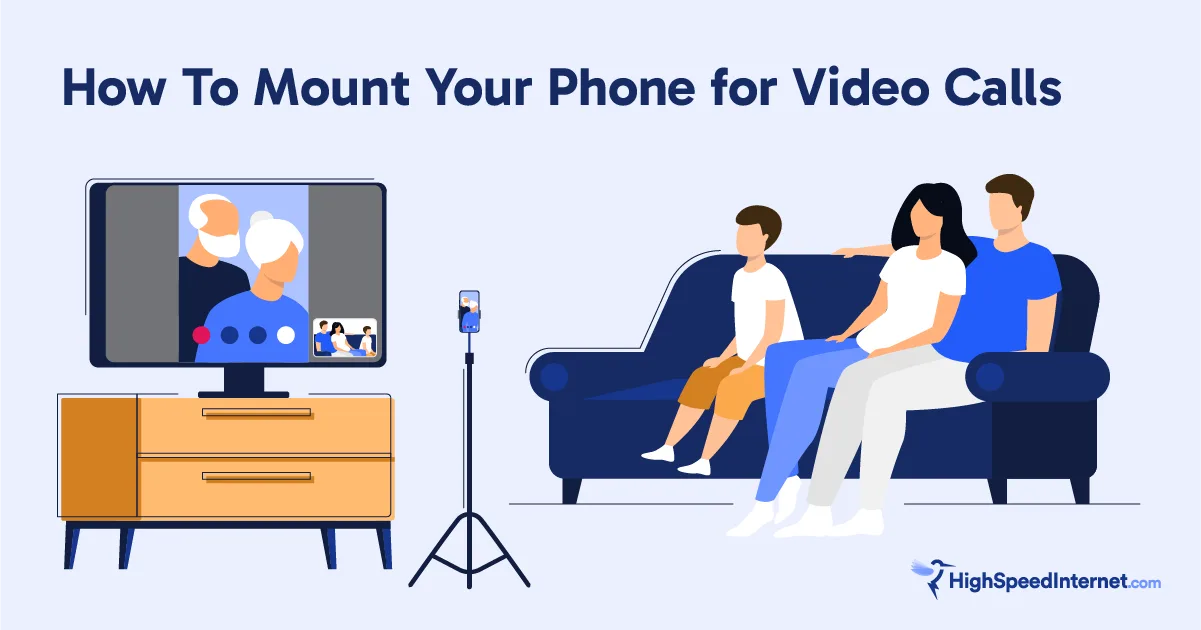
You can use your TV for video calls, but plan to get set up before you have the other person on the line.
The best way to see your caller on a TV is to use Apple’s FaceTime app on your iPhone or iPad with an Apple TV 4K streaming device. The most difficult part is finding a place to mount your phone or tablet during the call to make sure the person on the other end can see you.
If you aren’t part of the Apple ecosystem, you can still use your smartphone and a streaming box to make video calls that show up on your big screen. Just use the screen mirroring, Smart View, or screencast functionality built into your phone’s operating system.
Read on for step-by-step instructions for using your smartphone as a TV webcam, whether you’re an Android user or an Apple user. Then, read my tips for buying a phone mount or stand to make every call easy as pie.

Start with great internet
You need a fast home internet connection to keep your video calls smooth and clear. Enter your zip to see what’s available in your area.
Best setups for video calling on your TV
I spent hours analyzing all the extra cameras and set-top boxes you can buy to make video calls on your TV and came away with one strong recommendation: Don’t buy any of it.
Instead, use your smartphone and a streaming device you probably already have. These are the two best setups:
- Apple TV 4K + FaceTime app + iPhone or iPad: We already recommend FaceTime as the best app for everyday video calling, and you can use it with your TV in a few simple steps. The only extra equipment you need is a stand or mount for your iPhone or iPad.
- Google Home TV + Any Android smartphone: Use your phone’s settings to mirror your screen on your TV, then keep using your phone as a camera. You’ll need a way to mount your phone, but you don’t need special apps or a webcam.
How to use your Apple TV 4K for video calls
When the other person answers, you’ll see them on your TV, and they will see you through your phone’s rear camera. You’ll get a small view window on your screen so you know what they’re seeing.
If you keep your Apple TV on, you can use your remote to answer when someone calls you on FaceTime. Since your smartphone will still be the camera, you may have to place it back on the mount or stand so they can see you clearly.

Pro tip: Everyone needs Apple IDs
FaceTime requires Apple devices, and you need to sign in with your Apple ID on each device to place or receive calls. It’s best if the people you’re calling also have Apple devices.
How to use your Google TV or Chromecast for video calls
Casting your screen can be tricky to set up, so try it a few times before you get on a call. You’ll get the hang of it.
Once you’re comfortable with outbound calls, you can follow the same sequence to cast your screen when someone calls you.
How to choose a phone mount or stand
Both the setups I recommend allow you to use your smartphone or tablet rather than buying a webcam for your TV, but that means you need a way to mount your phone so its camera can see you (even though you’ll be looking at the TV).
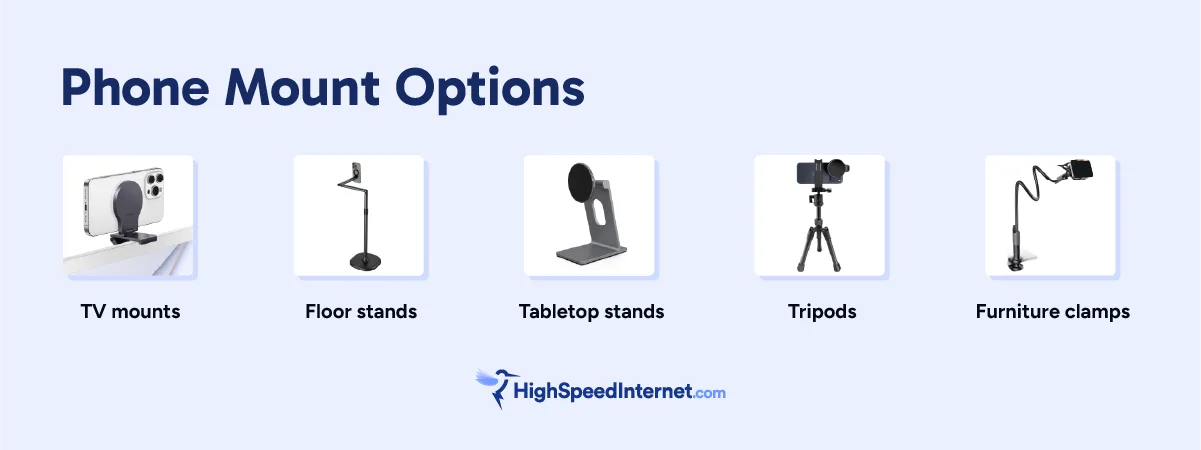
When you’re shopping, look for a solution that you can leave in one place, so you know exactly where to put your phone during calls. Here’s what to look for:
- TV mounts: Look for one with an adjustable neck so you can fine-tune the angle without repositioning the whole mount.
- Floor stands: Choose one with a weighted base so you don’t accidentally topple everything during a call.
- Tabletop stands: Get a stand that’s tall enough, considering you’ll be looking at your TV. If you can’t find one easily, a stack of books under the stand may do the trick.
- Tripods: Don’t go for the cheapest model, and read reviews. You’ll need one with a good phone clip and a secure locking mechanism that won’t wear out after a few calls.
- Furniture clamps: Measure the width of your shelf or armrest before you buy—most clamps have a maximum grip range that isn’t obvious from the product photo.
What happened to TV webcams?
A few years ago, a handful of big tech companies came out with systems for TV video calling that included made-for-TV webcams. The products didn’t sell well, though, and the companies have stopped making them.
You can still buy systems like Sony’s Bravia Cam or Samsung’s ConnecTime, but they can cost thousands of dollars and may stop getting software and security updates in a few years.
The same is true of Facebook’s Meta Portal TV and Google’s Meet Calling system. Both offered apps and devices designed for TV videoconferencing, but Facebook has abandoned its project, and Google Meet will end support for TVs soon.
Webcams intended for home computers won’t work well on TVs either. Whether you’re using a streaming box or your smart TV’s operating system, you probably won’t be able to install the software your webcam needs to work properly.
My take: Keep it simple and buy a stand
I tested TV video calling for this article, and it was great. One person I called lives a few states away and can’t see well on her phone’s tiny screen, but loved seeing me on her big, bright TV. Lucky for me, she and I are both in the Apple ecosystem.
We both also had phone mounts, so we had no trouble setting up our phones as cameras. Easy peasy.
I also tested on an Android phone with my Google TV. It wasn’t as seamless, but it still put the other caller on my TV in just a few taps.
All that said, I will probably continue making video calls on my iPad or MacBook. There are a lot of great video calling apps to choose from, and they work even if the other person isn’t an Apple user.
If this is all new to you, check out my guide to getting started with family video calls and read up on the best apps for private video calls.
Great video calls require great home internet.
Enter your zip to shop plans and providers in your area.
Author - Chili Palmer
Chili Palmer covers home tech services, with a special focus on understanding what families need and how they can stay connected on a budget. She handles internet access and affordability, breaking news, mobile services, and consumer trends. Chili’s work as a writer, reporter, and editor has appeared in publications including Telecompetitor, Utah Business, Idaho Business Review, Benton Institute for Broadband & Society, and Switchful.com.
Editor - Jessica Brooksby
Jessica loves bringing her passion for the written word and her love of tech into one space at HighSpeedInternet.com. She works with the team’s writers to revise strong, user-focused content so every reader can find the tech that works for them. Jessica has a bachelor’s degree in English from Utah Valley University and seven years of creative and editorial experience. Outside of work, she spends her time gaming, reading, painting, and buying an excessive amount of Legend of Zelda merchandise.
Related Posts