How To Get Started With Family Video Calls
Get set up for success in six easy steps

Mar 9, 2026 | Share 


How-To, Streaming Guides
If video calls feel intimidating or difficult, you’re not alone. I talked to a lot of older folks who feel that way. But you’ll be surprised how easy it can be when you get started.
Follow the steps in this quick setup guide to get calling with confidence.
Step #1: Get a fast internet connection
The most important thing you need for a successful video call is a good internet connection. Shop for a plan with at least 100Mbps of download speed and 25Mbps of upload speed so you have enough juice for all the devices on your home network.
Almost any fiber or cable internet plan will be good enough—go with the cheapest option available in your area. If you can get only DSL, though, consider 5G home internet or satellite from a low-Earth orbit provider like Starlink.

Shopping for fast home internet?
Enter your zip for a list of providers in your neighborhood.
Step #2: Choose the right device
All the grandparents I talked to for this article use their smartphones for video calls, and it makes sense! Your phone already has your family contacts set up, and probably has a decent front-facing camera. Both Android and Apple phones work, and you don’t need the latest model.
Just make sure your device is connected to Wi-Fi, for two reasons: First, your home internet connection is probably faster and more stable than a mobile connection. Second, most home internet connections have unlimited data these days, but your mobile data can slow to a crawl if you use too much in a month. Why risk it?

Pro tip: Choose a bigger screen
If you don’t like peering at your sister or grandchild on your smartphone’s small screen, don’t hesitate to upgrade to a tablet or a computer. Setup might take a little more work initially, but then you’ll have access to a bigger picture along with bigger buttons and better audio.
In most cases, you can use the same apps on your tablet or PC that you would have used on your phone.
Step #3: Find a stand or tripod
Next, you need a stand or tripod for your device. That way, you don’t have to worry about shaky hands or your arm getting sore during the call.
If you’re on a laptop, an inexpensive laptop stand or a stack of books will do the trick. If you’re using your smartphone, invest in an adjustable tripod you can set up on a table or wrap around a bedpost. I’ve tried a few, and the JOBY GripTight ONE GP is my favorite. It’s not the cheapest one on the market, but it’s a great option for durability and will fit almost any phone, with or without a case.
Once you have a way to hold your phone still, follow these two rules:
- Keep your camera at eye level.
- Sit far enough away that your head and shoulders are in your self-view.
Notes from the field: My music stand setup
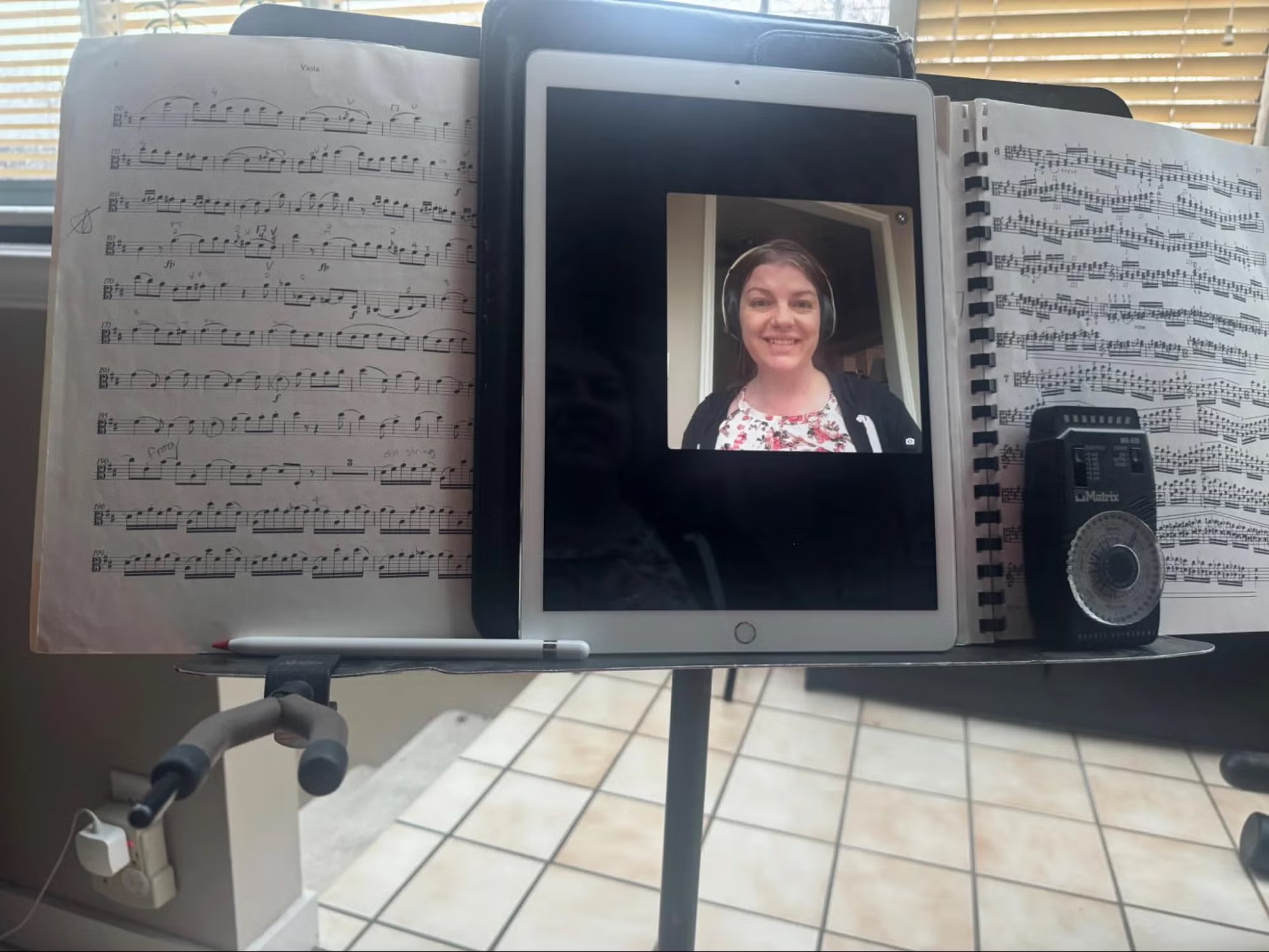
My go-to solution for family calls is my old iPad Pro on an old-school music stand. If I’m alone on the call, I connect Bluetooth headphones like my Airpods or the Beats Pro you see here. The noise canceling and built-in mic are hard to beat!
It may not be the prettiest setup, but I made it work with just what I have on hand.
When it comes to me and tech, finding free or cheap workarounds is all part of the fun!
Step # 4: Figure out your lighting
We’re not talking glamour shots, here, but the whole point of having a video call is to be seen. If your light source is behind you or to the side, your face will be in shadow. If it’s directly overhead, you may notice weird shadows from your nose and chin.
Instead, try to position yourself so you’re looking at a light source, or can see one at an angle.
A good ring light can do the trick (and this ring light comes with a phone stand), but they can be finicky. Instead, I recommend just setting up in front of a large window or lamp.
Step #5: Agree on a video calling app ahead of time
Figuring out the software can be one of the hardest parts of video calling, but don’t overcomplicate it. If you and the person you’re calling have Apple devices, stick to FaceTime. Here’s the icon to look for:

If you’re in a mixed-device extended family, try WhatsApp or Google Meet. There’s nothing wrong with using the video calling feature in Facebook Messenger either.
Just agree on an app ahead of time so everyone can get their apps updated and get their permissions set up correctly on their devices.
Video calling apps in the Apple Store
If you’re on an Apple device, tap below to download or open each app.



Video calling apps in the Google Play Store
If you’re on an Android device, tap below to download each app.
Video calling apps in a web browser
If you’re on a laptop or desktop computer, you can make video calls right from your browser. Chrome works best, but Microsoft Edge or Safari are also decent.
Click below to open each app in a new tab:
Each site gives you the option to download the app for your operating system. If you have space on your device, it’s a good idea.
Step #6: Schedule a time
I’ll be straight with you—no one likes being called on video out of the blue. What if you’re in your underwear, or you haven’t put on your … earrings?
But in all seriousness, successful video calls are scheduled video calls. I like agreeing on a time with everyone involved via text message.
Scheduling weekly calls can also be a great idea, because then you don’t have to worry about interrupting bedtime or work meetings.
Pro tip: Can’t find a time to call? Consider video messages
Sometimes, it’s impossible to get everyone to agree to a time. In these cases, video messages might be a good alternative.
For example, my mom has recorded several hours of bedtime stories on Marco Polo for the grandkids to watch anytime. For their part, the grandkids record “Talent Tuesdays” videos on the family WhatsApp chat. They get to show off their bike riding skills, coding projects, and musical accomplishments, and we get to see their smiling faces!
My take: The right video call setup can save you stress
Video calls are easier than ever, but you should take the time to get your setup right beforehand. That way, your calls will be more successful (and more likely to continue).
If you’ve followed all the steps in this article but still run into problems, check out my troubleshooting guide for video calls.
Just don’t be afraid to try, and be a little playful. If something doesn’t work one way, see if you can figure out another way. You are smart and resourceful, and you can do this!
FAQ about getting set up for family video calls
Do I need to change my setup for group video calls?
Disclaimers
Amazon.com Availability as of 2/19/26 17:35 MST . Product availability is accurate as of the date/time indicated and is subject to change. Any price and availability information displayed on Amazon.com at the time of purchase will apply to the purchase of this product. Highspeedinternet.com utilizes paid Amazon links.
CERTAIN CONTENT THAT APPEARS ON THIS SITE COMES FROM AMAZON. THIS CONTENT IS PROVIDED ‘AS IS’ AND IS SUBJECT TO CHANGE OR REMOVAL AT ANY TIME.
Author - Chili Palmer
Chili Palmer covers home tech services, with a special focus on understanding what families need and how they can stay connected on a budget. She handles internet access and affordability, breaking news, mobile services, and consumer trends. Chili’s work as a writer, reporter, and editor has appeared in publications including Telecompetitor, Utah Business, Idaho Business Review, Benton Institute for Broadband & Society, and Switchful.com.
Editor - Jessica Brooksby
Jessica loves bringing her passion for the written word and her love of tech into one space at HighSpeedInternet.com. She works with the team’s writers to revise strong, user-focused content so every reader can find the tech that works for them. Jessica has a bachelor’s degree in English from Utah Valley University and seven years of creative and editorial experience. Outside of work, she spends her time gaming, reading, painting, and buying an excessive amount of Legend of Zelda merchandise.
Related Posts