Can You Call 911 on an iPad?
Learn about calling emergency services by pairing your Apple devices

Jun 9, 2026 | Share 


How-To
It is possible to call 911 from an iPad, but you have to get everything set up before you need emergency help.
You’ll need an iPhone signed in to the same Apple ID as your iPad. From there, you’ll need to adjust settings on both devices. We’ll cover the details below, with instructions for calling over a mobile line and for calling over Wi-Fi.
The best way to call 911 emergency services from an iPad is to pair your devices, so the tablet can use your phone’s voice line to place the call.
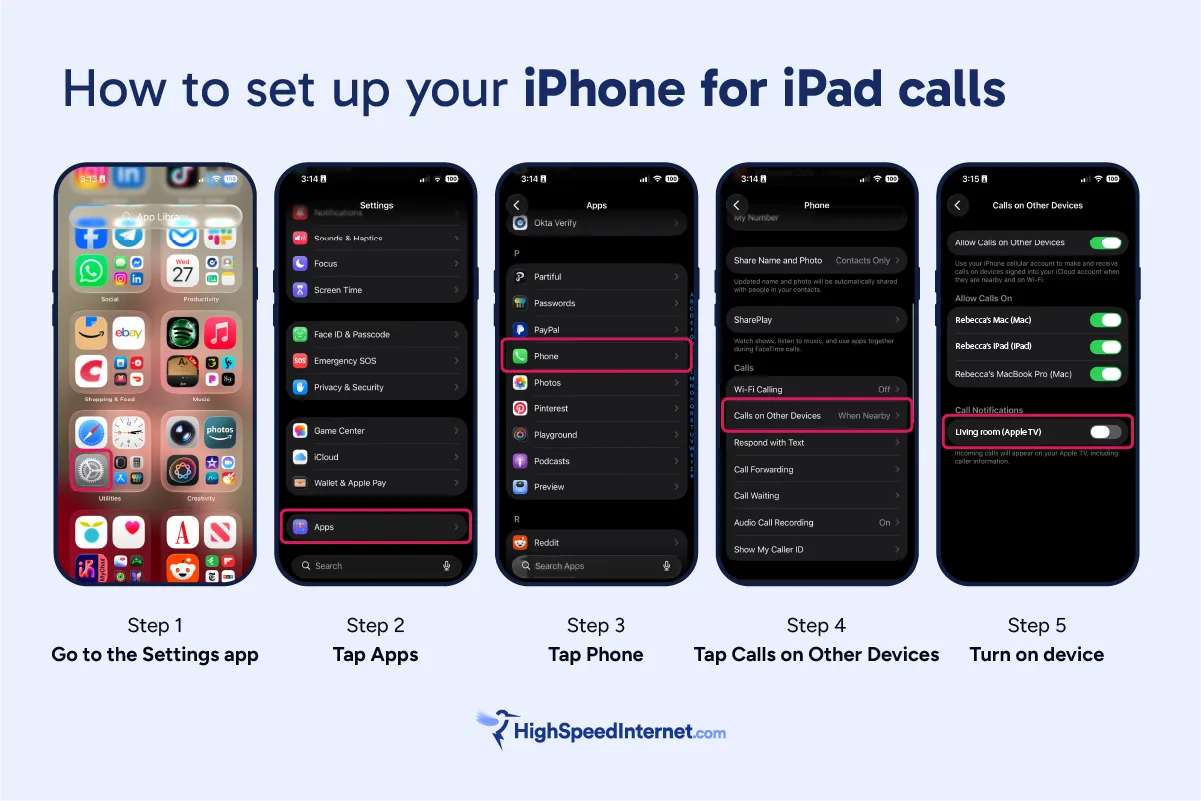
How to set up your iPhone for iPad calls
Follow these instructions from Apple to set up Wi-Fi calling on your phone:
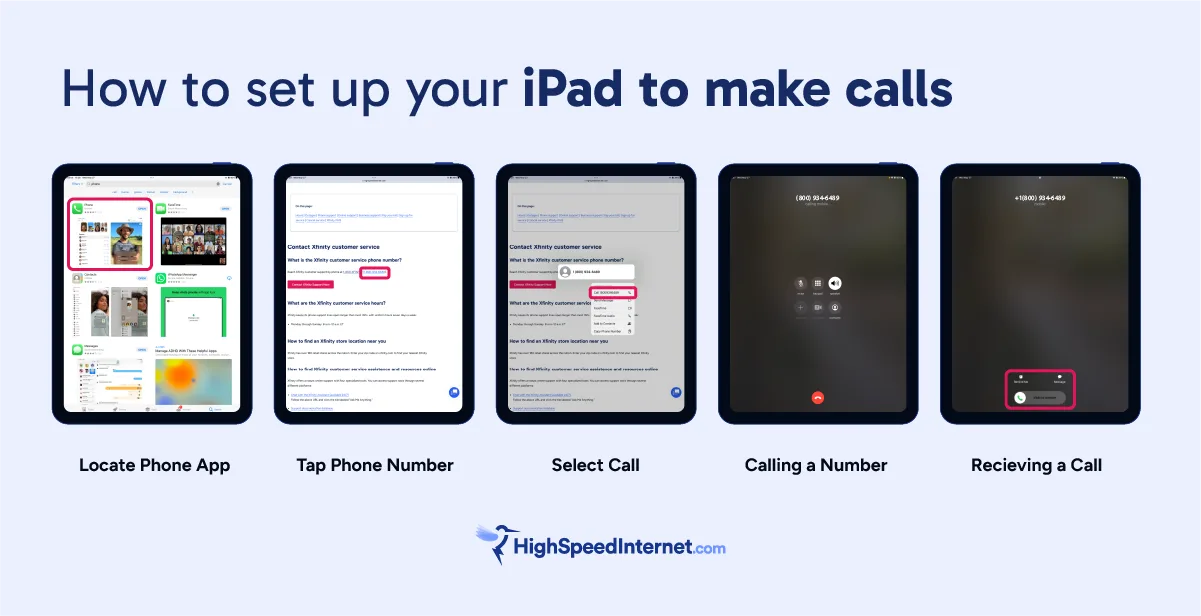
How to set up your iPad to make calls
Next, you’ll need to prepare your iPad. Follow these instructions from Apple:
How to set up Wi-Fi calling on Apple devices
 The best way to reach emergency services when your mobile network is down or unavailable is to set up Wi-Fi calling on your Apple-connected devices.
You might need to download the Phone app on your iPad. You can find it by searching “Phone” in the App Store. It will be the first result and will be listed as a utility.
Follow these instructions from Apple to set up Wi-Fi calling on your phone:
Next, you need to add your iPad to Wi-Fi calling. Follow these steps from Apple:
From there, prepare your iPad for Wi-Fi calls in two simple steps:
Congrats, you’re all set up! You can now place a call with your iPad over Wi-Fi in the same way you would using a mobile connection.
You can call any contact, click to call from a web browser, or dial a new number (like 911) in case of an emergency.

Wi-Fi calling requires strong Wi-Fi
A reliable home internet connection can keep you safe if your mobile phone service doesn’t work. Enter your zip to find the best local options in seconds.
How to text 911 from an iPad
The best way to send text messages from an iPad is to sign into iMessages on both your devices. Just find the Messages app in Settings and turn on iMessage. On your iPhone, make sure Text Message Forwarding is toggled on, and select your iPad from the list. Photos, videos, texts, and group threads will sync across devices automatically.
When your devices are paired, you can try to text 911 on your iPad using the Messages app. Depending on where you are, though, you could get a “bounce back” message. That occurs when your local emergency services aren’t set up for SMS texting.

Pro tip: Try texting on a phone or Apple Watch instead
It may be possible to text 911 from your iPad, but Apple’s support pages don’t include instructions, and we couldn’t test it (for reasons that are probably obvious).
Instead, try a voice call or follow Apple’s instructions for texting 911 on an iPhone or an Apple Watch.
Do you need a personal emergency response system instead?
If you’re dealing with certain health issues or security situations, you might need to pay for a personal emergency response system or medical alert system. These setups can reach out to emergency services on your behalf, even when you can’t dial a phone.
You can get in-home units that come with a wearable button or mobile wearables from companies like ADT Health, LifeStation, or Medical Guardian Mobile. You can also get phones designed for seniors, with health features built in.
If you’re tech-savvy and already in the Apple ecosystem, though, just use an Apple Watch you already have (or invest in an inexpensive Apple SE watch). Features like fall detection and emergency calling come standard, and using them is free with your connected iPhone. If you won’t always be near your iPhone, you can buy a cellular watch and add a data line to your mobile phone plan for $10 to $15 per month.
My take: Pair your devices for calling, but have a backup plan
I love my big iPad screen for watching movies, reading (either books or sheet music), and following along to yoga and exercise videos. I have everything set up to use my iPad for 911 calls, too, just in case I need help and can’t get to my phone.
All my devices are also connected to my fast fiber internet connection and signed into my Apple ID, so it’s all pretty seamless.
If you have both an iPad and an iPhone, it makes sense to pair them so you can reach emergency help from either device. But if your health puts you at risk of a dangerous fall or you need extra security, invest in a dedicated personal safety system or a wearable device such as an Apple Watch.
Shopping for high-speed internet?
A fast, reliable plan can keep your devices connected in an emergency. Enter your zip to shop and compare local options.
FAQ about emergency calling on an iPad
Are there any apps I can use to call 911?
Can I use my VoIP phone service to call 911?
Can I use my Android tablet to call 911?
Author - Chili Palmer
Chili Palmer covers home tech services, with a special focus on understanding what families need and how they can stay connected on a budget. She handles internet access and affordability, breaking news, mobile services, and consumer trends. Chili’s work as a writer, reporter, and editor has appeared in publications including Telecompetitor, Utah Business, Idaho Business Review, Benton Institute for Broadband & Society, and Switchful.com.
Editor - Jessica Brooksby
Jessica loves bringing her passion for the written word and her love of tech into one space at HighSpeedInternet.com. She works with the team’s writers to revise strong, user-focused content so every reader can find the tech that works for them. Jessica has a bachelor’s degree in English from Utah Valley University and seven years of creative and editorial experience. Outside of work, she spends her time gaming, reading, painting, and buying an excessive amount of Legend of Zelda merchandise.
Related Posts