ASUS ZenWiFi BQ16 Pro Review
It's the fastest, most robust mesh system we've tested to date

Dec 18, 2025 | Share 


Equipment Guides, Product Reviews, Router Reviews
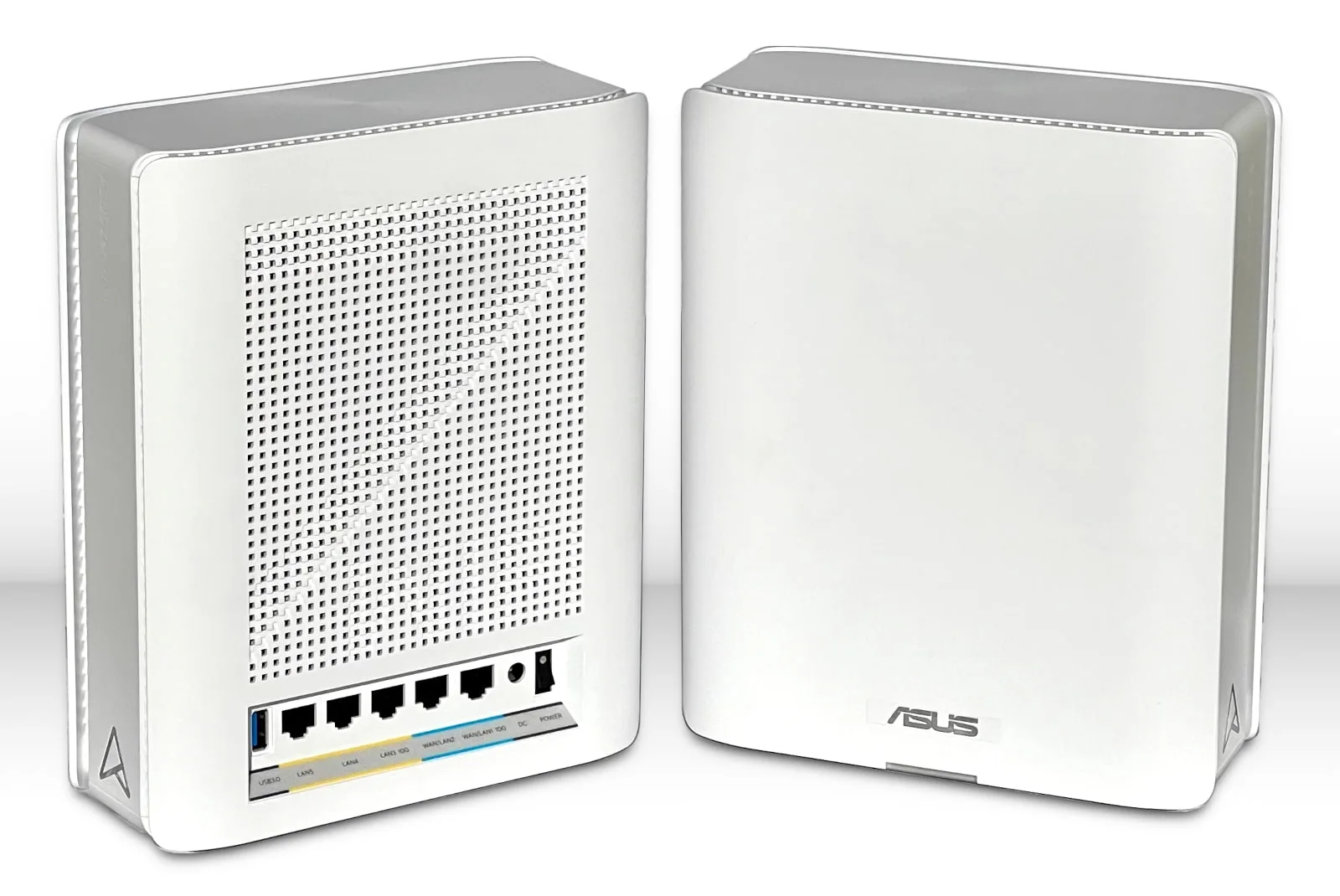
The ZenWiFi BQ16 Pro is the fastest mesh system we’ve tested to date. Kevin Parrish | HighSpeedInternet.com
Price: $1,019.12 on Amazon*
Our score
(5/5)Specs:
- Up to 1,376Mbps (2.4 GHz)
- Up to 5,764Mbps (5 GHz)
- Up to 11,529Mbps (6 GHz-1)
- Up to 11,529Mbps (6 GHz-2)
- 2x 10 Gigabit Ethernet ports
- 3x Gigabit Ethernet ports
- 1x USB port
Max internet speed:
- 9,400Mbps (9.4Mbps)
* Amazon.com price (as of 10/22/25 17:35 MST). See disclaimer.
The ASUS ZenWiFi BQ16 Pro is perfect if you need whole-home Wi-Fi. The kit we received for review contained two identical units decked out with plenty of wired and wireless connections.
But I have to ask, which is a better deal: This mesh system or two ASUS RT-BE96U AiMesh-compatible routers? At first glance, a dual RT-BE96U router setup is slightly cheaper. Still, we’ll dig into the pricier ZenWiFi BQ16 Pro kit to see if it’s a better fit.
Pros
 Free security
Free parental controls
Built-in VPN tools
Cons
 High price
Proprietary mesh technology
No cool lighting
In this review:
Standout features | Competitor comparisons | Scoring breakdown | My verdict | FAQ | Methodology
In this review:
ZenWiFi BQ16 Pro standout features
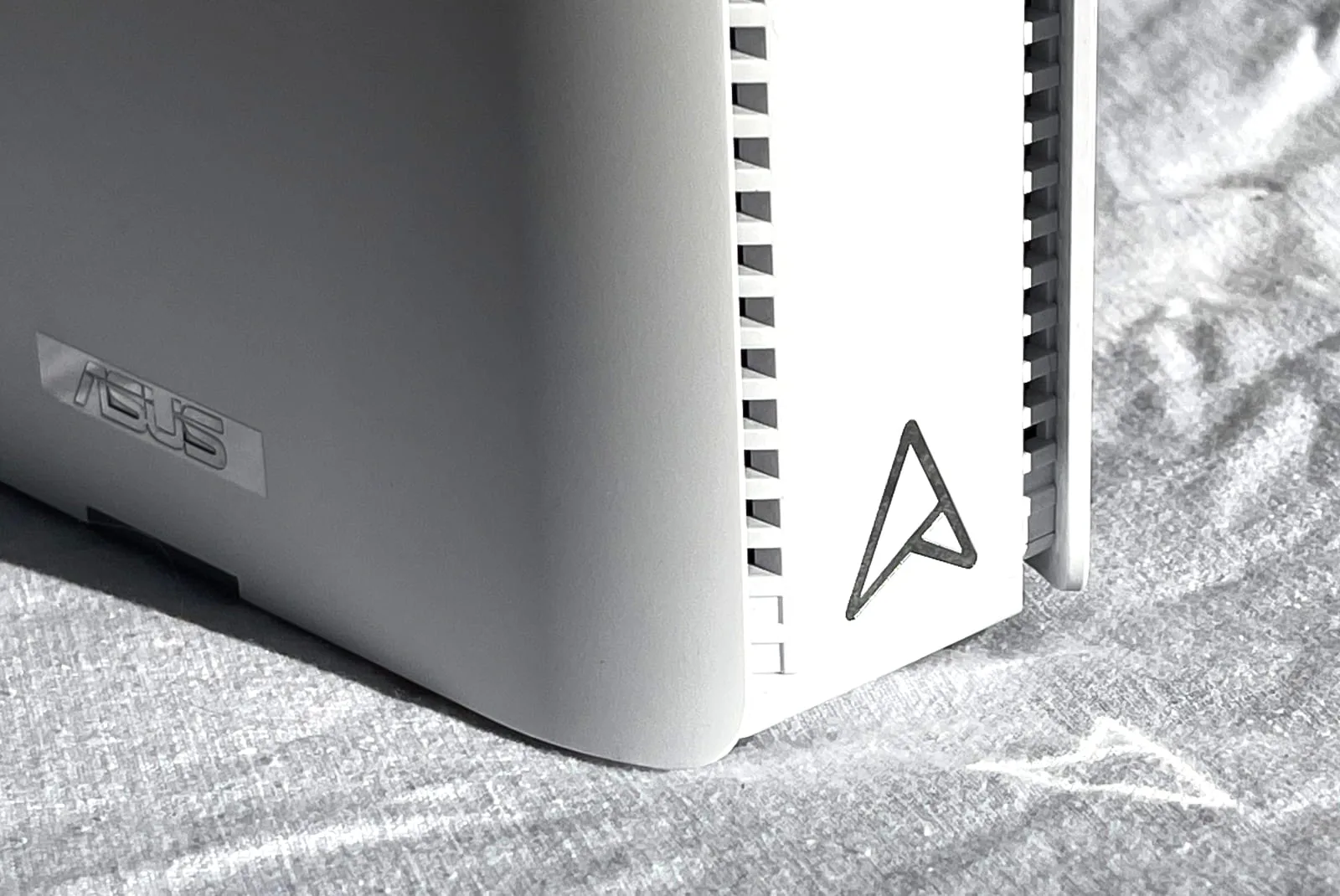
The ZenWiFi BQ16 Pro design resembles a compact game console. Kevin Parrish | HighSpeedInternet.com
The ZenWiFi BQ16 Pro system may be expensive, but it’s jam-packed with features that don’t cost extra. Dual internet connectivity and USB-based 4G/5G tethering are just a couple of callouts on an impressively long list.
The best features at a glance
Free security
Free parental controls
Built-in VPN tools
Compare the ZenWiFi BQ16 Pro to the competition
| Product | Max throughput | Tested speed @ 40 ft.* | Price† |
|---|---|---|---|
| ASUS ZenWiFi BQ16 Pro | 30,000Mbps | 2,377Mbps | $1,019.12 on Amazon |
| NETGEAR Orbi 970 | 27,000Mbps | 2,331Mbps | $1,469.99 on Amazon |
* Speed recorded using a Wi-Fi 7 client and a 320 MHz channel.
† Amazon.com prices for 2-pack (as of 12/12/25 17:35 MST). See disclaimer.
The ZenWiFi kit contains two identical units packing three Gigabit Ethernet ports, two 10 Gigabit Ethernet ports, and a USB 3.2 port. Surprisingly, one is clearly labeled as the router unit, while the other unit serves as the satellite. In contrast, NETGEAR’s Orbi kit contains a router unit and a satellite unit, both of which have different configurations. The big callout here is that NETGEAR uses 10Gbps and 2.5Gbps Ethernet ports, so technically, it has the upper hand in wired speed.
But, the ZenWiFi takes the lead in Wi-Fi speeds. It sports two 6 GHz radios, whereas the Orbi system features two 5 GHz radios. In fact, part of the Orbi’s max throughput stems from the use of 240 MHz for the backhaul; although, I can’t say the wider channel offered any benefits. I recorded far faster speeds from the ZenWiFi backhaul test than I did with the Orbi one.
ZenWiFi BQ16 Pro scoring breakdown
| Category | Score* | Summary |
| Performance | 5 | Provides some of the fastest speeds I’ve seen in a mesh system. |
| Features | 5 | Includes VPN tools and security at no extra cost. |
| Design | 5 | Packs plenty of wired and wireless connectivity. |
| Setup | 5 | Gets your network up and running in no time flat. |
| Ease of use | 4 | Presents decent interfaces for desktop and mobile. |
* out of 5 points
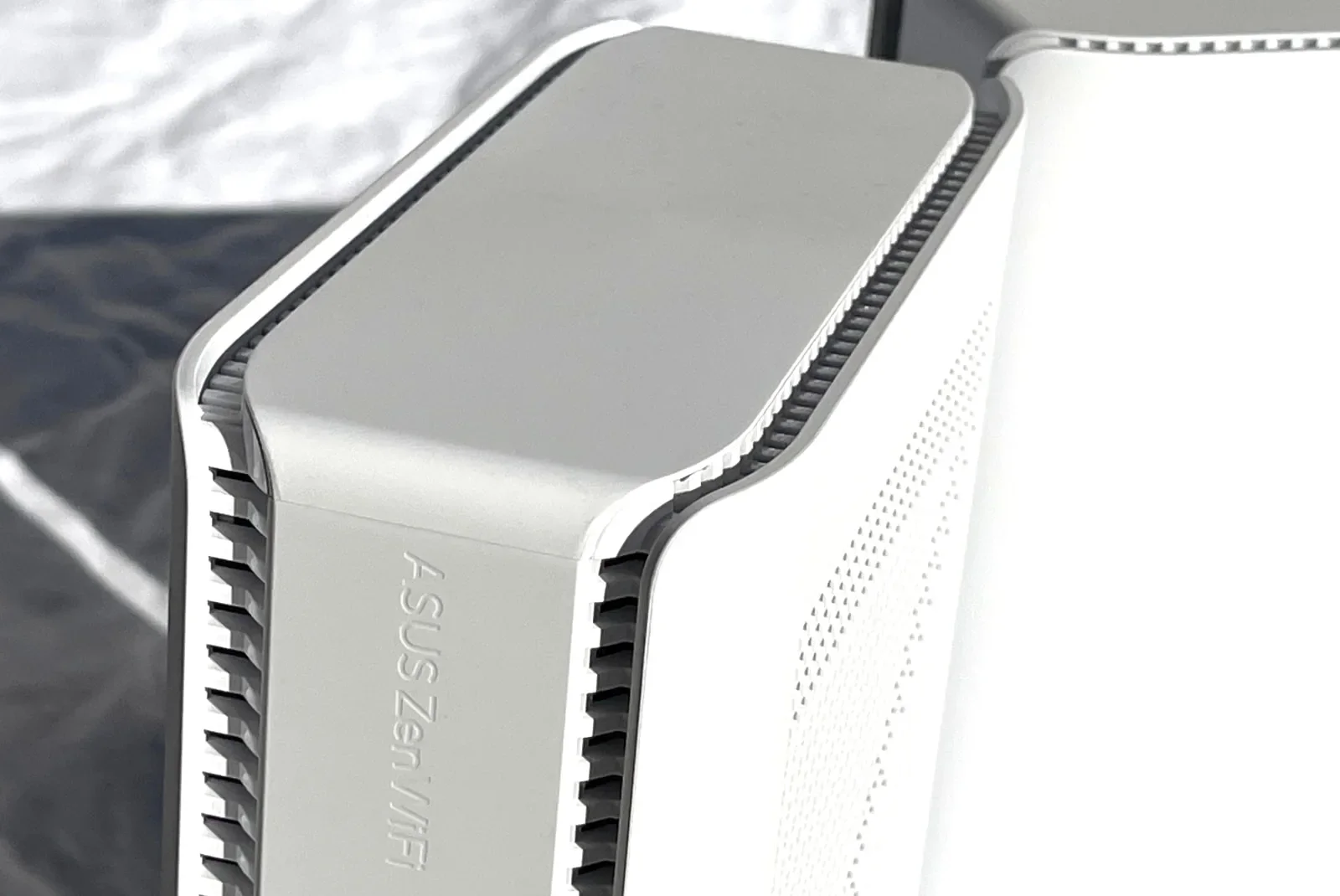
The ZenWiFi BQ16 Pro packs the most free features we’ve seen in a mesh system. Kevin Parrish | HighSpeedInternet.com
Performance
5
Wi-Fi configuration
- 4 GHz band: 1,376Mbps (4 x 344Mbps)*
- 5 GHz band: 5,764Mbps (4 x 1,441Mbps)†
- 6 GHz-1 band: 11,529Mbps (4 x 2,882Mbps)‡
- 6 GHz-2 band: 11,529Mbps (4 x 2,882Mbps)‡
* Using a 40 MHz channel width
† Using a 160 MHz channel width
‡ Using a 320 MHz channel width
The ASUS ZenWiFi BQ16 Pro is the second Wi-Fi 7 mesh system I’ve tested, and like the NETGEAR Orbi kit before it, I was thoroughly impressed with the performance—but only after I made some adjustments.
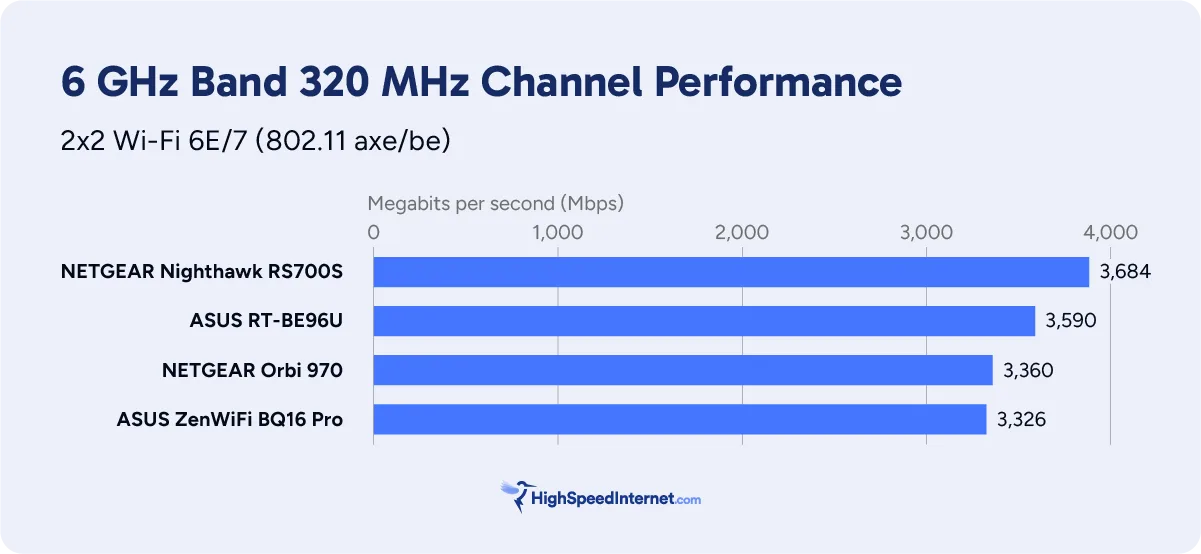
Truth be told, I had speed issues when I first started testing the 6 GHz band using my Wi-Fi 7 client. The lower-than-expected close-range speeds didn’t make sense given that the 6 GHz realm is practically a new frontier. I usually don’t need to change channels, but that was the case for this system. Ultimately, I recorded a good 3,326Mbps at close range to the router unit, and 832Mbps at my marker across the street. Not bad for a mesh system after a bit of tweaking!
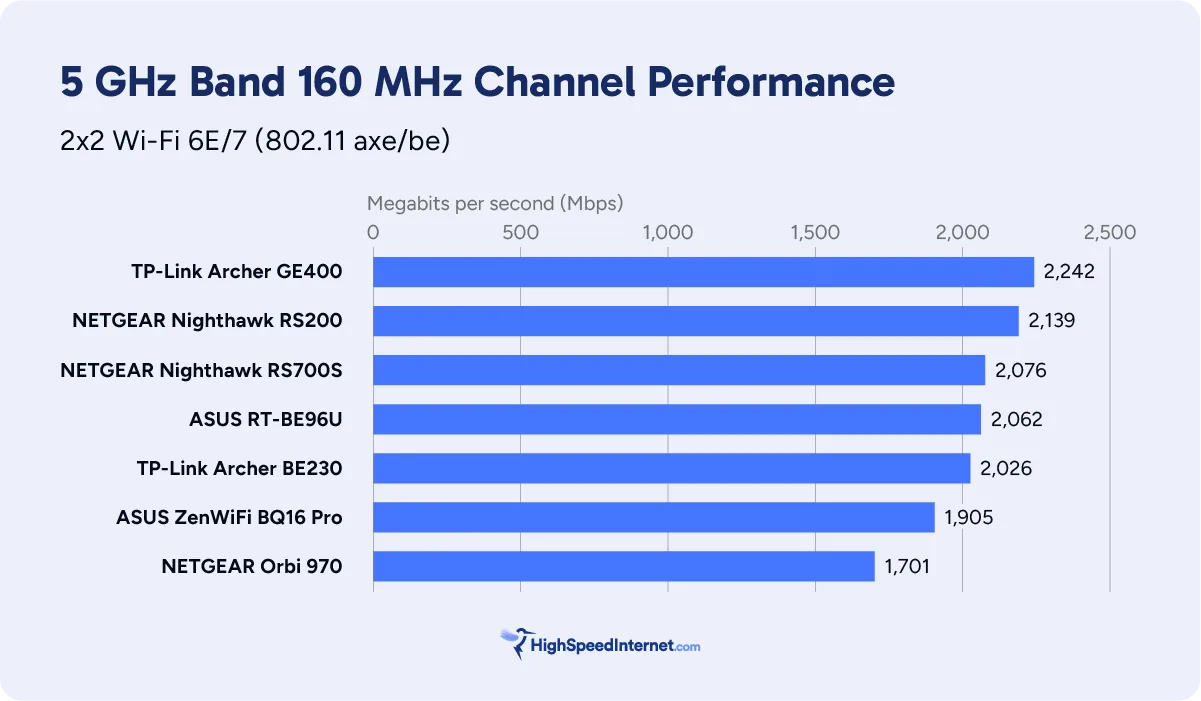
Like with the standalone Wi-Fi 7 routers I’ve tested, I recorded great speeds using the 5 GHz band—no channel adjustments were necessary. The control channel was set to 100, meaning the router dipped into radar-laden DFS channels that, until Wi-Fi 7 came along, made super-wide channels almost unusable where I live.
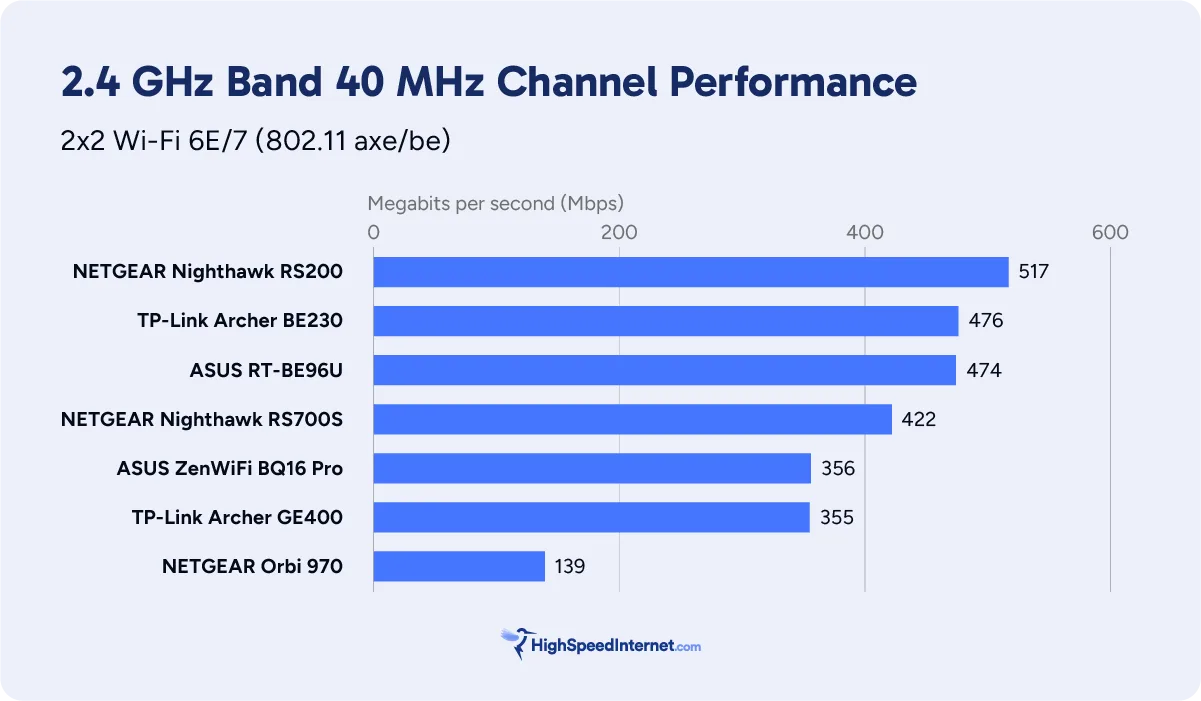
I also recorded great speeds on the 2.4 GHz band. It’s the oldest and most crowded of the three, but Wi-Fi 7’s higher modulation combined with improved interference management makes it a great alternative to the other bands. I recorded 356Mbps, which is a little slower than what I’ve seen on other Wi-Fi 7 routers, but far better than the 120Mbps or so seen with Wi-Fi 6. Of course, you need a Wi-Fi 7 device to enjoy those higher 2.4 GHz speeds.
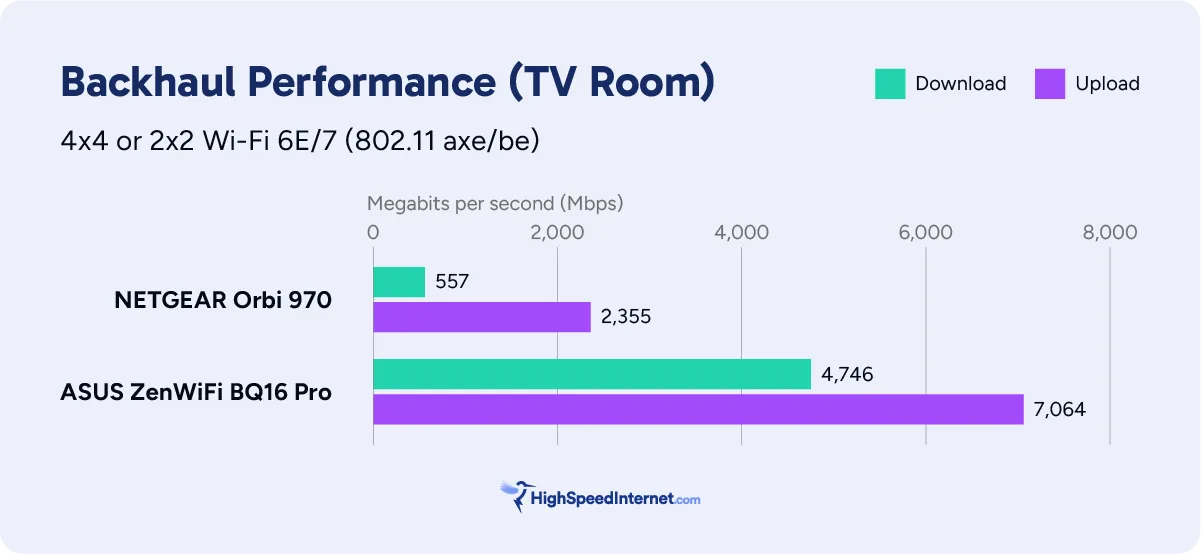
Finally, we purchased a 10 Gigabit Ethernet adapter to test the backhaul connections between the router and satellite units. I recorded the fastest speed when I placed the satellite unit in the TV room, clocking at 7,064Mbps, followed by 6,850Mbps when I put it in the dining room. That’s more bandwidth than my gigabit fiber internet plan.
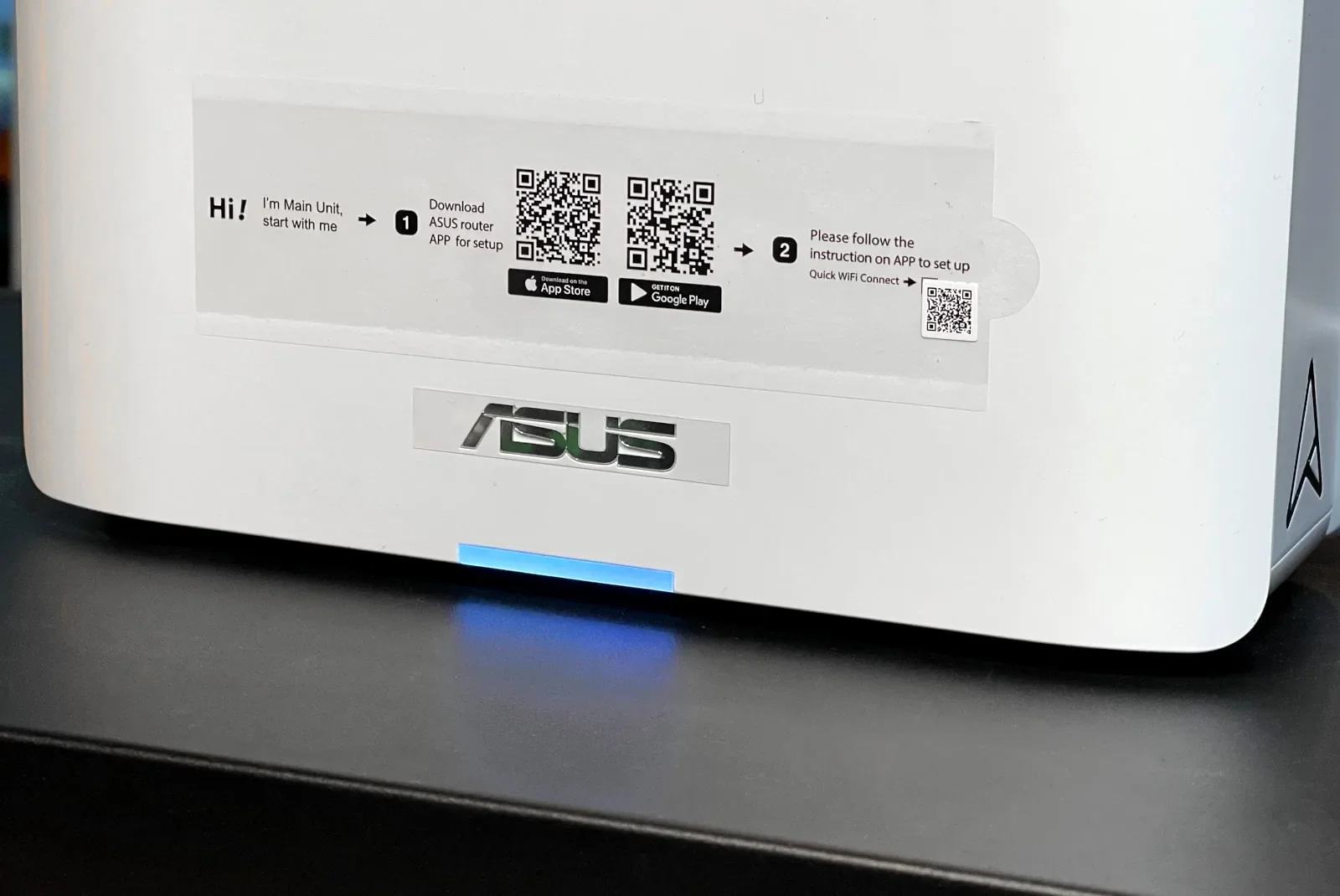
The ZenWiFi BQ16 Pro has the fastest wireless backhaul we’ve tested to date. Kevin Parrish | HighSpeedInternet.com
Features
5
Notable features
- Free security
- Free parental controls
- VPN tools
The only difference between the ZenWiFi and the RT-BE96U’s features is that this system doesn’t have the gaming and VLAN features found on the RT-BE96U. Otherwise, it’s just as feature-packed.
- Mesh networking (AiMesh only)
- Free security powered by TrendMicro (AiProtection)
- Free profile-based parental controls
- USB-based media streaming and sharing
- USB-based printer sharing
- USB-based 4G/5G tethering
- Free VPN tools (server, client, and a mobile-based connection)
- Multiple SSIDs (I created at least 5)
- Cloud-based file sharing (AiCloud 2.0)
- Dual WAN connectivity with Fail Over and Load Balancing support
- WAN Aggregation connectivity (up to 2Gbps)
ASUS doesn’t lock any of these features behind a subscription. The only added cost you may see is the optional AdGuard DNS Personal plan for $2.49 per month.
What the ZenWiFi BQ16 Pro could do better
- One interface for everything
My biggest beef in interacting with routers and mesh systems is that you generally need two interfaces to manage your home network fully. For example, with the ZenWiFi BQ16 Pro, the parental controls in the web interface are limited to blocking websites and apps, scheduling on and off times per device, and signing in to an AdGuard DNS account. All the real parental controls, like device assigning and content filters, are only available in the app. Why can’t we have one ring to rule them all?
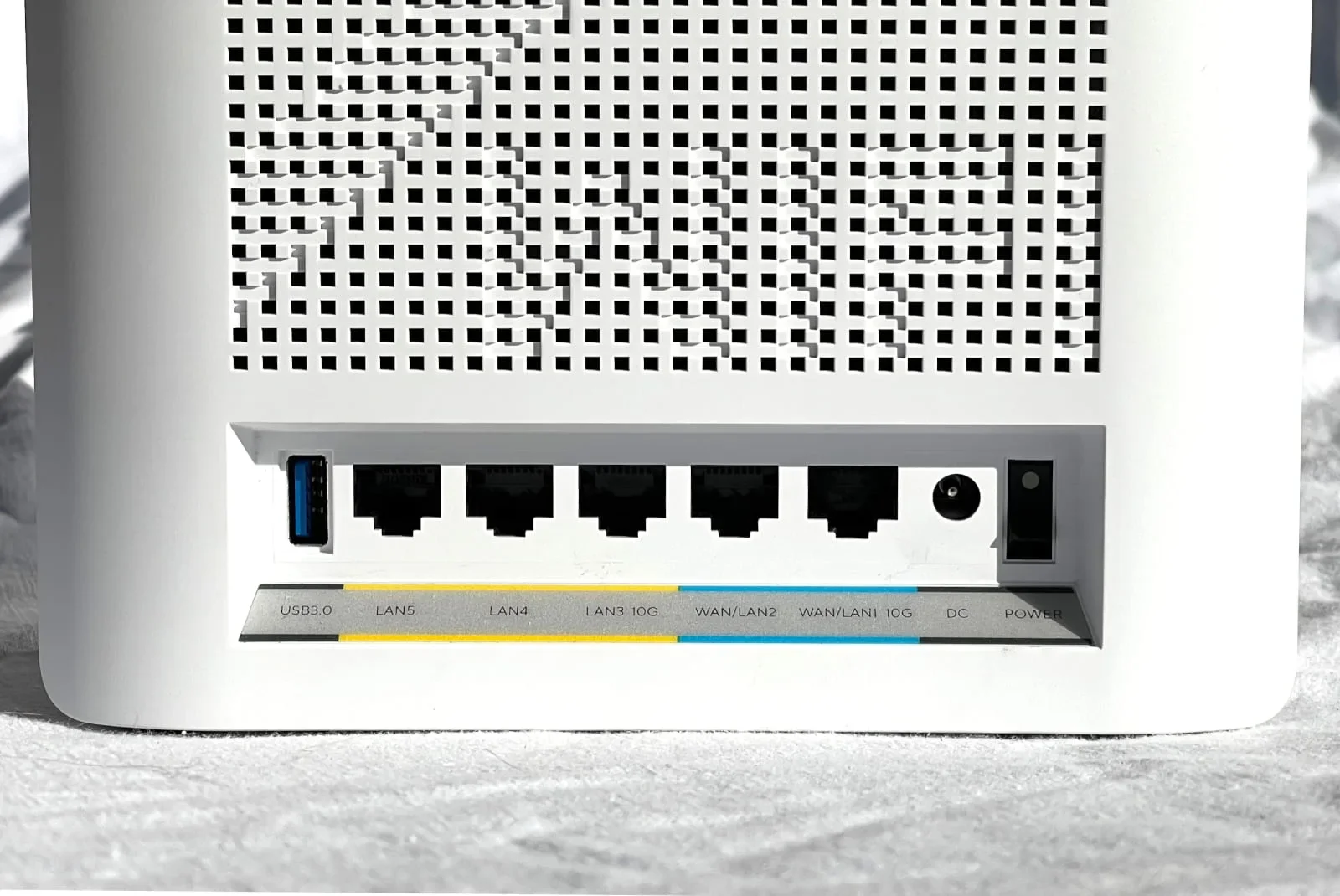
Angle each unit just right to see “ZenWiFi” designed in the rear vent—clever! Kevin Parrish | HighSpeedInternet.com
Design
5
Buttons
- 1x Power switch (back)
- 1x Reset button (bottom)
- 1x WPS button (bottom)
Internet ports
- 1x 10 Gigabit Ethernet WAN/LAN port (back)
- 1x Gigabit Ethernet WAN/LAN port (back)
LAN ports
- 2x Gigabit Ethernet LAN ports (back)
- 1x 10 Gigabit Ethernet LAN port (back)
Other ports
- 1x USB 3.2 port (back)
You certainly get what you pay for with the ZenWiFi BQ16 Pro. This system isn’t cheap, but its design is as loaded as it can get. Each unit resembles a compact Xbox console, packing four Wi-Fi radios, a handful of LAN ports, and three options for internet: 10Gbps, 1Gbps, and 4G/5G via the USB port. It even has link aggregation and Dual WAN support. Kaboom!
Setup
5
Inside the box
- 1x router
- 1x satellite
- 2x power adapters
- 1x Ethernet cable
- 1x Setup guide
- 1x Regulatory and warranty booklet
Setting up this system was a quick and easy eight-step process—easier than baking a cake. You don’t have to look up settings on the internet to find out what they do. There are no questions to answer. Just set the first unit up and then turn on the second one—it automatically joins the network.
You don’t even need a cloud account to set up and use this system unless you want to manage your home network remotely.
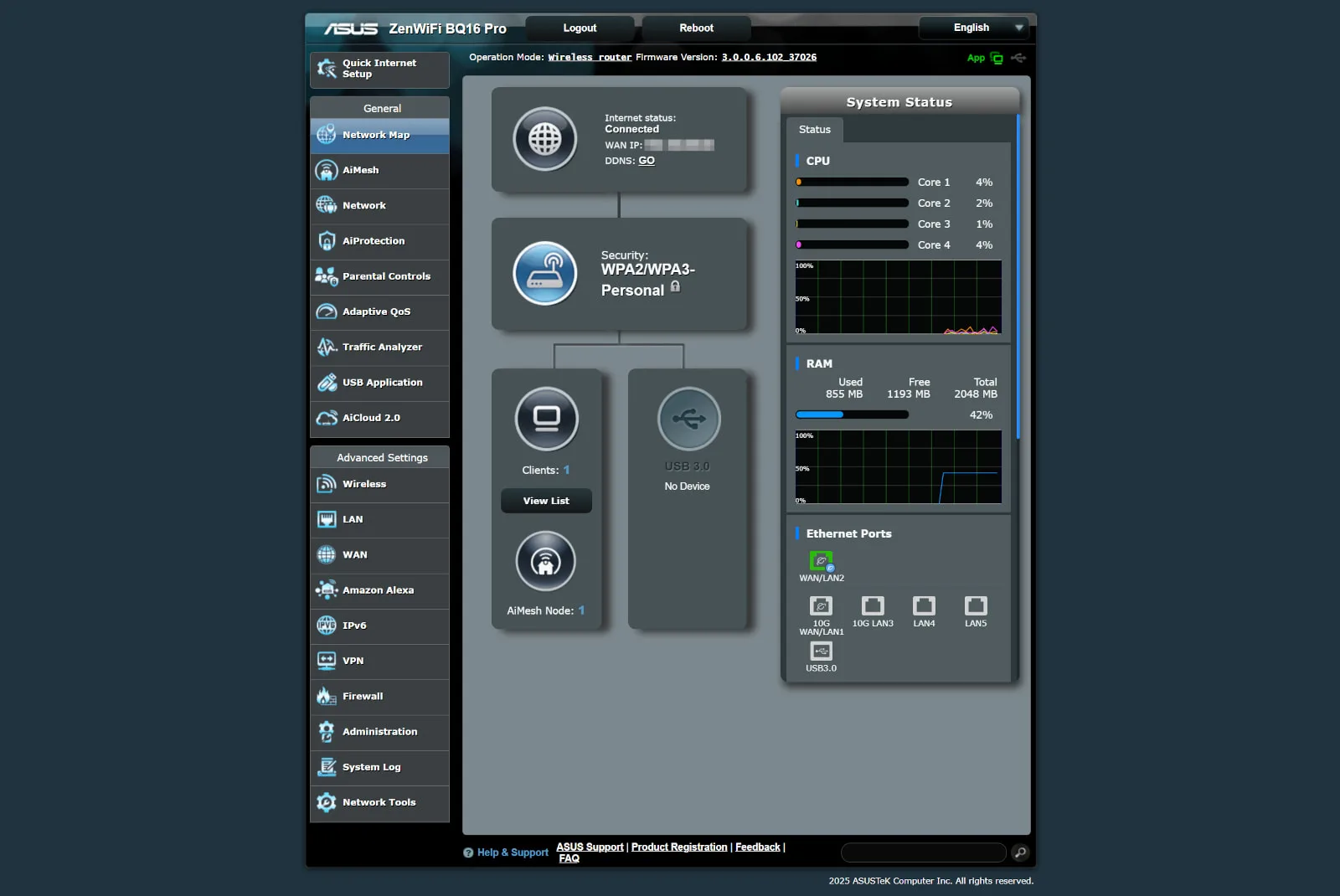
The web interface and ASUS app are decent ways to manage the ZenWiFi BQ16 Pro system. Kevin Parrish | HighSpeedInternet.com
Ease of use
4
Router interface
- Web interface: http://www.asusrouter.com
- Mobile app: ASUS Router (App Store, Google Play)
First, I like that there’s a real web interface you can actually use, instead of one that only displays basic information and settings you can’t change. Some competing systems focus on app use only for simplicity’s sake, which I’ve never liked. But then I think about Mom trying to use a web interface to customize her mesh system, and it makes me cringe. “Can you come over and set up this monster Wi-Fi thing for me?” she’d ask. Sometimes simplicity is a good thing.
Regardless, I saw a near-identical setup with the standalone RT-BE96U router. There’s a lot packed into the web UI and the ASUS Router app, so expect lots of customization at the cost of digging deep into either interface. Everything you need is categorized on the left in the browser version, while settings are divided into five tabs in the mobile app. With the latter, the Settings tab is where the meat of your network customization takes place.
I can’t really complain about the design of either interface. The mobile app feels a little busy, and you can simplify it a bit by changing themes. I’ll have to admit, however, that I prefer the ASUS gray and black web UI design over the TP-Link white and blue layout—but I gravitate to dark interfaces anyway.
Additional costs and fees
If a two-pack isn’t enough to cover your Wi-Fi needs, you can add more ZenWiFi BQ16 Pro units for $585 each. I can see perhaps wanting one more for a three-pack, but you shouldn’t need more than that.
Meanwhile, AdGuard DNS Starter is free to use, but limited to five devices and 300,000 monthly requests. The Personal plan costs $2.49 per month for 20 devices and 10 million monthly requests.
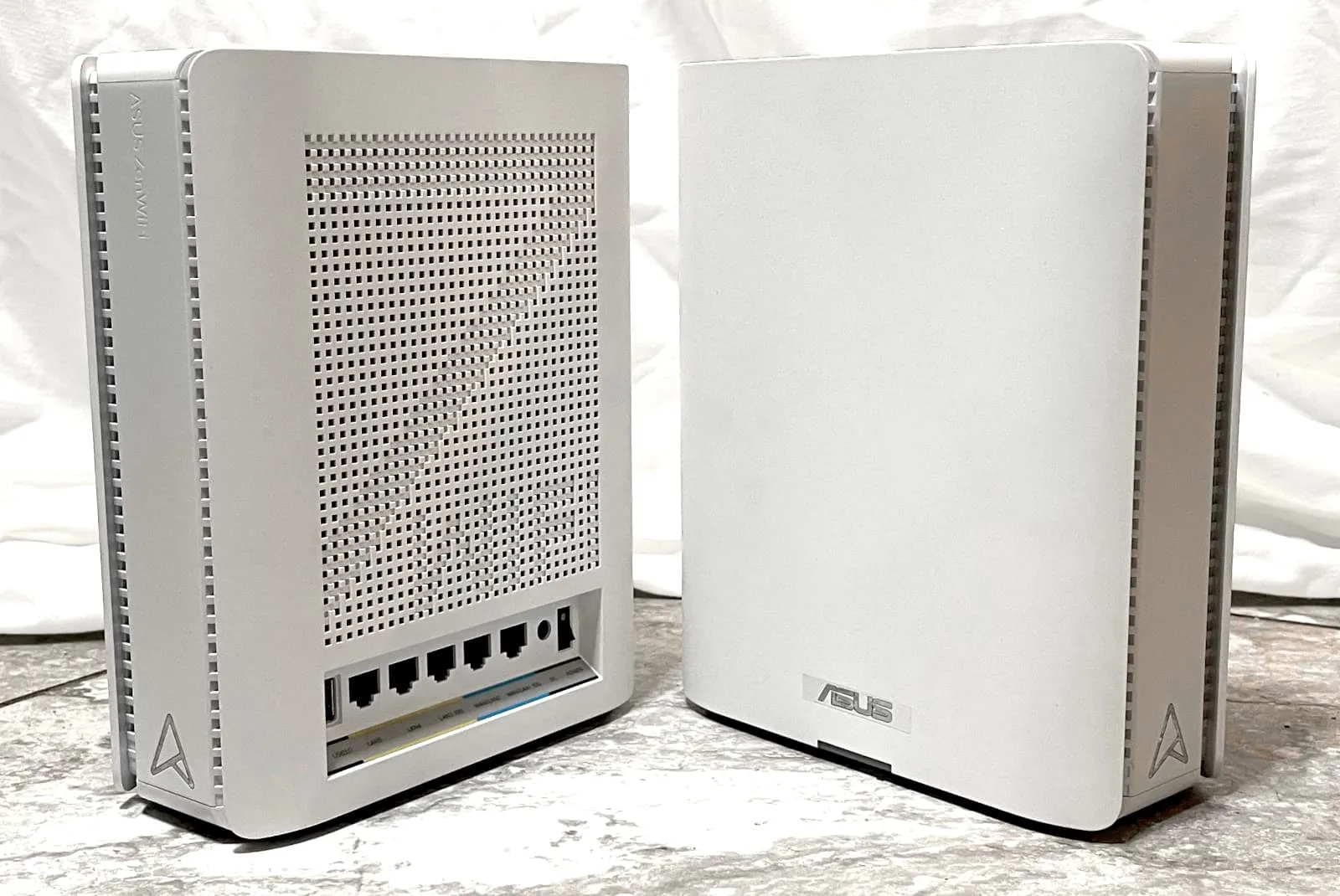
The ZenWiFi BQ16 Pro isn’t cheap, but you get so much bang for your big bucks. Kevin Parrish | HighSpeedInternet.com
My ZenWiFi BQ16 Pro review: The verdict
You get what you pay for when you invest in the ZenWiFi BQ16 Pro, that’s for sure. I won’t lie—the price is rather steep, but you should be golden on the home network front for at least five years. That’s what, $17 per month? It’s about how much some internet providers charge to use their gateway.
What I find interesting with this kit versus the Orbi 970 is that you don’t need subscriptions to get the most out of it. Paying $1,000+ for a mesh system is already asking a lot from consumers, but then locking some features behind subscriptions is downright insulting. I’ve always alluded to this since I started testing Wi-Fi and that stance will never change. Kudos to ASUS for not demanding more after a sale.
Pricing shenanigans aside, the bottom line is that the ZenWiFi BQ16 Pro doesn’t disappoint. Sure, I had some issues with my Wi-Fi 7 client (which isn’t anything new to be honest), but in the end, I got exactly what I expected: Blazing-fast Wi-Fi speeds on every band I tested.
I’m all about wiring my home network with Ethernet, but this system is making me reconsider (gasp!). There. I said it. No apocalyptic event was needed to change my mind, just Wi-Fi 7 and a very expensive mesh system.
FAQ about the ZenWiFi BQ16 Pro
How does MLO work on this mesh system?
Do the 6 GHz radios use the same channels?
What is a control PSC channel?
My methodology
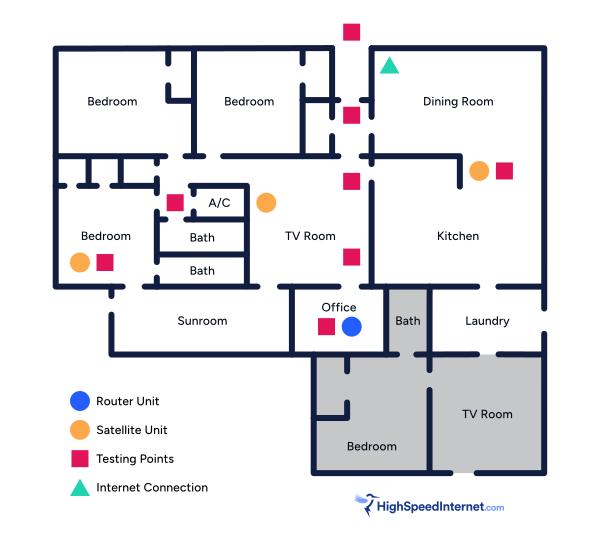
I benchmark a standalone router or mesh system by setting it up in my office and connecting it to a local server running speed test software. By using my own local server and software, I can control the input versus relying on fluctuating speeds caused by the connection between me and a remote test server. Routers aren’t internet equipment, so I exclude the internet from testing.
Once I connect the router or first mesh system unit to my local server, I transmit test data between my wireless devices and the server, taking numerous measurements to account for signal degradation, interference, and fluctuations. Here’s the testing path:
Wi-Fi client → router → local wired server → router → Wi-Fi client
The first tests occur close to the router or mesh system node wired to the test server, without obstructions, to get the strongest signal and record the fastest speed possible.
After that, I repeat the process straight out at 10, 20, and 30 feet, with only a glass door obstructing my view of the router.
Next, I go outside and run the speed test from the sidewalk (40 feet) and across the street (120 feet). The same glass door and an exterior door block my path when I run these tests.
Finally, I come back inside and run tests in a hallway to the left of the TV room and office, where a glass door, three walls, and an air handler unit block my view of the router. The dining room, another testing point, sits to the right of the kitchen, TV room, and office—two walls and a glass door block the path in this test.
Client devices used in testing
| OnePlus 11 5G | Google Pixel 6 | |
|---|---|---|
| Wi-Fi version | Wi-Fi 7 | Wi-Fi 6E |
| Stream config. | 2 x 2 | 2 x 2 |
| Max channel width | 320 MHz | 160 MHz |
| 6 GHz | ||
| 6 GHz—max speed (BE) | 5,764Mbps | – |
| 6 GHz—max speed (AXE) | – | 2,402Mbps |
| 5 GHz | ||
| 5 GHz—max speed BE | 2,882Mbps | – |
| Max rate – AX | 2,402Mbps | 2,402Mbps |
| Max rate – AC | 866Mbps | 866Mbps |
| 2.4 GHz | ||
| Max rate – BE | 688Mbps | – |
| Max rate – AX | 574Mbps | 286Mbps |
| Max rate – N | 144Mbps | 144Mbps |
ZenWiFi BQ16 Pro benchmarks
6 GHz tests
| OnePlus 11 5G* | Google Pixel 6† | |
|---|---|---|
| 2 feet | 3,326 | 1,901 |
| 10 feet | 3,255 | 1,886 |
| 20 feet | 3,169 | 1,721 |
| 30 feet | 2,791 | 1,652 |
| 40 feet (porch) | 2,377 | 1,542 |
| 120 feet (across street) | 832 | 828 |
| 20 feet (hallway) | 3,001 | 1,696 |
| 30 feet (dining room) | 2,391 | 1,808 |
| 30 feet (bedroom) | 1,880 | 1,378 |
* Speeds in megabits per second (Mbps) using a 320 MHz channel width and a 5,764Mbps starting link rate.
† Speeds in megabits per second (Mbps) using a 160 MHz channel width and a 2,402Mbps starting link rate.
5 GHz tests
| OnePlus 11 5G* | Google Pixel 6† | |
|---|---|---|
| 2 feet | 1,905 | 1,866 |
| 10 feet | 1,863 | 1,831 |
| 20 feet | 1,825 | 1,824 |
| 30 feet | 1,801 | 1,818 |
| 40 feet (porch) | 1,553 | 1,592 |
| 120 feet (across street) | 835 | 886 |
| 20 feet (hallway) | 1,701 | 1,772 |
| 30 feet (dining room) | 1,722 | 1,701 |
| 30 feet (bedroom) | 1,226 | 1,311 |
* Speeds in megabits per second (Mbps) using a 160 MHz channel width and a 2,882Mbps starting link rate.
† Speeds in megabits per second (Mbps) using a 160 MHz channel width and a 2,402Mbps starting link rate.
Backhaul tests
| Downstream* | Upstream* | |
|---|---|---|
| 20 feet (TV room) | 4,746 | 7,064 |
| 30 feet (dining room) | 4,532 | 6,850 |
| 30 feet (bedroom) | 1,439 | 3,557 |
* Speeds in megabits per second using a 10Gbps wired connection to the satellite and a wireless connection between the satellite and router.
Disclaimers
Amazon
Amazon.com Prices as of 12/15/25 17:35 MST. Product prices and availability are accurate as of the date/time indicated and are subject to change. Any price and availability information displayed on Amazon.com at the time of purchase will apply to the purchase of this product. Highspeedinternet.com utilizes paid Amazon links.
CERTAIN CONTENT THAT APPEARS ON THIS SITE COMES FROM AMAZON. THIS CONTENT IS PROVIDED ‘AS IS’ AND IS SUBJECT TO CHANGE OR REMOVAL AT ANY TIME.
Author - Kevin Parrish
Kevin Parrish has more than a decade of experience working as a writer, editor, and product tester. He began writing about computer hardware and soon branched out to other devices and services such as networking equipment, phones and tablets, game consoles, and other internet-connected devices. His work has appeared in Tom’s Hardware, Tom's Guide, Maximum PC, Digital Trends, Android Authority, How-To Geek, Lifewire, and others. At HighSpeedInternet.com, he focuses on network equipment testing and review.
Editor - Jessica Brooksby
Jessica loves bringing her passion for the written word and her love of tech into one space at HighSpeedInternet.com. She works with the team’s writers to revise strong, user-focused content so every reader can find the tech that works for them. Jessica has a bachelor’s degree in English from Utah Valley University and seven years of creative and editorial experience. Outside of work, she spends her time gaming, reading, painting, and buying an excessive amount of Legend of Zelda merchandise.
Related Posts