How To Teach Video Calling When You Can’t Be There
A no-frustration guide to teaching video calls

Jul 29, 2026 | Share 


Equipment Guides, How-To
When you’re introducing someone to video calling, start by thinking about their perspective. They’re probably excited to see you on the screen, but a little nervous. They don’t want to get confused or feel dumb when the pressure’s on, but they don’t want a computer science lesson either.
Your goal is to help them choose a device, choose an app, and see your smiling face on the screen with just a few taps.
Here’s how to get there.
Help them pick the right device
The first thing the person you’re calling will need is a device on which to accept the call. You’ll probably have three options: a smartphone, a laptop, or a tablet. Each has advantages.
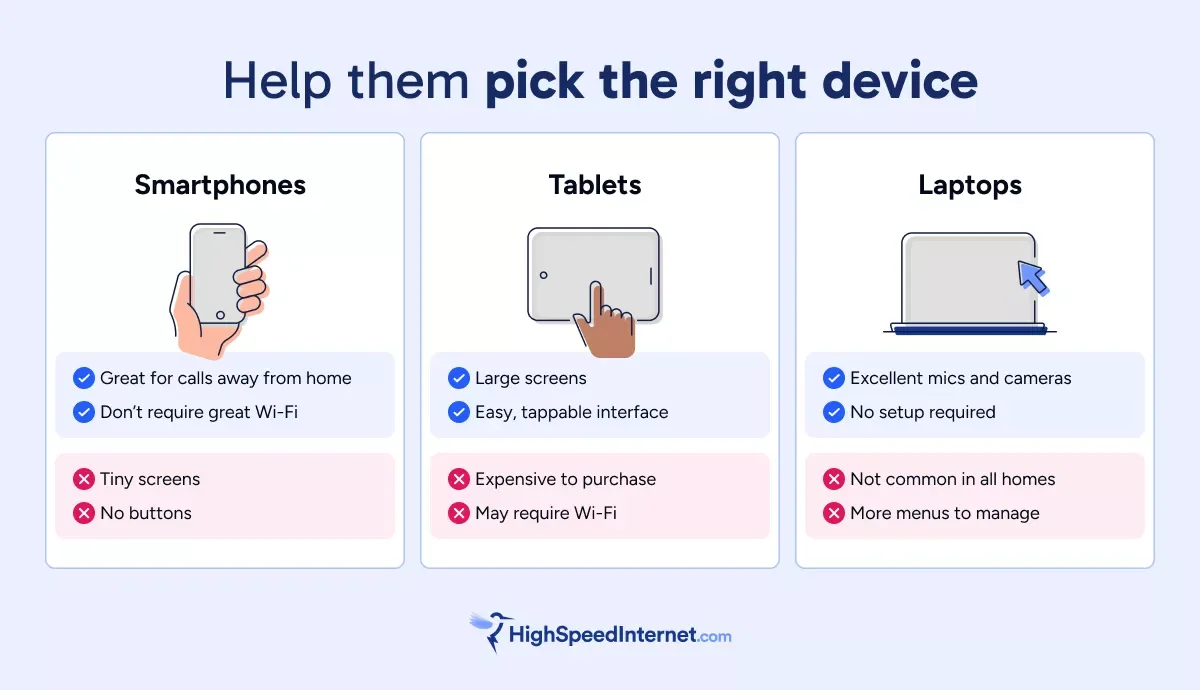
Of course, you’re probably not going to send a new device to the person you’re trying to video call. Any of the above devices will work, so you should recommend the device they use most.
Most of the time, you can figure out a video calling device via text message. A recent AARP study found that texting is the top communication method among adults 50 and older, so it’s probably already familiar.
Choose the right app together
There are a lot of video calling apps out there. These are our favorites, and you probably have one you like.
However, it’s important to choose based on what the person you’re calling already has, not what you prefer.
If they’re on an Apple device and so are you, FaceTime is the obvious choice. If not, there’s a good chance they already use WhatsApp or Facebook Messenger, as 9 in 10 adults over 50 use social media, according to the same AARP study mentioned above.
If they’re calling from a Windows PC laptop, default to the built-in option: Microsoft Teams.
If you determine that none of the above will work, Google Meet is well-supported across devices but can be a little tricky to set up.

Pro tip: Only give them one option
Don’t make the person you’re teaching choose an app (or a device, for that matter). Give them just one option.
Start with a phone conversation
Once you have an app and device picked out, call your person on the telephone. Then, ask how they’re feeling about video calls. That way, you can find out what info they need without explaining too much or leaving out key info.
If they don’t know where to start, ask about the following:
- Their Wi-Fi or mobile data connection
- Whether they have the calling app on the device (and know how to find it)
- Whether they know which buttons to select in the app
It’s important to keep things simple. Remember, this isn’t a tech lesson—the goal is connection.

Do they need better Wi-Fi (or do you)?
Enter any zip for a quick list of high-speed internet providers.
Just make the call, even if it’s awkward
Next, you’re ready for the video call. As long as your person agrees, do it right after the phone call.
It might be a disaster, and that’s fine. You’ll have a frozen screen, echo, or someone with a camera up their nose. Just be patient and have a sense of humor! Laughter’s not just the best medicine; it’s a clear path through frustration.
If you see and hear them and they see and hear you, that’s it. Mission accomplished!
Call again tomorrow
The first time you do something new, it’s hard. The second and third times, it’s easier. After about 10 times, the stress is gone.
That’s why you should video call your person again tomorrow, and then set up a time for regular video calls. Switch between calling them and letting them call you.
Along the way, be careful not to give too much advice. You can ignore a little background noise or an off-center camera for the sake of the relationship. If they are getting frustrated by the tech, just let them know they can ask for help if they need it.
My take: Practice, but send a cheat sheet
Practice is important, but your person needs a quick reference for what to do when things go wrong on a video call.
You can have them read my video call troubleshooting tips, but I also recommend sending them a super-simple cheat sheet they can print out or write down.
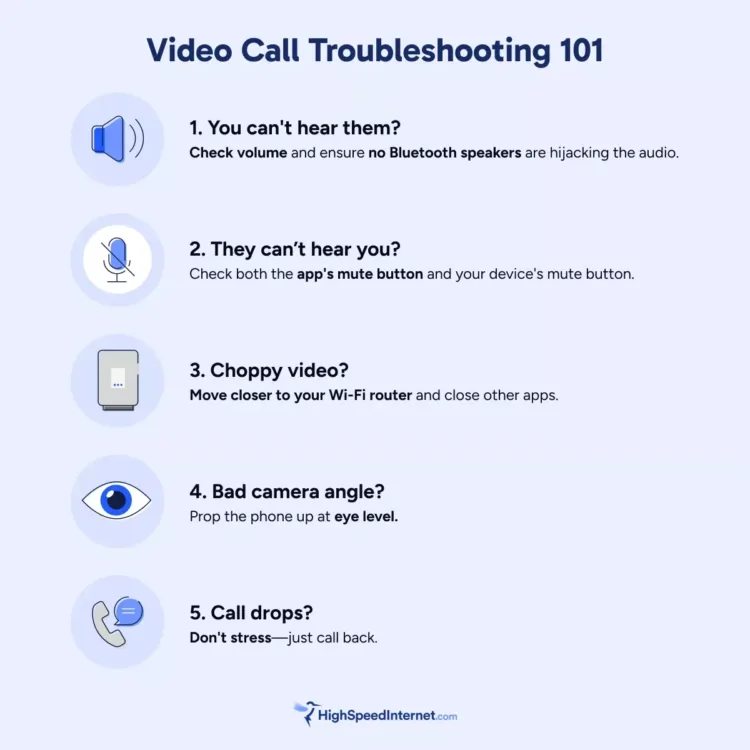
Video call troubleshooting 101
- You can’t hear them: Check volume and ensure no Bluetooth speakers are hijacking the audio.
- They can’t hear you: Check both the app’s mute button and your device’s mute button.
- Choppy video: Move closer to your Wi-Fi router and close other apps.
- Bad camera angle: Prop the phone up at eye level.
- Call drops: Don’t stress—just call back.
Great video calls demand great internet
Enter your zip to find fast, affordable plans near you.
Author - Chili Palmer
Chili Palmer covers home tech services, with a special focus on understanding what families need and how they can stay connected on a budget. She handles internet access and affordability, breaking news, mobile services, and consumer trends. Chili’s work as a writer, reporter, and editor has appeared in publications including Telecompetitor, Utah Business, Idaho Business Review, Benton Institute for Broadband & Society, and Switchful.com.
Editor - Jessica Brooksby
Jessica loves bringing her passion for the written word and her love of tech into one space at HighSpeedInternet.com. She works with the team’s writers to revise strong, user-focused content so every reader can find the tech that works for them. Jessica has a bachelor’s degree in English from Utah Valley University and seven years of creative and editorial experience. Outside of work, she spends her time gaming, reading, painting, and buying an excessive amount of Legend of Zelda merchandise.
Related Posts