How to buy a router or mesh system
Get the best router or mesh kit for your internet

Apr 2, 2026 | Share 


Home Networking, How-To
Router Must-Haves
Internet port: It must match the speed of your connection or be faster
Capacity: It must have enough radios and streams to reduce traffic congestion and latency
Type: It must have the ideal design for your home’s layout
Price: It must be reasonably priced for the features you get
Connectivity: It must have enough Ethernet ports to meet your wired device needs
I’m not going to sit here and simply tell you to buy a Wi-Fi 7 router. Yes, if you do choose a new router or mesh system, it should be based on Wi-Fi 7, even if you don’t have compatible Wi-Fi 7 devices.
Don’t take a peek at Wi-Fi 6E. Don’t even think about Wi-Fi 6. They’re old news.
What I will tell you is that there are more things to consider than the Wi-Fi type when you’re ready to upgrade. You need to:
 Count up your devices
Consider your internet connection
Be willing to spend at least seven years with your purchase, so make it count
Let’s take a look at what you should look for when shopping for a new router or mesh system to purchase as your own.
In this guide:
Pros and cons | Choose the best WAN port | Know your device count | Pick the best router type | Get the best price on features | Be mindful of wired connections
In this guide:
Before we begin
Before we dive into the cold, murky waters of buying a router or mesh system, consider why you don’t want to use the equipment that your internet provider currently offers. I have some questions you should consider:
 Is it garbage, and you want something better?
Are you looking to cut your monthly internet cost?
Do you want full control of your home network?
Do you have privacy concerns when it comes to renting?
Most users don’t want to pay a monthly fee for outdated equipment, so we generally cater our Wi-Fi buying guides to people who answer the first two questions.
Now, let’s take a look at some pros and cons of buying versus renting.
The pros and cons of owning and renting
Owning
Full privacy
Your choice
One payment
 No free upgrades
No free replacements
Renting
Free upgrades
Free replacements
No real privacy
No choice
Continuous payment
Beware: internet providers can’t (or won’t) help with retail equipment
When I switched to Metronet (now T-Mobile Fiber), I chose to use my own mesh system. The choice had nothing to do with the system Metronet offered—that’s just how I roll. I like the freedom of choice. I like the lower internet bill, and I like the idea of managing my home network. Internet providers have no business meddling in my networking affairs beyond the modem or fiber ONT.
That’s my take, anyway.
However, you may not care about all of that. You may simply want an internet provider to supply everything you need and manage it all remotely. If that floats your boat, then toot toot, happy renting, and have a nice day.
But if you do choose to purchase a router or mesh system, your internet provider may not be able to help you with any technical issues with the equipment you buy. That’s the message I received when I had connection problems with Metronet, and that’s probably the case with any other internet provider.
In other words, it’s YOYO for you, and I’m not talking about eating leftovers.
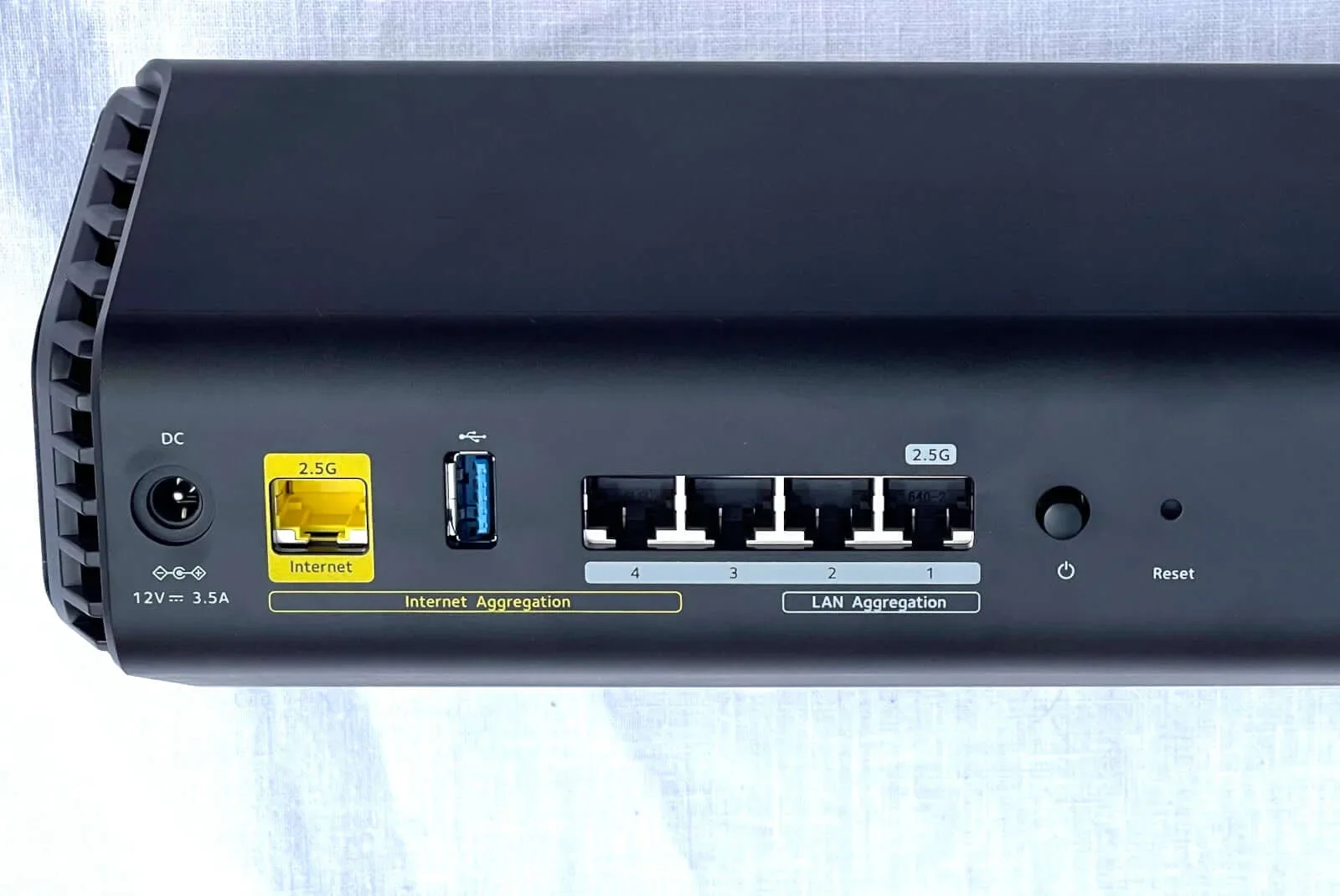
The NETGEAR Nighthawk RS500 router uses a 2.5 Gigabit Ethernet port for internet, but you can link it with another port to use with modems that support link aggregation. Kevin Parrish | HighSpeedInternet.com
First, choose the best WAN to match your internet
Most of us think of a router or mesh system as an internet connection.
It is, and it isn’t.
Technically, the internet stops at your provider’s modem or fiber optical network terminal (ONT)—the provider’s “edge” device that resides in homes. Your provider’s own wide-area network (WAN) connects to other wide-area networks to make the web of global connectivity we depend on each day.
Meanwhile, the only purpose of a router or mesh system is to share a single connection provided by the modem or ONT with the many wired and wireless devices you own. The router creates your local-area network (LAN), which is not part of the Internet.
However, the router’s WAN port dictates how much speed your local network can pull from a modem or fiber ONT, no matter how much (or how little) bandwidth your internet connection allows.
Take a look at how the WAN port can be a bottleneck or overkill:
| Internet speed | Router WAN port | Bottleneck |
|---|---|---|
| 5Gbps | 1Gbps | Router |
| 1Gbps | 5Gbps | Internet |
Here’s a chart to give you an idea of what a router’s WAN port can handle so that you can choose the right model based on your internet connection’s max speed:
| Port | Usable speed* | Best for |
|---|---|---|
| 1 Gigabit Ethernet | 940Mbps | 940Mbps plans and slower |
| 2.5 Gigabit Ethernet | 2,350Mbps | 2,000Mbps plans and slower |
| 5 Gigabit Ethernet | 4,700Mbps | 4,000Mbps plans and slower |
| 10 Gigabit Ethernet | 9,400Mbps | 9,400Mbps plans and slower |
* Based on 6% used for overhead.
Out of all the routers I’ve tested, I’ve seen the 5 Gigabit Ethernet port used for internet only once. Here’s what I usually see across the board:
| Router specification | Ethernet port types |
|---|---|
| Wi-Fi 6 | 1 Gigabit Ethernet |
| Wi-Fi 6 | 1 Gigabit Ethernet 2.5 Gigabit Ethernet |
| Wi-Fi 6E | 1 Gigabit Ethernet 2.5 Gigabit Ethernet |
| Wi-Fi 7 | 10 Gigabit Ethernet 2.5 Gigabit Ethernet |
| Wi-Fi 7 | 10 Gigabit Ethernet 1 Gigabit Ethernet |
Normally, the fastest port is used for internet (WAN) and one other wired network connection (LAN), while all the other wired connections (LAN) typically use the slower port.
A special router for fiber shouldn’t be needed
I can’t speak for every home fiber internet provider, but most now offer an Eero mesh system, so that tells me you shouldn’t need a router with a fiber input port (S/PDIF). The Nokia fiber ONT installed in my home has a 10 Gigabit Ethernet port for the home network, so we can assume that the same design applies in most home installations. The best thing to do is to look at the unused ports on your fiber ONT to see what you need on the router side.

Pro tip: Don’t let Ethernet bottleneck your connection
A slow or damaged Ethernet cable can throttle the bandwidth between your modem or ONT and the router (or router unit in a mesh system). Be sure to get the best Ethernet cable, so you see the full potential of your internet connection.
Next, know your device count
Routers and mesh systems support more devices than you’ll ever own—even the cheaper models. And believe it or not, you probably have more internet-connected devices than you realize. I can open my mesh system app and see 35–45 devices actively using the internet right now. I also live in a home of six people, so you may see more or fewer devices connected at one time.
The thing to keep in mind is that routers and mesh systems can only communicate with a specific number of devices in any given second. I like to use the Lunch Lady analogy: if she has two arms, then she can serve one child at a time. If she has four arms, she can serve two children at a time. Get it? All the other kids must wait for their turn, causing a delay in when they get served.
The multi-armed Lunch Lady is why I harp on the stream count.
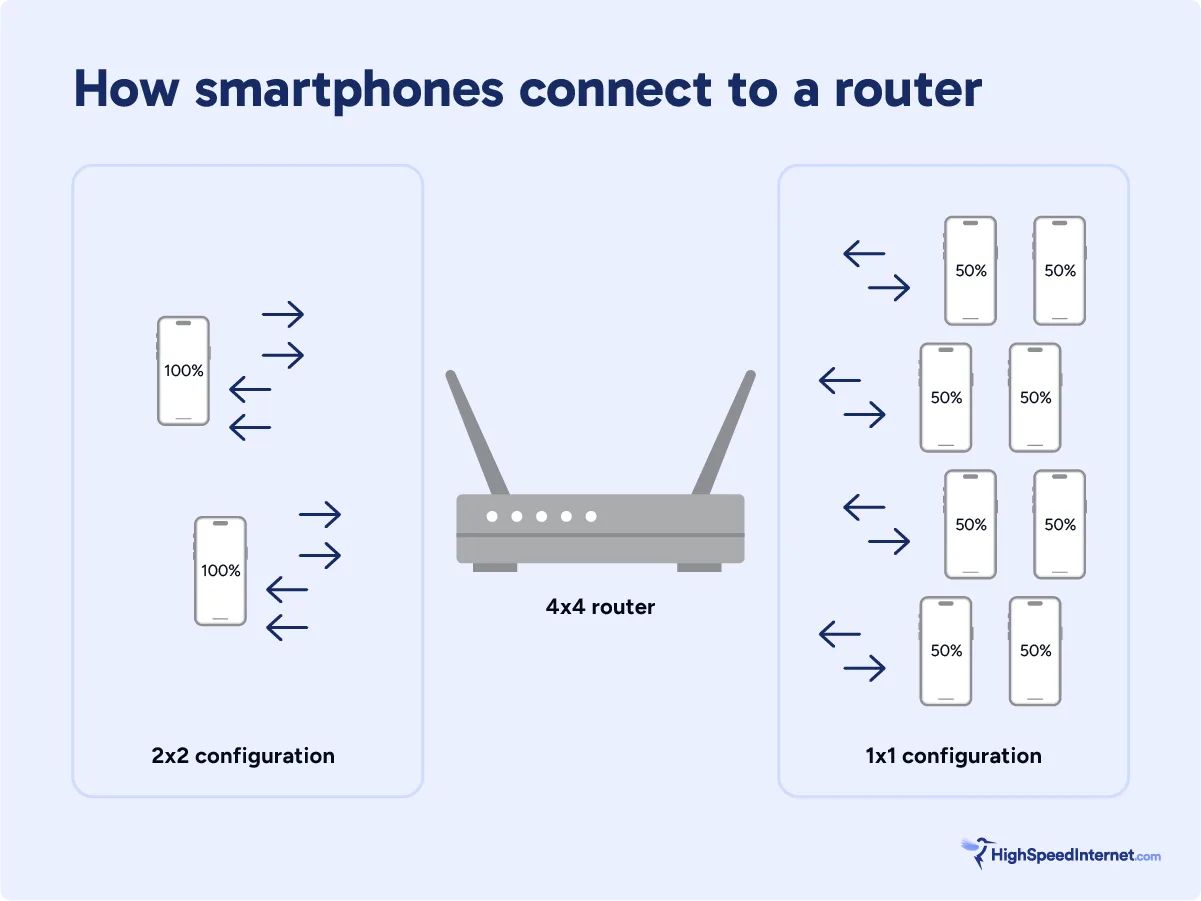
The more devices you connect to a single router radio, the more latency you create. Illustration by Kayla Fischer HighSpeedInternet.com
Streams
I talk about streams in my reviews and roundups for this very reason: because they’re important to know.
Most of the modern Wi-Fi devices you own include four antennas: two for transmit (Tx) and two for receive (Rx). I typically show this as a 2×2 configuration.
So, let’s look at a single Wi-Fi direction and how the stream count translates. The numbers shown below are based on a router’s 5 GHz radio with an 8×8 configuration:
| Number of devices | # of antennas used | Device speed each |
|---|---|---|
| 4 | 2 each | Full |
| 8 | 1 each | Half |
As the table shows, the router’s 5 GHz radio can transmit to up to four devices at their designed speed in any given second, or it can transmit up to eight devices at half their speed. All the additional devices you have on the Wi-Fi network must wait in line, and that causes some latency.
Of course, there’s more going on with the speeds you get than the connection rate your Wi-Fi device is designed to handle. Things like channel width, overhead, interference, and distance play a huge part in your Wi-Fi speed.
Overall, the more streams a router has per band, the more devices it can handle in any given second. Now, let’s take a closer look at your device count and how much bandwidth you really need.
The number of radios and streams dictates the max throughput
| Hands-on "active" devices @ 40Mbps each | Hands-off "passive" devices @ 5Mbps each |
|---|---|
The days of saying you need an X amount of speed for each person are kinda gone. I can safely say I personally own and use more devices than I care to count—the same goes for everyone else in the house who is eating up my snacks and leeching off my internet.
I like to split devices into “active” and “passive” groups, as they generally require different amounts of bandwidth. The more devices you have, the more total throughput you need. Product labels like BE19000 and AXE11000 tell you exactly how much throughput a router or mesh system has and the type of Wi-Fi it uses. Take a look at a few examples:
| BE19000 | AXE11000 | AX11000 | |
|---|---|---|---|
| Wi-Fi type | Wi-Fi 7 (802.11be) | WiFi 6E (802.11axe) | Wi-Fi 6 (802.11ax) |
| Max throughput | 19,000Mbps | 11,000Mbps | 11,000Mbps |
| Radios | |||
| Streams per radio | 4×4 | 4×4 | 4×4 |
That all said, the higher the device count you have, the higher the total throughput you need to support those devices.
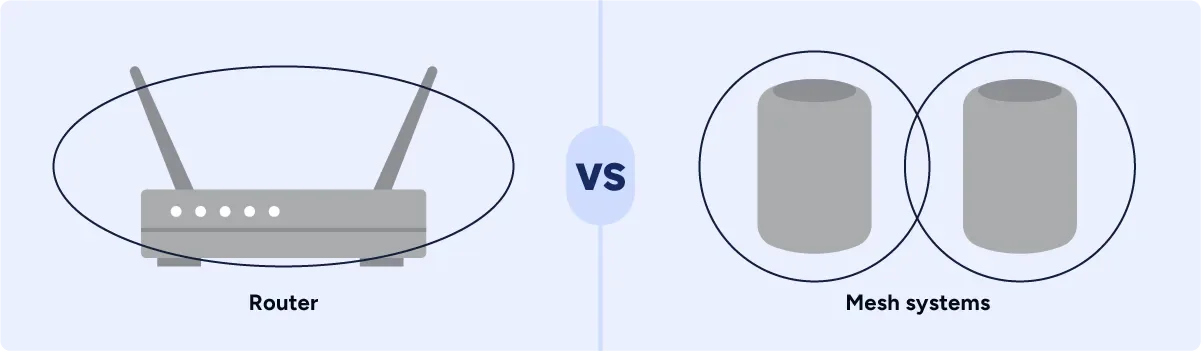
Standard Wi-Fi routers broadcast in an elongated oval (donut), while mesh system units broadcast in a sphere. Illustration by Kayla Fischer | HighSpeedInternet.com
Range vs whole-home: It’s all about dodging
Standalone router
 Apartments
Small homes
Thin walls
Mesh systems
Large homes
Lots of heavy furniture in key areas
Dodging thick walls (steel, brick, cement)
Modern standalone routers with external antennas are ideal for range. Wi-Fi broadcasts in an elongated oval if all antennas are upright. Change the angle of the antennas, and you change the shape of the oval to be less elongated.
However, you may have issues if you’re trying to beam Wi-Fi through appliances, thick furniture like filled bookcases, brick walls, and upper or lower floors.
In the table below, you can see the speed differences between walking out onto the front porch to test my speed (with very few obstructions) and standing in the hallway that wraps around my metal air handler unit.
| 6 GHz | 5 GHz | 2.4 GHz | |
|---|---|---|---|
| 20 feet (hallway) | 2,133 | 1,436 | 160 |
| 40 feet (porch) | 2,179 | 1,455 | 254 |
* Speeds in megabits per second (Mbps)
The bottom line here is that I’d get lots more speed at my 20-foot marker in the hallway if Wi-Fi weren’t beamed through walls, ceramic tiles, and metal.
Mesh routers and systems are ideal for whole-home coverage. Wi-Fi broadcasts in a sphere from each unit, so you have equal coverage in all directions. You can’t move the antennas, but you can relocate each unit as needed.
The drawback is that each unit must be within “eyesight” of at least one other for the best communication. These units use a private “backhaul” for unit-to-unit chatter, which can be wireless or wired.
As the chart below shows, I tested better speeds with a mesh system than with a standalone router. Why? Because the system’s router unit used a private backhaul route to send my test data to the satellite unit, which in turn sent my data to my client device over a short distance. There was no beaming my test data through tile, steel, and wood. Take a look:
| 6 GHz | 5 GHz | 2.4 GHz | |
|---|---|---|---|
| 20 feet (hallway) | 3,001 | 1,701 | 205 |
| 40 feet (porch) | 2,377 | 1,553 | 201 |
* Speeds in megabits per second (Mbps)
Overall, the standalone router tested with higher speeds at my 120-foot marker across the street, but the mesh system tested higher in key areas in my home where I need speed the most.

Your wallet may not appreciate the additional subscriptions after paying for an expensive router. Photo by Hannah “What did I just buy?” Haynes | HighSpeedInternet.com
Keep an eye on the overall cost
In all the years I’ve tested and reviewed routers and mesh systems, one thing is certainly clear: You get what you pay for. The higher the price, the higher the throughput. Some routers and systems include features like security and parental controls, while others lock them behind a paywall. You certainly don’t want to pay $600 for a router that requires subscriptions to get the most out of it when you can get a similar one with the same features for free.
Here are the features I keep my eye on when I’m evaluating routers and mesh systems:
- Security – All routers and mesh systems have a basic firewall by way of the NAT, but I look for things like an SPI firewall, malware prevention, and so on that don’t cost extra.
- Parental controls – The free tools vary across brands, but ideally, you want the ability to create profiles, assign and manage devices, apply content filters, and schedule internet downtimes.
- Gaming tools – If you’re going to market your product as a gaming router, it should have unique gaming tools—and I don’t mean rebranded ones, like Quality of Service and the speed test.
- VPN connectivity – Most routers and systems include an OpenVPN server for free, allowing you to pipe your connection through the router, even if you’re off the home network. Some have a free VPN client you can use to connect to the VPN service of your choosing.
- Media streaming – This feature requires a USB port (most routers have them). I look for the DLNA server, which allows any DLNA-compliant device (media streamers, game consoles, smart TVs, etc) to stream media from the USB stick.
- Printer sharing – This service is rare anymore, so finding it on a router or mesh system is a big plus. It essentially allows any device on your home network to access a printer connected to the router’s USB port.
- Mesh support – That’s a big “duh” with mesh systems, but I also keep an eye out for mesh support on standalone routers. ASUS uses proprietary technology, allowing you to pair multiple ASUS routers. TP-Link and others use the open-source EasyMesh, so you can pair any router to make a mesh network.
Compare your one-time cost against the provider’s rental fee
Part of your eyeball on cost includes comparing the retail price against your internet provider’s rental fee. Routers and mesh systems generally have a lifespan of seven years before manufacturers stop supporting them. Ideally, the system you choose should cost less than what you pay to internet providers over seven years. Let’s take a look at the Eero Pro 7, now offered by many internet providers:
| Retail | Rental | |
|---|---|---|
| Eero Pro 7 2-pack | $450 | $10/mo. |
| Total: | $450 | $840 |
That’s quite a difference, and I didn’t even factor in the Eero Plus subscription. But, as I mentioned earlier, your internet provider supplies upgrades and replacements at no extra cost, while upgrading or replacing equipment you buy comes out of your pocket.
Of course, you can’t compare pricing if your internet provider offers this system to use at no extra charge to you. That’s the way to go if you want to save money and don’t care about privacy and having full control over your home network.
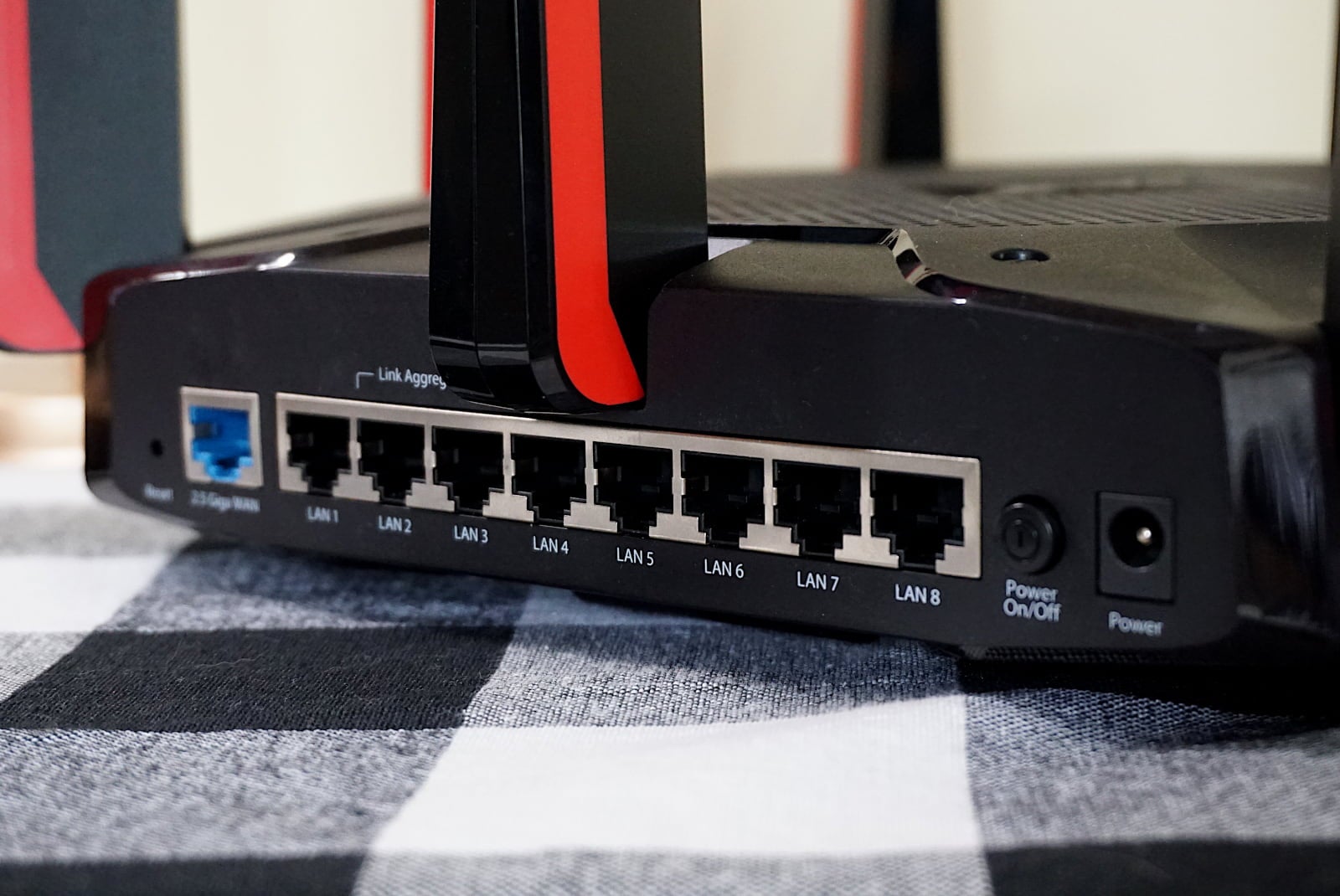
Who needs an Ethernet switch when a router can provide more ports than you may ever need? Kevin Parrish | HighSpeedInternet.com
Finally, make sure you get the ports you need
Presumably, most of us rely on Wi-Fi. Again, it’s not the internet—it just replaces Ethernet. Wi-Fi isn’t the most reliable connection, so users like gamers often stick with Ethernet to get the best connection (this one does, anyway). Most standalone routers have four LAN ports, while I’ve seen some models with eight.
Mesh systems typically aren’t quite as Ethernet-loaded, so if you rely heavily on wired connections, you may want to shop for one of the larger systems (size totally matters) with a few extra ports or invest in an Ethernet switch. One Ethernet port should match the speed of the WAN one.

Need an internet update, too?
Enter your zip code to find a faster, more reliable internet connection in your area.
Author - Kevin Parrish
Kevin Parrish has more than a decade of experience working as a writer, editor, and product tester. He began writing about computer hardware and soon branched out to other devices and services such as networking equipment, phones and tablets, game consoles, and other internet-connected devices. His work has appeared in Tom’s Hardware, Tom's Guide, Maximum PC, Digital Trends, Android Authority, How-To Geek, Lifewire, and others. At HighSpeedInternet.com, he focuses on network equipment testing and review.
Editor - Jessica Brooksby
Jessica loves bringing her passion for the written word and her love of tech into one space at HighSpeedInternet.com. She works with the team’s writers to revise strong, user-focused content so every reader can find the tech that works for them. Jessica has a bachelor’s degree in English from Utah Valley University and seven years of creative and editorial experience. Outside of work, she spends her time gaming, reading, painting, and buying an excessive amount of Legend of Zelda merchandise.
Related Posts