Yes, if the plan you signed up for doesn’t offer as much download speed as you want. But there are a lot of other possible causes, as well. If your Wi-Fi is slow, there are two likely bottlenecks: your internet service provider (ISP) or your router. Let’s take a look at how to deal with each type of problem.
How fast is my Wi-Fi?
The first step is figuring out how fast your Wi-Fi is compared to the advertised speed of your internet plan. To do this, download our free, easy-to-use speed test app for quick and reliable results, and see how fast your internet is on your phone.


If your test result is slower than the speeds promised by your internet plan, try plugging a computer directly into the router using an Ethernet cable. If this fixes your problem, the issue is probably with your router. Fortunately, there are several ways to increase the speed of your router.
If you’re still getting low speeds, or if the speed you’re paying for just isn’t enough, it might be time to upgrade to a faster plan or switch to a more reliable provider.
The first step is figuring out how fast your Wi-Fi is compared to the advertised speed of your internet plan. To do this, set up your computer where you normally work and take an internet speed test.

If your test result is slower than the speeds promised by your internet plan, try plugging your device directly into the router using an Ethernet cable. If this fixes your problem, the issue is probably with your router. Fortunately, there are several ways to increase the speed of your router.
If you’re still getting low speeds, or if the speed you’re paying for just isn’t enough, it might be time to upgrade to a faster plan or switch to a more reliable provider.

Enter your zip code below to see internet providers in your area
How to speed up your Wi-Fi router
If you’ve determined that the problem is most likely your router, the first thing to do is simply turn it off and on again, also known as power cycling, which will often fix your Wi-Fi problems.
The next easiest thing to do is to try moving your router or your other Wi-Fi devices. Wi-Fi signals can be blocked by thick walls or floors, so moving devices around so that they have the most direct line of sight to the router can improve signal quality. If line of sight and dead zones are a constant problem, you can also set up a mesh router system to ensure strong Wi-Fi throughout your home.
You can also adjust your router’s settings to improve its performance. Many routers have apps that will allow you to monitor and control the devices on your wireless network. For more information, check out our article on how to improve your Wi-Fi speed.
It’s also worth noting that even if your router is working perfectly but its top speed is slower than the internet you’re paying for, you’re not going to be able to take advantage of that speed over Wi-Fi. If this is the case, check out our list of the fastest routers for gigabit internet to make sure you’re able to use the speeds you’re paying for.
Troubleshooting a slow connection
If your router isn’t the problem but you’re still getting lower speeds than you expect, there might be a problem with your internet connection. Before you start looking for a new ISP, it’s worth checking to see if this problem has an easy fix like one of these:
- Replacing a damaged cable
- Updating your devices
- Avoiding peak hours
There are also more involved fixes that can improve your speed. Different types of connections can slow down for different reasons. Follow our troubleshooting guide to see if it’s an issue that you can fix yourself.
How to upgrade your internet connection
If your internet connection suffers from problems you can’t fix yourself or it’s working correctly but you still need more speed, it’s probably time to upgrade.
Before you crack open your piggy bank, know that faster internet doesn’t always mean paying more. Often simply switching from a slower type of connection to a faster one (like switching from satellite to DSL or from cable to fiber) will give you faster speeds and more stable connections for the same price you were paying before (or sometimes less).
| Technology | Pros | Cons |
|---|---|---|
| Fiber | ● Fastest speeds ● Most reliable connections | ● Limited availability |
| Cable | ● Fast speeds | ● Slowdown at peak hours |
| 5G | ● Fastest wireless speeds | ● Limited availability |
| Fixed Wireless | ● Fast speeds | ● Limited availability |
| 4G LTE | ● Increasing availability | ● Slower speeds ● Data restrictions |
| DSL | ● Wide availability | ● Slower speeds ● Outdated technology |
| Satellite | ● Near nationwide availability | ● Slower speeds ● High latency ● Data restrictions |
Before you make a decision, be sure to check out all the ISPs in your area with our zip tool above and see which ones offer the speeds you want for the best value.
Pro tip:
Are you looking for the fastest internet available? Check out our report on the fastest internet service providers according to the results of our speed test.
Popular internet providers with fast speeds
| Provider | Fiber speeds up to | Price | Customer rating | Availability | Get it |
|---|---|---|---|---|---|

| Up to 2,300Mbps | $49.99–$109.99/mo.* | 3.9/5.0 | 10 states on the East Coast | View Plans |
 | 5,000Mbps | $55.00–$245.00/mo.† | 3.7/5.0 | California and 21 other states in the South and Midwest | |

| 8,000Mbps | $70.00–$150.00/mo.‡ | 4.4/5 | 26 cities and counties across the United States; 7 additional cities have Google Webpass | View Plans |
 | 940Mbps | $50.00–75.00/mo.§ | 3.6/5.0 | 16 states primarily in the Midwest and West | |

| 7,000Mbps | $29.99–$139.99/mo.║ | 3.5/5 | 25 states including California, New York, and Texas | View Plans |

| 8,000Mbps | $35–$90/mo.** | 3.4/5.0 | New York, New Jersey, Connecticut and Pennsylvania | View Plans |

| 5,000Mbps | $39.95–$189.95†† | 4.0/5.0 | 49 states | View Plans |
Offers and availability may vary by location and are subject to change.
Read disclaimers.
Make sure your router can keep up with your new connection
If you do upgrade your internet plan, make sure your Wi-Fi router is at least as fast as your new download speed. If you got your router from your ISP, this shouldn’t be a problem. But if you bought your own, make sure that it can keep up with the new connection speed or you’ll be back at square one. For example, if you have a gigabit internet connection, you need a gigabit router to take advantage of that speed.
FAQ about Wi-Fi speed
Does increasing my Wi-Fi speed increase its range?
Is it worth upgrading your Wi-Fi speed?
What is a good Wi-Fi speed?
Is 100 Mbps Wi-Fi Fast?
Plans disclaimers
Verizon internet disclaimers
Verizon Internet Disclaimers
| Plan | Disclaimer |
|---|---|
5G Home | Price per month with Auto Pay & without select 5G mobile plans. Consumer data usage is subject to the usage restrictions set forth in Verizon's terms of service; visit: https://www.verizon.com/support/customer-agreement/ for more information about 5G Home and LTE Home Internet or https://www.verizon.com/about/terms-conditions/verizon-customer-agreement for Fios internet. |
5G Home Plus | Price per month with Auto Pay & without select 5G mobile plans. Consumer data usage is subject to the usage restrictions set forth in Verizon's terms of service; visit: https://www.verizon.com/support/customer-agreement/ for more information about 5G Home and LTE Home Internet or https://www.verizon.com/about/terms-conditions/verizon-customer-agreement for Fios internet. |
5G Home Ultimate | |
Fios 300 Mbps | Price per month with Auto Pay & without select 5G mobile plans. Consumer data usage is subject to the usage restrictions set forth in Verizon's terms of service; visit: https://www.verizon.com/support/customer-agreement/ for more information about 5G Home and LTE Home Internet or https://www.verizon.com/about/terms-conditions/verizon-customer-agreement for Fios internet. |
Fios 500 Mbps | Price per month with Auto Pay & without select 5G mobile plans. Consumer data usage is subject to the usage restrictions set forth in Verizon's terms of service; visit: https://www.verizon.com/support/customer-agreement/ for more information about 5G Home and LTE Home Internet or https://www.verizon.com/about/terms-conditions/verizon-customer-agreement for Fios internet. |
Fios 1 Gig | Price per month with Auto Pay & without select 5G mobile plans. Consumer data usage is subject to the usage restrictions set forth in Verizon's terms of service; visit: https://www.verizon.com/support/customer-agreement/ for more information about 5G Home and LTE Home Internet or https://www.verizon.com/about/terms-conditions/verizon-customer-agreement for Fios internet. |
Fios 2 Gig | Price per month with Auto Pay & without select 5G mobile plans. Consumer data usage is subject to the usage restrictions set forth in Verizon's terms of service; visit: https://www.verizon.com/support/customer-agreement/ for more information about 5G Home and LTE Home Internet or https://www.verizon.com/about/terms-conditions/verizon-customer-agreement for Fios internet. |
Fios 5 Gig | Price per month with Auto Pay & without select 5G mobile plans. 5 year price lock. Consumer data usage is subject to the usage restrictions set forth in Verizon's terms of service; visit: https://www.verizon.com/support/customer-agreement/ for more information about 5G Home and LTE Home Internet or https://www.verizon.com/about/terms-conditions/verizon-customer-agreement for Fios internet. |
Verizon Home Internet Lite Extra | 3 year price lock guarantee. Verizon Home Internet Lite: Verizon Home Internet Lite Extra plan at $55/mo. when combined with postpaid Verizon mobile phone plan (excludes business and data-only plans). Auto Pay & paper-free billing req’d. Availability varies. Subject to credit approval. |
AT&T internet disclaimers
AT&T Internet Disclaimers
| Plan | Disclaimer |
|---|---|
AT&T Fiber Internet 300 | Price + taxes and fees for new customers in select markets after discounts w/elig Autopay & paperless bill. Discounts start w/in 3 bills. |
AT&T Fiber Internet 500 | Price + taxes and fees for new customers in select markets after discounts w/elig Autopay & paperless bill. Discounts start w/in 3 bills. |
AT&T Fiber Internet 1000 | Price + taxes and fees for new customers in select markets after discounts w/elig Autopay & paperless bill. Discounts start w/in 3 bills. |
AT&T Fiber Internet 5000 | Limited availability in select areas. Speeds based on wired connection. Actual speeds may vary. For 5 GIG, single device wired speed maximum 4.7Gbps. |
AT&T Internet Air | Includes $10 off with AutoPay and Paperless Bill |
gFiber internet disclaimers
GFiber Internet Disclaimers
| Plan | Disclaimer |
|---|---|
Actual internet, Wi-Fi speeds, and Wi-Fi coverage are not guaranteed and can vary based on factors such as home or business size and layout, construction materials, hardware and software limitations, latency, packet loss, etc. | |
Actual internet, Wi-Fi speeds, and Wi-Fi coverage are not guaranteed and can vary based on factors such as home or business size and layout, construction materials, hardware and software limitations, latency, packet loss, etc. | |
Actual internet, Wi-Fi speeds, and Wi-Fi coverage are not guaranteed and can vary based on factors such as home or business size and layout, construction materials, hardware and software limitations, latency, packet loss, etc. |
CenturyLink internet disclaimers
Centurylink Internet Disclaimers
| Plan | Disclaimer |
|---|---|
Simply Unlimited Fiber Internet Up to 500 Mbps | Limited availability. Service and rate in select locations only. Paperless billing required. Taxes and fees apply. |
Simply Unlimited Fiber Internet Up to 940 Mbps | Limited availability. Service and rate in select locations only. Paperless billing required. Taxes and fees apply. |
Simply Unlimited Internet Up to 140 Mbps | Paperless billing or prepay required. Additional taxes, fees, and surcharges apply. Get the fastest internet speed available at your location (max speed is up to 140 Mbps). |
Frontier internet disclaimers
Frontier Internet Disclaimers
| Plan | Disclaimer |
|---|---|
Fiber 200 | per mo. w/ Auto Pay for 12 mos. |
Fiber 500 | w/ Auto Pay & Paperless Bill. Max wired speed 500/500 Mbps. Wi-Fi, actual & average speeds vary. One-time charges apply. |
Fiber 1 Gig | w/ Auto Pay & Paperless Bill. Max wired speed 1000/1000 Mbps. Location dependent. Wi-Fi, actual & average speeds vary. One-time charges apply. |
Fiber 2 Gig | w/ Auto Pay & Paperless Bill. Max wired speed 2000/2000 Mbps. Wi-Fi, actual & average speeds vary. One-time charges apply. |
Fiber 5 Gig | w/ Auto Pay & Paperless Bill. Max wired speed 5000/5000. Wi-Fi, actual & average speeds vary. One-time charges apply. |
Fiber 7 Gig | w/ Auto Pay & Paperless Bill. Max wired speed 7000/7000. Wi-Fi, actual & average speeds vary. One-time charges apply. |
Optimum internet disclaimers
Optimum Internet Disclaimers
| Plan | Disclaimer |
|---|---|
w/ $10/mo. elig. Auto Pay & Paperless Bill. Wired connection. WiFi speeds may vary. Not available in all areas. | |
w/ $10/mo. elig. Auto Pay & Paperless Bill. Wired connection. WiFi speeds may vary. Not available in all areas. | |
w/ $10/mo. elig. Auto Pay & Paperless Bill. Wired connection up to 940 Mbps. WiFi speeds may vary. Not available in all areas. Gift card: Terms & conditions apply. See optimum.com for details. | |
w/ $10/mo. elig. Auto Pay & Paperless Bill. Wired connection. WiFi speeds may vary. Not available in all areas. Gift card: Terms & conditions apply. See optimum.com for details. | |
w/ $10/mo. elig. Auto Pay & Paperless Bill. Wired connection. WiFi speeds may vary. Not available in all areas. Prepaid Card: Card terms & expiration apply. |
EarthLink internet disclaimers
Earthlink Internet Disclaimers
| Plan | Disclaimer |
|---|---|
with a 12 month contract. Actual speeds may vary depending on the distance, line-quality, phone service provider, and number of devices used concurrently. All speeds not available in all areas | |
with a 12 month contract. Actual speeds may vary depending on the distance, line-quality, phone service provider, and number of devices used concurrently. All speeds not available in all areas | |
with a 12 month contract. Actual speeds may vary depending on the distance, line-quality, phone service provider, and number of devices used concurrently. All speeds not available in all areas | |
with a 12 month contract. Actual speeds may vary depending on the distance, line-quality, phone service provider, and number of devices used concurrently. All speeds not available in all areas | |
Actual speeds may vary depending on the distance, line-quality, phone service provider, and number of devices used concurrently. All speeds not available in all areas. Exclusions like taxes & fees apply. Not available in all areas. Limited-time offer; subject to change. | |
Actual speeds may vary depending on the distance, line-quality, phone service provider, and number of devices used concurrently. All speeds not available in all areas. Exclusions like taxes & fees apply. Not available in all areas. Limited-time offer; subject to change. | |
Actual speeds may vary depending on the distance, line-quality, phone service provider, and number of devices used concurrently. All speeds not available in all areas. Exclusions like taxes & fees apply. Not available in all areas. Limited-time offer; subject to change. | |
Actual speeds may vary depending on the distance, line-quality, phone service provider, and number of devices used concurrently. All speeds not available in all areas. Exclusions like taxes & fees apply. Not available in all areas. Limited-time offer; subject to change. | |
Actual speeds may vary depending on the distance, line-quality, phone service provider, and number of devices used concurrently. All speeds not available in all areas. Exclusions like taxes & fees apply. Not available in all areas. Limited-time offer; subject to change. | |
with a 12 month contract. Actual speeds may vary depending on the distance, line-quality, phone service provider, and number of devices used concurrently. All speeds not available in all areas | |
with a 12 month contract. Actual speeds may vary depending on the distance, line-quality, phone service provider, and number of devices used concurrently. All speeds not available in all areas | |
with a 12 month contract. Actual speeds may vary depending on the distance, line-quality, phone service provider, and number of devices used concurrently. All speeds not available in all areas | |
with a 12 month contract. Actual speeds may vary depending on the distance, line-quality, phone service provider, and number of devices used concurrently. All speeds not available in all areas | |
with a 12 month contract. Actual speeds may vary depending on the distance, line-quality, phone service provider, and number of devices used concurrently. All speeds not available in all areas | |
with a 12 month contract. Actual speeds may vary depending on the distance, line-quality, phone service provider, and number of devices used concurrently. All speeds not available in all areas | |
Actual speeds may vary depending on the distance, line-quality, phone service provider, and number of devices used concurrently. All speeds not available in all areas. Exclusions, taxes, fees, or modem service charges may apply. Not available in all areas. Limited-time offer; subject to change. | |
With the Work From Home Unlimited Plan, you’ll enjoy speeds up to 25 Mbps for the first 300 GB of data usage each month; speeds will reduce if usage exceeds 300 GB within that month. |
-
Fastest speeds
- Fastest fiber speeds on our speed test
- Limited nationwide availability
- Speeds: 1,000–8,000 Mbps
- Prices: $70.00–$150.00mo.
-
Lowest latency
- Widely available fast speeds
- Higher pricer for the faster plans
- Speeds: 300–2,300Mbps
- Prices: $49.99–$109.99/mo.
-
Wide availability of fast speeds

- Wide availability nationwide
- Contracts and data caps
- Speeds: Starting at 300Mbps
- Prices: Starting at $40/mo.
for 12 mos.
-
Best deals

- No contracts or installation/equipment fees
- Limited nationwide availability
- Speeds: Up to 318–498Mbps
- Prices: $50–$70/mo.
w/ AutoPay, plus taxes & fees.
-
Best multigigabit packages
- Multiple fiber multigigabit plans to choose from
- Lower availability for top speeds
- Speeds: 300–5,000 Mbps
- Prices: $55.00–$245.00/mo.
See disclaimers.
Your internet speed is one of the most important aspects of your home network. Not everyone needs the fastest Wi-Fi speed around, but it’s still important to have enough bandwidth to meet your household needs.
At HighSpeedInternet.com, we spend a lot of time focused on internet speed—it’s literally in our name, after all. We know all the facts on how internet and Wi-Fi speed works and why it matters, so read on to have all your questions answered.
Test and track your internet speed on your phone
Download our free, easy-to-use speed test app for quick and reliable results.
First things first—How do you check your internet speed?
Take our speed test below to check your internet speed. The quick test gives you a full readout of your download speed, upload speed, and latency.
Download speed
000 Mbps
Upload speed
000 Mbps
Latency (ping)
00 ms
Jitter
00 ms
Find out your internet speed, find fast internet providers, and more
We have tons of pages on our site devoted to all things Wi-Fi speed. We’ve compiled the most important pieces here to help you find what you’re looking for.
| Run a speed test | Run our speed test to see how much bandwidth you have. | Take Speed Test |
| Understand your speed test | Learn how to read speed test results, including the meaning of “Mbps” and “latency.” | Understand Internet Speed |
| Improve your speed | Find ways to improve your internet connection, from simple fixes to big upgrades. | Improve Internet Speed |
| Know why your speed is slow | Understand common factors that slow your internet down. | Troubleshoot Slow Internet |
| See fastest internet providers | Find out which internet service providers deliver the fastest-possible speeds. | View Providers |
What does internet speed mean?
Internet speed is the measure of how much time it takes a certain amount of data to transfer from a server to your device and vice versa.
Whether you’re streaming videos on Netflix, posting on Twitter, or attending a Zoom meeting, you’re using your device to download and upload packets of data. The rate at which you can transfer all of this data depends on your internet connection’s bandwidth, measured in Mbps.
On a home Wi-Fi network, your internet provider determines your Wi-Fi speed. What you can get depends on the provider’s technical capabilities and how much you’re willing to pay for higher speeds. Naturally, faster connections come with a higher monthly bill in most cases.
Find fast internet
Search your zip code below to see which internet providers operate in your area. Hopefully you can find top-speed Wi-Fi.
What is a good internet speed?
According to the latest proposals from the Federal Communications Commission, a good internet speed is a connection that gives you downloads of at least 100Mbps and uploads of at least 20Mbps. That’s the new benchmark that FCC Chairwoman Jessica Rosenworcel plans to set for broadband internet providers, customers, and policymakers.
An internet speed of 100 Mbps is enough to let four or five Wi-Fi users play online games, stream video in HD, and attend Zoom meetings with minimal slowdowns or buffering. It’s great for most people, although some users may prefer a slower plan with a cheaper price, while others need faster speeds to handle heavier internet usage.
Of course, different households can have drastically different internet needs. Someone who lives alone and uses the internet for only small things like social media and web browsing doesn’t need as much internet speed as a family of five streaming Netflix in every room. But a faster connection is often better, especially if you spend a lot of time on the internet or share Wi-Fi with multiple users (or both).
| Internet speed | Ideal number of users | What you can do |
|---|---|---|
| 0–5 Mbps | 1–2 minimal internet users | ● Send emails ● Search Google ● Stream in HD on a single device |
| 5–40 Mbps | 1–2 moderate internet users | ● Stream in HD on a few devices ●Play online games ● Run 1–2 smart devices |
| 40–100 Mbps | 1–2 heavy internet users, or 3–4 moderate internet users | ● Stream in 4K on 2–4 devices ● Play online games with multiple players ● Download big files quickly (500 MB to 2 GB) ● Run 3–5 smart devices |
| 100–500 Mbps | 3–4 moderate to heavy internet users | ● Stream in 4K on 5+ devices ● Download very big files very quickly (2–30 GB) ● Run 5+ smart devices |
| 500–1,000+ Mbps | 5 or more heavy internet users | ● Stream in 4K on 10+ devices ● Download and upload gigabyte-plus–sized files at top speed ● Run 10 or more smart-home devices in your abode ● Do basically anything on multiple devices with no slowdowns |
Speed requirements taken from HighSpeedInternet.com’s How Much Internet Speed Do I Need? guidelines.
What is the best internet speed for you?
Use our “How Much Internet Speed Do I Need?” tool to figure out the best internet speed for you, based on what you do online and how many people you share Wi-Fi with.

How fast does your internet need to be?
Your internet speed needs to be at least 25Mbps to work smoothly. That is the FCC’s current standard for minimum download speeds, although the commission is currently working to upgrade this minimum standard to 100Mbps.
Generally, you need internet that’s fast enough to support all of the activities that you tackle during your daily Wi-Fi usage. You also need internet with enough bandwidth to support other users on your Wi-Fi network. That ideal speed varies depending on the size of your household and what you do online, but if we’re talking in terms of speed needs, anywhere from 25Mbps to 100Mbps should be considered a baseline for you to use the internet smoothly.
What types of internet are there—and how fast are they?
There are several types of internet connections, and the type of connection you have plays a huge part in the speeds you can get.
Fiber and cable are the fastest and most popular types of internet connections, but many customers have also embraced 5G home internet in recent years thanks to its low prices.
In rural areas, satellite and fixed wireless internet are common picks. They’re slower and more expensive, but get you Wi-Fi in areas where networking infrastructure is limited.
| Internet type | Max download speed | Price | Availability* | Learn more |
|---|---|---|---|---|
| Fiber | 50,000Mbps (50Gbps) | $29.99–$900/mo. | 29.2% | View Providers |
| Cable | 2,000Mbps (2Gbps) | $19.99–$109.99/mo. | 88.5% | View Providers |
| DSL | 140Mbps | $39.99–$55.00/mo. | 84.4% | View Providers |
| 5G | 1,000Mbps | $25.00–$144.99/mo. | N/A | View Providers |
| 4G LTE | Typically 100Mbps | $25.00–$149.95/mo. | N/A | View Providers |
| Fixed wireless | 50Mbps | $25.00–$144.99/mo. | 38.8% | View Providers |
| Satellite | 100Mbps | $30.00–$500.00/mo. | 99.9% | View Providers |
Data as of 7/28/23. Offers and availability may vary by location and are subject to change.
*Percentages are based on internet availability data from the Federal Communications Commission.
Fiber internet provides the fastest plans you can get, ranging from 100Mbps to a whopping 50,000Mbps (50Gbps). It’s the most reliable connection, too, by using a passive technology that has less downtime than cable and DSL. Plus, your speeds are typically symmetrical, meaning your upload speed is just as fast as your download.
Cable internet uses the same coaxial copper cables that transmit cable TV services. Currently, it can reach download speeds up to 2,000Mbps and is more widely available than fiber, making it an excellent option for most customers looking to have high-speed internet in their homes. Cable internet plans often include bundle deals that let you pair Wi-Fi with a TV package.
DSL, short for digital subscriber line, uses the same wiring as landline telephone networks. It’s relatively slow (maxing out at 140Mbps) and is becoming somewhat obsolete, since most DSL providers also offer fiber and have focused more on expanding their fiber services in recent years.
5G home internet is a relatively new internet type that provides internet over a fixed wireless connection. This type’s speeds range from 30–1,000Mbps. 5G networks are still in the process of coming together, so 5G home internet isn’t widely available yet. The technology works best in densely populated areas, so 5G is mostly available in towns and cities—for now at least.
4G LTE home internet uses similar technology as 5G internet, but over 4G networks. It delivers slower speeds, usually dependent on what kind of cell service is available in the area. But it’s a great option for rural users whose other options might be limited to satellite internet.
Fixed wireless is a wireless, cellular–based type of internet connection. Most fixed wireless plans give you max speeds of 25–50Mbps, making it a solid fallback option if you can’t find something faster or cheaper.
Satellite internet is available almost anywhere in the United States, but it’s the slowest kind of internet you can get. Most satellite customers live in rural areas where you can’t get any other type of internet connection.
How can you improve your internet speed?
You can improve your internet speed by upgrading to a faster plan, updating your equipment, or taking simpler measures like closing out apps and browser windows.
Internet can be slow for all sorts of reasons—and not just because you have a slow plan. So read on for common solutions and home remedies to put some pep in your Wi-Fi’s step. You can find more detailed explanations in our 10-step guide to improving internet speeds.
Update your modem and router. Outdated equipment can impede your Wi-Fi speeds, keeping you from hitting the speeds you’re paying for. To stay up to date, get a modem and router that meet wireless standards for Wi-Fi 5 (802.11ac) or Wi-Fi 6 (802.11ax). And if you have a cable gigabit plan, make sure you have a DOCSIS 3.1 gigabit modem.
Move your router to a better location. Your router dispatches a Wi-Fi signal to all the connected devices in your home, so make sure it’s in a centralized location (like your living room) and away from any obvious obstructions. Bulky furniture or electronic appliances like microwaves can block its signal.
Plug your computer directly into your router. Use an Ethernet cable to give your computer a more direct line to your home network. Wired connections improve your speeds and reduce the chance of signal interference.
Regulate other users’ online activity. If you have an important Zoom meeting, ask your kids to switch off the Xbox to free up more bandwidth. Some routers have Quality of Service (QoS) settings that let you put limits on certain users and online activities.
Close out unnecessary tabs and apps. Got two dozen tabs open on your browser? Clear the air by closing the ones you’re not using.
Upgrade your internet. If all else fails, you can always look into upgrading your internet speed. You may even consider switching providers if the service you have now just doesn’t cut it.
Search your zip code below to see what kind of internet speeds are available in your area.
Download speed vs. upload speed—what’s the difference?
There are two types of internet speeds you should know: downloads and uploads.
Download speed is the speed at which information travels from various servers on the internet to your own, internet-connected device. Upload speed is the rate at which information travels from your internet-connected device to the internet.
Most internet connections have faster download speeds than upload speeds. But fiber internet gives you “symmetrical” internet speeds, meaning your uploads are just as fast as your downloads.
Activities that require download bandwidth:
- Streaming videos or music
- Reading an article or blog post
- Scrolling through your social media feed
- Downloading files
Activities that require upload bandwidth:
- Participating in a Zoom call
- Writing an article or blog post on Google Docs
- Posting to social media
- Hosting a livestream
Most internet users download much more information than they upload, so internet providers have traditionally allocated less bandwidth to uploads.
But upload speeds are still important, especially as more people depend on Zoom, Google Docs, and other interactive applications to work from home. Video conferencing, online gaming, social media, and sharing large files all require upload bandwidth—and fast upload speeds reduce the chance of choppy video calls and long load times. To get fast upload speeds, look for a fiber internet provider.
How do you get fast upload speeds?
To get fast uploads, look for a fiber internet plan. Fiber is the only type of internet you can get that has equal upload and download speeds—also called symmetrical speeds.
If fiber isn’t available in your area, you can also get faster upload speeds by upgrading your current internet package—you won’t see as huge of a speed jump, but it could make a difference.
What is latency?
| Connection type | Latency (in ms)* |
|---|---|
| Fiber | 8–13 |
| Cable | 12–26 |
| DSL | 21–37 |
*Data from the Federal Communications Commission’s “Measuring Fixed Broadband—Eleventh Report.”
Latency (or ping rate) is the time required for a signal to travel from your computer to a remote server and back.
It’s a different measure of internet speed, and it’s just as important for the performance of your home network. High latency can lead to choppy video over Zoom, audio/video delays in livestreams, and laggy gameplay. Having low latency is particularly crucial in fast-paced online gaming because it enables quick response times and instantaneous action.
Get fiber internet for low latency—and faster online gaming
Out of all internet connection types, fiber internet has the lowest latency. Fiber-optic light signals work more efficiently than the electrical signals more commonly used with cable and DSL internet, which both have higher ping rates.
Cable has higher latency rates than fiber, while DSL’s latency is higher than cable. But the highest by far is satellite internet—which makes sense, considering its signal must travel all the way to a satellite orbiting dozens of miles above Earth and back.
Why is internet speed important?
Internet speed matters because it sets the parameters for what you can do online. Internet service providers sell plans that range anywhere from less than 1 Mbps (incredibly slow) to 5,000 Mbps (insanely fast), but most netizens would be happy with 100 Mbps download speeds.
Having a sufficiently fast internet or Wi-Fi speed makes it easier to do high-bandwidth activities (like streaming in 4K or downloading a large video game file) without worrying about long load times, buffering, or a dropped connection.
Fast internet also ensures you can multitask over Wi-Fi on the same device or use multiple Wi-Fi devices at the same time. In that way, a faster internet connection isn’t just about speed—it’s also about capacity. More bandwidth can efficiently support a variety of users and tasks at the same time.
Benefits of high-speed internet:
- Quick downloads
- Fast load times
- Lower chance of buffering or dropped connections
- Smoother connection on Zoom calls and livestreams
- Better support for multiple users on the same Wi-Fi network
Think of having fast Wi-Fi as using a pickup truck or SUV instead of a two-door sedan when you’re moving to a new apartment. With a larger vehicle, you can move more stuff to your place in fewer trips, saving you time and energy.
How is internet speed measured?
Internet speeds are measured in bits per second. A bit (short for binary digit) is the most basic unit of digital data. Internet service providers (ISPs) usually advertise their services using three metric bit measurements: Kbps, Mbps, or Gbps.
- Kbps means kilobits per second (1,000 bits per second)
- Mbps means megabits per second (1,000,000 bits per second)
- Gbps means gigabits per second (1,000,000,000 bits per second)
Mbps is the most common term you’ll see—most internet plans range in speed from 1–1,000 Mbps. A Wi-Fi speed represented in Kbps is usually super slow because it means it’s less than 1 Mbps.
Internet that reaches Gbps is often referred to as gigabit internet. While it’s not crucial for everybody to have gigabit internet speeds, it might benefit you if you live with a lot of people or regularly do high-bandwidth activities like streaming movies in 4K.
Is Wi-Fi speed the same as internet speed?
We’re splitting hairs a little bit here, but Wi-Fi speed is a slightly different thing than internet speed.
Wi-Fi as a term is often used interchangeably with internet (in fact, we do so on this very page). Technically, though, Wi-Fi refers specifically to a wireless internet connection carried over a router or mobile hotspot. Wi-Fi speeds can be slightly slower than a wired internet speed directly from your modem because a Wi-Fi signal can face interference over the airwaves, even in a contained area such as your home.
Pro tip:
If you’re looking for the fastest possible internet connection, take a look at the fastest internet providers in the US.
Run a search with your zip code to see if you can find faster internet in your area.
FAQ about internet speed
What is bandwidth?
What is broadband internet?
What is Wi-Fi speed?
Sources
- Molly Wood, Marketplace, “There’s a New Boss at the FCC. Let’s Talk About the Internet, Shall We?” May 5, 2021. Accessed February 8, 2022.
- Federal Communications Commission, “Fixed Broadband Deployment: Area Summary,” June 2020. Accessed February 9, 2022.
- David Pogue, Scientific American, “What WI-FI Stands For—and Other Wireless Questions Answered,” May 1, 2012. Accessed February 15, 2022.
Plans disclaimers
gFiber internet disclaimers
GFiber Internet Disclaimers
| Plan | Disclaimer |
|---|---|
Actual internet, Wi-Fi speeds, and Wi-Fi coverage are not guaranteed and can vary based on factors such as home or business size and layout, construction materials, hardware and software limitations, latency, packet loss, etc. | |
Actual internet, Wi-Fi speeds, and Wi-Fi coverage are not guaranteed and can vary based on factors such as home or business size and layout, construction materials, hardware and software limitations, latency, packet loss, etc. | |
Actual internet, Wi-Fi speeds, and Wi-Fi coverage are not guaranteed and can vary based on factors such as home or business size and layout, construction materials, hardware and software limitations, latency, packet loss, etc. |
Verizon internet disclaimers
Verizon Internet Disclaimers
| Plan | Disclaimer |
|---|---|
5G Home | Price per month with Auto Pay & without select 5G mobile plans. Consumer data usage is subject to the usage restrictions set forth in Verizon's terms of service; visit: https://www.verizon.com/support/customer-agreement/ for more information about 5G Home and LTE Home Internet or https://www.verizon.com/about/terms-conditions/verizon-customer-agreement for Fios internet. |
5G Home Plus | Price per month with Auto Pay & without select 5G mobile plans. Consumer data usage is subject to the usage restrictions set forth in Verizon's terms of service; visit: https://www.verizon.com/support/customer-agreement/ for more information about 5G Home and LTE Home Internet or https://www.verizon.com/about/terms-conditions/verizon-customer-agreement for Fios internet. |
5G Home Ultimate | |
Fios 300 Mbps | Price per month with Auto Pay & without select 5G mobile plans. Consumer data usage is subject to the usage restrictions set forth in Verizon's terms of service; visit: https://www.verizon.com/support/customer-agreement/ for more information about 5G Home and LTE Home Internet or https://www.verizon.com/about/terms-conditions/verizon-customer-agreement for Fios internet. |
Fios 500 Mbps | Price per month with Auto Pay & without select 5G mobile plans. Consumer data usage is subject to the usage restrictions set forth in Verizon's terms of service; visit: https://www.verizon.com/support/customer-agreement/ for more information about 5G Home and LTE Home Internet or https://www.verizon.com/about/terms-conditions/verizon-customer-agreement for Fios internet. |
Fios 1 Gig | Price per month with Auto Pay & without select 5G mobile plans. Consumer data usage is subject to the usage restrictions set forth in Verizon's terms of service; visit: https://www.verizon.com/support/customer-agreement/ for more information about 5G Home and LTE Home Internet or https://www.verizon.com/about/terms-conditions/verizon-customer-agreement for Fios internet. |
Fios 2 Gig | Price per month with Auto Pay & without select 5G mobile plans. Consumer data usage is subject to the usage restrictions set forth in Verizon's terms of service; visit: https://www.verizon.com/support/customer-agreement/ for more information about 5G Home and LTE Home Internet or https://www.verizon.com/about/terms-conditions/verizon-customer-agreement for Fios internet. |
Fios 5 Gig | Price per month with Auto Pay & without select 5G mobile plans. 5 year price lock. Consumer data usage is subject to the usage restrictions set forth in Verizon's terms of service; visit: https://www.verizon.com/support/customer-agreement/ for more information about 5G Home and LTE Home Internet or https://www.verizon.com/about/terms-conditions/verizon-customer-agreement for Fios internet. |
Verizon Home Internet Lite Extra | 3 year price lock guarantee. Verizon Home Internet Lite: Verizon Home Internet Lite Extra plan at $55/mo. when combined with postpaid Verizon mobile phone plan (excludes business and data-only plans). Auto Pay & paper-free billing req’d. Availability varies. Subject to credit approval. |
Xfinity internet disclaimers
Xfinity Internet Disclaimers
| Plan | Disclaimer |
|---|---|
300 Mbps | New Xfinity Internet customers. Limited to 300 Mbps internet. Requires both paperless billing and automatic payments with stored bank account (or additional $10/mo charge applies). Installation, taxes and fees, and other applicable charges extra, and subj. to change. Service limited to a single outlet. Internet: Actual speeds vary and are not guaranteed. For factors affecting speed visit www.xfinity.com/networkmanagement. |
500 Mbps | Internet price guaranteed for 5 years. Price includes $10/mo autopay and paperless discount. |
1 Gig | Internet price guaranteed for 5 years. Price includes $10/mo autopay and paperless discount. |
1.2 Gig | Internet price guaranteed for 5 years. Price includes $10/mo autopay and paperless discount. |
2 Gig | Internet price guaranteed for 5 years. Price includes $10/mo autopay and paperless discount. |
AT&T internet disclaimers
AT&T Internet Disclaimers
| Plan | Disclaimer |
|---|---|
AT&T Fiber Internet 300 | Price + taxes and fees for new customers in select markets after discounts w/elig Autopay & paperless bill. Discounts start w/in 3 bills. |
AT&T Fiber Internet 500 | Price + taxes and fees for new customers in select markets after discounts w/elig Autopay & paperless bill. Discounts start w/in 3 bills. |
AT&T Fiber Internet 1000 | Price + taxes and fees for new customers in select markets after discounts w/elig Autopay & paperless bill. Discounts start w/in 3 bills. |
AT&T Fiber Internet 5000 | Limited availability in select areas. Speeds based on wired connection. Actual speeds may vary. For 5 GIG, single device wired speed maximum 4.7Gbps. |
AT&T Internet Air | Includes $10 off with AutoPay and Paperless Bill |
Any tech labeled as a “gaming” product is going to be fast, powerful, shiny, and comparatively expensive. But what about when it comes to internet? Video games might require a fast CPU, a fancy graphics card, and tons of RAM, but they don’t actually require a lot of download speed. You might be surprised to learn that all you really need is a 5Mbps connection or faster, even for the latest consoles.
This doesn’t mean that any old internet connection is good for online games. What you really need is a connection with low latency, as no amount of speed will eliminate laggy gameplay if your latency ranges into hundreds of milliseconds.
Latency doesn’t get nearly as much attention in internet ads as download speed, which can make finding a good plan for online gaming more difficult. We’ve boiled down the most important points so you know exactly what kind of connection you need to get the most out of your online gameplay.
Looking for the best internet provider for gaming?
Verizon Fios has the lowest latency in our tests. Enter your zip code to see if Verizon or one of our other picks for the best internet providers for gaming is available in your area.
On this page:
Recommended connections | Recommended speeds | More about latency | How to reduce latency | Other factors to consider | The bottom line | Related content
On this page:
Our recommended connections for gaming online
Although many providers will advertise certain plans as being better for playing online games, the biggest factor is usually the underlying technology connecting you to the game servers. Regardless of your provider, you’re going to want a stable, responsive connection. These are the connections we recommend, if you have access to them in your area:
Fiber internet from providers like AT&T , gFiber , and Verizon Home Internet is the best connection for playing games online. It has symmetrical speeds—great for livestreaming—and super-low latency.
Cable internet from Spectrum, Xfinity, and similar providers comes in at a close second. Go with cable before any other internet connection if fiber isn’t available to you.
DSL internet is your next best option if you can’t get fiber or cable. It uses telephone lines and generally introduces more latency, but is better for gaming than wireless connections.
Don’t have access to wired internet? 5G Home Internet is your next best option. It’s a new fixed wireless service boasting lower latency than any other wireless connection. The fastest plan you can get right now is 1,000Mbps, although the technology is capable of higher speeds.
Your carrier’s 5G mobile service would be your backup connection if 5G Home Internet isn’t available to you. The top speed is also 1,000Mbps, but your average real-world speed may be around 200Mbps if you’re lucky.
Finally, 4G and 4G LTE connections (mobile and fixed wireless) generally have much more lag than wired connections but are capable of reaching our recommended latency of below 100 ms.
| Connection type | Max download speeds | Latency* | Providers |
|---|---|---|---|
| Fiber | 10,000Mbps (10Gbps) | 11–14 ms | gFiber , Verizon , AT&T , Frontier , CenturyLink |
| Cable | 2,000Mbps (2Gbps) | 15–35 ms | Xfinity , Cox , Spectrum , Optimum |
| DSL | 140Mbps | 25–43 ms | CenturyLink , Verizon , AT&T , Kinetic |
| 5G (mobile) | 1,000Mbps (1Gbps) | - | Verizon , AT&T , T-Mobile Home Internet |
| 4G LTE (mobile) | 300Mbps | - | Verizon , T-Mobile Home Internet |
| Fixed Wireless | 1,000Mbps (1Gbps) | - | Rise Internet , Verizon , AT&T |
| Satellite | 200Mbps | 594–624 ms | Viasat , Hughesnet |
* Data based on the Seventh Measuring Broadband America Fixed Broadband Report provided by the Federal Communications Commission.
So how much speed do you need for online gaming?
Games and game systems often don’t give specific recommendations since the actual speed requirements are so low. In fact, very little information passes between games like Halo Infinite and Fortnite and their remote servers.
How is it that today’s cutting-edge videogames can get by on such meager connections when other forms of media require ever increasing amounts of bandwidth to offer viewers the latest entertainment experience? It’s because most of the heavy lifting is done by your own computer or console. If you’re watching a Netflix movie in 4K resolution, Netflix has to send a constant stream of high-resolution images from its servers to your screen. If you’re playing Overwatch, you just have to pass a few numbers back and forth between your home and Blizzard’s servers and your console’s processor handles the job of handling input, calculating the game’s physics, and displaying everything correctly on screen.
Here’s what both sides exchange during the session:
- Keyboard input
- Mouse input
- Controller input
- Player location (you and everyone else)
- The current world state
- Player communication
- Server notifications (like in-game announcements)
Out of the items on the list, player location can introduce slowdowns, especially in massively multiplayer online (MMO) games. These games can have more real on-screen players than the typical online gaming scenario, causing frame rate drops and “teleporting” players.
As the list implies, communications between you and the remote server travel along a two-way street. Games are interactive, so you need some upload speed to keep you in the game. Even a poor connection can usually meet your gaming needs, which is why upload speed often takes a backseat to more important factors.
Here are the minimum speed requirements across most gaming platforms:
| System | Min. download speed | Min. upload speed | Max latency |
|---|---|---|---|
| Nintendo Switch | 3Mbps* | 1Mbps* | N/A |
| Nintendo Switch 2 | 3Mbps** | 1Mbps** | N/A |
| Xbox One | 3Mbps† | 0.5Mbps† | 150 ms† |
| PlayStation | 2Mbps‡ | 2Mbps‡ | N/A |
| PlayStation Cloud Streaming | 5Mbps‡‡ | 5Mbps‡ | N/A |
| Steam | 1Mbps§ | 1Mbps§ | N/A |
* Data from Nintendo Customer Support.
**Data from Nintendo Customer Support.
† Data from Xbox Support.
‡ Data from PlayStation Help & Support.
‡‡ Data from PlayStation Cloud Streaming.
§ Based on suggestions made by Bungie for Destiny 2 on PC.
You can play games online as long as your internet connection meets these requirements. But if you want a consistent online experience, you need a slightly better connection.
Here’s what we recommend to play a single game online:
| Download | Upload | Latency |
|---|---|---|
| 5Mbps or more | 3Mbps or more | 100 ms or lower |
Now let’s look at why latency is also an important issue when playing games online.
Is your connection fast enough to play games online?
Run our internet speed test or download our free speed test app to test your speed from anywhere.
Download our free, easy-to-use speed test app for quick and reliable results.
What is Latency in Gaming
Latency can be downright evil. Latency can make the greatest gamer on the planet feel like a sloth at the controls. Chances are, you already know exactly what latency does to your elite skills. But if you’re new to the game, here’s why latency can be bad news.
So, what is latency exactly? Picture a racquetball bouncing off a wall—how long does that ball take to come back to you?
To answer this question, the ping utility throws a ball of data at a specific destination and records how long the data takes to bounce back. In other words, it pings the server. A low duration is good. A high duration causes delays in your gameplay. Not cool.
For example, you move a mouse and your game reports that movement to a remote server. The server acknowledges the movement and sends a response showing your movements along with all the other player movements. Your game renders the response, but because your latency is high, your movement appears delayed compared to the other players.
Latency is also referred to as ping rate. A low ping rate is good. A high ping rate is bad.
Factors that impact latency
Several factors impact latency. Here are a few:
Physical distance
Games with co-op and competitive multiplayer modes use regional servers because geolocation does matter, even if a server is just a few states away.
So, why does geolocation matter? Because your gaming data moves through multiple “hops” as it travels between you and the server. The more hops your data must traverse, the longer its journey takes—which translates to higher latency. Traffic congestion between you and the remote server can cause a slowdown, too, delaying your controller input.
Connection type
Some internet connections inherently have more latency than others.
For example, satellite internet has the highest latency because wireless transmissions travel up into space and back to reach a remote server. Insulated cable connections have lower latency than uninsulated phone lines, while fiber optic cables have lower latency than both.
Keep in mind that the speed at which your game and the remote server exchange data is different from your download speed. A movie downloads at a slower rate over a 5Mbps DSL connection than it does over a 50Mbps satellite connection.
But when you play games online, the DSL connection is much more responsive than satellite because the gaming data doesn’t launch into space and back. The high latency of the satellite connection causes so much lag that most fast-paced games aren’t even playable online.
How to reduce latency
If high latency causes lag when you play games online, you can take a few steps to help reduce latency and keep your online gameplay responsive and victorious.
Don’t use Wi-Fi if you can avoid it
Wi-Fi is convenient but finicky. It adds an extra translation step between your gaming devices and your internet connection, so there’s a bit more delay in your connection. Plus, you have all these other factors that can make Wi-Fi less than ideal for gameplay: radio noise, fluctuating speeds, local network congestion, your distance from the router—sometimes you’ll think the evil Wi-Fi wants you to lose.
To bypass all the wireless chaos, use an Ethernet cable to connect your gaming device to your router. You won’t see the latencies associated with Wi-Fi or the dramatic speed fluctuations, making your connection that much more responsive.
With the Nintendo Switch, we recommend you dock it and use a USB-based Ethernet adapter to connect it to your network. The Nintendo-approved Dual USB Playstand works with the Switch and Switch Lite.
You can use a similar adapter on a notebook or desktop that doesn’t have an Ethernet port.
If you absolutely positively must use Wi-Fi
Connect your wireless device to the 5 GHz band. In fact, use the higher, less used channels (149–161) if you can because everyone in your neighborhood is likely saturating the lower ones (36–48) right this moment. Also, use an 80 MHz channel width too, if possible—don’t bother with a 160 MHz wide channel unless you live far, far away from radar.
Use the 6 GHz band if it’s available to you and your gaming device supports it.
In both cases, be sure to stay close to your Wi-Fi router—within 30 feet or so, depending on the router. Also, keep a clear line of sight to the router with as few obstructions as possible for a better connection.
Ethernet vs. Wi-Fi: Which is best?
We pit wired against wireless in our Ethernet vs. Wi-Fi comparison to see which connection is best for you.
Power cycle network devices
You can power cycle your router and modem to improve their performance. Since very small differences in latency can make a big impact on your gameplay, it’s worth restarting your equipment.
To power cycle, press the Power button or unplug your modem or wireless gateway. After that, wait 30 seconds and then plug it back in. Do the same with a standalone router when your modem comes back online.
Update drivers and firmware
Hardware manufacturers release updates to improve device performance. Updates typically include security fixes, code optimizations, improved device compatibility, and increased stability. You should always keep your firmware and drivers current to prevent issues that can slam the brakes on your internet connection. Be sure to do the following:
- Update your computer’s drivers and operating system, especially the graphics drivers
- Update your console’s operating system
- Update the firmware for all controllers and peripherals
- Update your router’s firmware
Turn off unnecessary applications and devices
If your connection still struggles while you play games online, try to reduce the amount of traffic on your home network. Make sure someone isn’t streaming 4K video in another room when you’re about to start a new match.
You can also turn off smart devices and pause software and OS updates, so they don’t bog down your network while you play. Just remember to reactivate everything when you’re done.
Use the closest server
Distance is one of the biggest factors in latency. Even if every device on your connection runs at peak efficiency, it still takes time for a signal to travel to a remote location and back.
Games almost always connect you to the nearest server, but if you experience unexplained latency issues, double-check that you’re not connected to the European server if you play in North America. You may need to switch servers if the current one has issues causing lag.
Some gaming routers include tools that can filter out servers with a high ping. For example, NETGEAR’S Nighthawk XR1000 and Nighthawk XR500 routers have the Geo-Filter utility that filters out game servers based on location and ping.
Use port forwarding
Game networks like Xbox Live and the PlayStation Network encourage you to assign “static” IP addresses to your gaming devices and route incoming and outgoing traffic to those addresses. While routers typically assign dynamic addresses to your devices which change over time, a static address never changes.
When you assign a static IP address, you can tell the router to forward data to that address through specific ports. A port is merely a “dock” that handles a specific type of “ship” (data) arriving to and leaving from your router. Gaming networks typically send and receive internet data through specific ports.
To create a static IP address and open ports to that address, you must make the changes in your router or wireless gateway. Port forwarding works with any device—not just gaming consoles.
Use Quality of Service (QoS) controls if available
You may be able to adjust the QoS settings in your router or wireless gateway to allocate more bandwidth to your gaming devices. The router will consider this traffic as “critical” and will prioritize your gaming data over other applications, like Netflix and YouTube. Many routers include a gaming QoS mode you can assign to specific devices on your network.
On some routers, you can only establish one specific bandwidth amount and list the devices that can use that bandwidth. There are no means to prioritize specific traffic, like gaming or streaming.
Avoid peak hours
You may see a slowdown during peak hours when everyone in your home accesses the internet at the same time. Plus, a router is limited to how many wireless devices it can handle simultaneously before slowdowns occur. This heavy load is why we always suggest a router with four or more streams to better handle busy homes.
Peak hours are also associated with cable internet, but it’s no longer the case now that providers like Spectrum and Xfinity use fiber as their network backbone. Rural areas that are still 100% cable may continue to experience peak hour slowdowns, however.
We suggest that you play games later in the evening, or upgrade your router if it has less than four streams.
Check your connections
A slow or bad Ethernet cable can lead to gaming lag woes, whether it’s the cable connecting your router to your modem or fiber ONT, or the one tethering your wired gaming device to the network. Be sure that you have the right Ethernet cable for your plan—you don’t want a CAT 5 cable if your internet connection is faster than 100Mbps.
Also, check your modem’s internet connection, as a loose cable will cause lag-inducing instability.
Upgrade your internet!
If you tried all the steps listed above, and you still experience more lag than you can tolerate, you may need to upgrade to a better internet connection. Enter your zip code below to see what’s available to you.
Other factors to consider for gaming online
Online gameplay pushes the limits of your internet connection more than any other internet activity, but it’s not the only way games put a strain on your connection. We’ll go over more about other things you should consider, like downloads and livestreaming.
Downloads
Many modern games take up a lot of storage space on your computer or console. Game downloads from online distributors like Steam or the Microsoft Store can take a long time. They can also eat through monthly data caps in no time flat.
Game updates can be data hogs too. For example, Bethesda’s Atlantic City—Boardwalk Paradise update for Fallout 76 weighs a hefty 28.3GB when you download it on the Xbox consoles and 36.8GB when you get it through Steam. It’s a smaller update than The Pitt, but it’s still a sizable download.
Latency should still be your number one priority when you shop for internet, but a plan with unlimited data saves you a lot of headaches. Fast download speeds also help with those big new games. After all, extremely long download times on Day One aren’t much fun.
Livestreaming
Your internet needs become a bit more complicated if you stream games to Twitch or YouTube. Streaming has all the normal requirements for a low-latency connection for playing games online, plus the additional upload speed you need to keep a steady bitrate on your livestream.
For more information on what to look for in an internet connection for livestreaming, check out our guide to internet speed for live video game streaming. We also provide a guide on how to stream on Twitch that offers all the information you need.
Game streaming
From the cloud
Game streaming services like Xbox Cloud Gaming have servers dedicated to creating and streaming virtual machines (VMs) to your devices. Games install and play on these VMs in the cloud, eliminating all the hardware bottlenecks that prevent games from running at their highest quality on the devices you own.
In other words, you don’t need a $4,000 desktop or the latest console to play high-end games you can stream from the cloud. Instead, all you need is a browser or an app, depending on the platform, and a good Wi-Fi connection.
But there’s a dark, evil downside. Remote servers render these games and then stream them in HD to 4K resolution across the internet. And because these experiences are interactive and not passive (like Netflix and Hulu), input latency can be problematic.
To play these services without any major issues, you need a good internet connection. Here are the internet speed requirements for the three major game streaming services:
| 720p | 1080p | 2160p | |
|---|---|---|---|
| Xbox Cloud Gaming | 10Mbps (minimum) | Not specified | Not specified |
| GeForce Now | 15Mbps | 25Mbps | Not specified |
| PlayStation Plus | 5Mbps (minimum) | Not specified | Not specified |
From a local device
You can also stream games directly from a game console or gaming PC to a compatible app or web browser, whether you’re on the local network or not. The internet speed requirements are mostly the same, but we highly suggest you connect your console or gaming PC to your network using a wired connection to give you the best performance when playing them remotely.
| 720p | 1080p | 2160p | |
|---|---|---|---|
| Xbox Remote Play | 10Mbps (minimum) | Not specified | Not specified |
| PlayStation Remote Play | 15Mbps | 25Mbps | Not specified |
| Steam Remote Play Anywhere | 10Mbps (minimum) | Not specified | Not specified |
Note that Microsoft suggests an upload speed of at least 4.5Mbps for Xbox Remote Play. An upload speed of 9Mbps or more is ideal.
What about Steam Remote Play Together?
Steam Remote Play Together allows one Steam gamer to run a purchased multiplayer game locally on a PC and then invite four or more Steam friends to play remotely from outside the local network. It’s optimized to stream games to four other players at 1080p and 60 frames per second, so Valve suggests a connection of 10–30Mbps at the least.
A note about online games vs. playing games online
We spend a lot of time discussing games you can play online, which are games that target the single-player experience first and include secondary multiplayer components. These games include Doom Eternal, Pokemon Sapphire and Violet, Far Cry 6, and Halo Infinite. They can experience latency when you play them in co-op and multiplayer modes, especially when more than a few players move across the screen.
Online games, however, can be highly susceptible to latency. These include The Elder Scrolls Online, World of Warcraft, Destiny 2, and similar MMOs. The player count is typically high, which means both the server and the client (your game) must keep track of every player. This can be a huge processing load even if you have the best connection available. Your frame rate may drop, and your input may feel slow.
The bottom line: keep your latency low
You don’t need a lot of speed to play games online. If anything, you need a decent upload speed to livestream your gameplay on Twitch or YouTube.
Your biggest concern is latency. You can have the fastest internet plan on the planet, but a high latency feels like you’re running through mud and makes the game unplayable online. No one wants to sit at the bottom of the scoreboard because mouse clicks and button presses become unresponsive.
We list the best internet providers for gaming based on latency to help you decide what’s best for your online gameplay needs. But you should also consider all your other non-gaming devices and online activities before you select a plan, like downloads, streaming services, at-home office work, schoolwork, and so on.
That said, we recommend one of the best gaming routers—paired with a great internet provider—to balance that load and keep your online gameplay lag-free.
Product prices and availability are accurate as of the date/time indicated and are subject to change. Any price and availability information displayed on Amazon.com at the time of purchase will apply to the purchase of this product. HighSpeedInternet.com utilizes paid Amazon links.
You need only about 10Mbps of download speed to use Zoom for video conferencing, but you also need fast upload speeds, low latency, a laptop or smartphone that’s up to snuff, and a decent router or gateway.
Our guide below explains why you need more than Zoom’s recommended 1.5Mbps of download speed to have a good experience. We’ll also help you troubleshoot, shop for a great internet plan for Zoom, and offer ways to help you save on internet data during Zoom sessions.
On this page:
Download speeds for Zoom | Upload speeds for Zoom | Take a speed test | Is your internet fast enough? | Best internet providers for Zoom | Other video chat apps | Zoom troubleshooting | Data needs for Zoom | FAQs
On this page:
How much internet speed do you need for Zoom?
You need a minimum internet speed of 0.6–1.5Mbps to use Zoom, but we recommend download speeds of about 20Mbps and upload speeds of about 5Mbps for the best experience.
You also need to save speed for everything else happening on your internet connection, whether that’s a kiddo gaming in another room, a roommate on a video call of their own, or app updates on your smartphone.
If you disconnect all your other devices from Wi-Fi and close all your other apps, here’s the minimum internet speed you need for Zoom.
| Activity* | Required internet speed (upload/download) |
|---|---|
| 1:1 video call in “high-quality video” (480p)** | 600Kbps/600Kbps (0.6 Mbps) |
| 1:1 video call in 720p HD | 1.2Mbps/1.2Mbps |
| Sending and receiving video in 1080p HD | 3.8Mbps/3.0Mbps |
| Group video call in 480p SD | 1Mbps)/600Kbps |
| Group call/gallery view in 720p HD | 2.6Mbps/1.8Mbps |
| Sending and receiving group call video in 1080p HD | 3.8Mbps/3.0Mbps |
| Screen sharing with no video thumbnail | 50–75Kbps (both upload/download) |
| Screen sharing with video thumbnail | 50–150Kbps (both upload/download) |
| Audio VoiP | 60–80Kbps (both upload/download) |
| Zoom Phone | 60–100Kbps (both upload/download) |
* Data from bandwidth requirements listed on Zoom’s website.
** Zoom uses the term “high-quality video,” which doesn’t describe any industry-standard video resolution, but we interpret it to mean standard resolution of 480p.
In our Zoom testing, we experienced buffering delays, choppy video and audio, and other interruptions on Zoom calls with speeds as fast as 15Mbps. That’s why we recommend planning on at least 20Mbps of bandwidth for every video call.
The rule of thumb is that you need an internet plan with about 100Mbps of download speed per person so everyone can work, play, and stream smoothly.
Lucky for you, most internet providers offer speeds in that range. If that’s not the case for you, it might be time to switch to a faster internet provider.
Looking for faster internet speeds to combat zoom lag?
Enter your zip code below for a list of plans and providers in your area.
How much upload speed do you need for Zoom?
You need a minimum of 0.6–1Mbps of upload speed in order to use Zoom, but we usually recommend uploads speeds of about 5Mbps for the best possible experience.
Internet plans are measured primarily in download speed since we often consume most of our internet content by downloading it (think streaming video or downloading an attachment in an email). But upload speeds are also important—especially when it comes to Zooming. Watching someone else on Zoom uses download speed while sharing your own video and screen uses upload speed.
Upload speeds in most internet packages tend to be significantly slower than download speeds—in the case of cable and DSL packages, your uploads could be up to 10 times slower than your downloads. However, fiber internet often gives you matching download and upload speeds. That makes your Zoom calls go super smoothly.
Pro tip:
Want to really start vrooming when you’re Zooming? Take a look at our guide to the fastest internet providers.
Put your internet speed to the test
Take our quick speed test below to see how fast your speeds are with your current provider. Connect to your router with an Ethernet cable for the most accurate results.
Download speed
000 Mbps
Upload speed
000 Mbps
Latency (ping)
00 ms
Jitter
00 ms
Is your internet fast enough for Zoom?
Your internet is fast enough for Zoom if you have a basic Wi-Fi package on a cable or fiber connection with at least 1.5 Mbps download speeds. You also likely have fast enough speeds if you’re on a DSL or satellite plan, though you may experience slower upload speeds than what would be ideal for a totally smooth Zoom session.
If you compare Zoom’s speed requirements to the speeds you usually get from an internet provider or cellular company, it’s clear that Zoom’s bandwidth requirements are pretty easy to hit.
| Internet connection type | Typical download speed | See more |
|---|---|---|
| Fiber | 100–50,000Mbps | View Providers |
| Cable | 25–2,000Mbps | View Providers |
| DSL | 0.5–115Mbps | View Providers |
| 5G | 40–1,000Mbps | View Providers |
| 4G LTE | 5–50Mbps | View Providers |
| Fixed wireless | 5–1,000Mbps | View Providers |
| Satellite | 12–400Mbps | View Providers |
It won’t be hard to hit Zoom’s basic internet speed requirements with a cable, fiber, or DSL plan.
Nowadays, you can even get solid speeds for using Zoom over a satellite internet connection. But since it involves streaming video, Zoom consumes a great deal of internet data—so you’ll want to be sure to get a satellite internet plan that doesn’t have strict data caps or a lot of lag.
Internet providers with the best Zoom speeds
| Provider | Starting price | Top download speed | Top upload speed | Order online |
|---|---|---|---|---|
|
| $40/mo.* for 12 mos. | 2,000Mbps | 250Mbps | View Plans for Xfinity |

| $40/mo.† | 400Mbps | 40Mbps | View Plans for Starlink |
|
| $70/mo.‡ | 8,000Mbps | 8,000Mbps | View Plans for GFiber |
|
| $39.95/mo.§ | 5,000Mbps | 5,000Mbps | View Plans for EarthLink |

| $30/mo.║ | 5,000Mbps | 1,000Mbps | View Plans for Astound |
| | $34/mo.** | 5,000Mbps | 5,000Mpbs |
See disclaimers.
Many internet providers can get you Zoom’s minimum speeds, but we wanted to highlight some of our favorites. Xfinity is probably your best bet because it has a wide network, incredibly fast speeds, and great customer ratings.
But fiber providers such as gFiber and AT&T give you the added advantage of having very fast upload speeds, ensuring your video feed stays strong.
T-Mobile 5G home internet also did well on our Zoom tests, and we love that it’s available almost anywhere you can get a strong 5G signal on your phone.
You can find more great providers on our fastest internet providers guide. Also, make sure to run a search to see which of these providers are available in your area.
Ready to start shopping for a new internet provider?
Enter your zip code to get a list of all internet options near you.
Speed requirements for other videoconferencing apps
| App | Min. speed requirement for video calls (download/upload) |
|---|---|
| Skype | 512Kbps/128Kbps |
| Slack | 600Kbps/600Kbps |
| Cisco Webex | 500Kbps/500Kbps |
| Google Meet | 1 Mbps/1Mbps |
| Microsoft Teams | 1.5Mbps/2Mbps |
Data from Skype, Slack, Cisco Webex, Google Meet, and Microsoft Teams speed requirements pages.
You need a minimum of at least 500Kbps (0.5 Mbps) to make video calls on videoconferencing apps other than Zoom.
The internet speed requirements on apps like Skype, Slack, and Google Meet are pretty much the same as Zoom’s requirements. You don’t need a lot of bandwidth to make the apps work, but a faster internet speed reduces the chance of frustrations like poor connections or dropped calls.
How to troubleshoot your Zoom connection
If your Zoom sessions frequently lag or freeze up, it might be an internet connection that’s too slow. But it could also be a problem with your laptop, your router, or Zoom itself.
Follow the steps below to get back up and zooming in no time.
Step 1: See if Zoom itself is the problem
Sometime’s the problem isn’t you—it’s Zoom itself. Head over to the Zoom Status checker to see if the service is reporting any widespread problems.
Step 2: Update your Zoom app
We recommend downloading and using the Zoom app on your laptop rather than trying to join meetings from your browser or smartphone. If you’re on the app but still having trouble, make sure you’re using the latest version and have installed all the updates.
Step 3: Close other applications
If you’re on a slow internet connection, multitasking can slow down your Zoom connection. To bring your Zoom call back to normal, close out your email, web browser, and any other applications or windows you might have open.
Step 4: Restart your modem and router
The quickest and easiest way to address slow internet at home is by restarting your modem and router. Unplug both devices from the wall, let them rest for a minute or so, and then plug them back in. A simple reset clears potential bugs and programming cobwebs that may be weighing down your equipment.
Step 5: Use mobile data or a hotspot
Has your home internet cut out? Simply whip out your cell phone and log on to Zoom with your mobile data. Most cell phones also have a built-in hotspot feature, so if your cellular plan allows it, you can switch on your phone’s hotspot to create Wi-Fi access for your laptop or desktop computer.
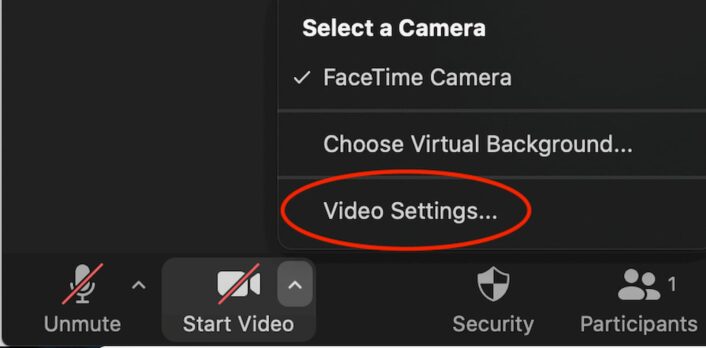
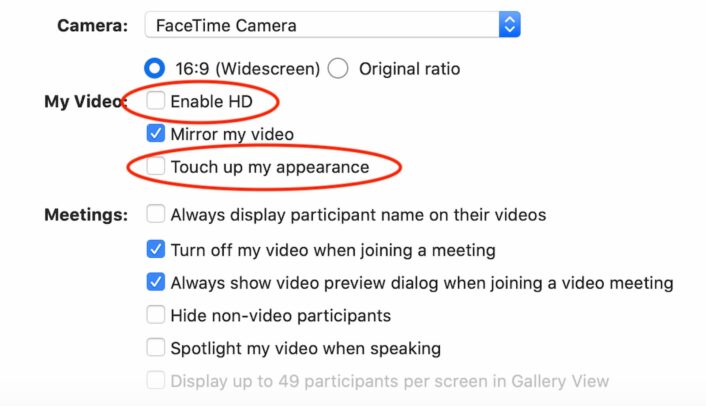
Step 6: Switch off “Enable HD” and “Touch up my appearance”
Zoom’s “Enable HD” and “Touch up my appearance” features both take extra bandwidth and data to function, so you can get better performance by switching them off.
To turn them off, head to the video settings menu by clicking the tiny, upward-pointing arrow next to the Start Video button in the bottom left corner of your screen. There you can click off the check marks on both features.
Step 7: Turn off the Wi-Fi on other devices
The more people using your Wi-Fi connection, the more strain it puts on your home internet speed. If your kids or roommates are streaming video or playing games on their devices while you’re in a Zoom meeting, ask them to switch it off so you can get a better connection. If asking nicely doesn’t work, you can kick them off by logging into your router.
Pro tip:
Read our guide to internet speed and working from home to get an idea of how much bandwidth you need when you’re teleconferencing and studying in the house.
Step 8: Move your device closer to your router (or move your router to a better place in your house)
You may be in a part of the house with a Wi-Fi dead zone, where the router’s signal can’t reach your device. If that’s the case, take a seat on a couch or a chair within eyeshot of your router to improve the signal.
To improve the Wi-Fi signal, you could also move your router so it’s in a more centralized position in your house. Place it on a table or shelf, away from metal objects, microwaves, and other obstacles. If your home has multiple floors or a complex layout, consider investing in a mesh wireless system or long-range router.
Step 9: Connect to your router with an Ethernet cable
Instead of relying on a Wi-Fi signal, you can plug your computer directly into your router with an Ethernet cable. That gives you faster speeds and more reliable performance.
Step 10: Upgrade your internet plan—or switch providers
If you’re still having trouble, consider calling your internet provider to upgrade your internet speed. Or, if other options are available in your area, you can switch to a new provider that gives you faster speeds and better performance overall.
Still not getting the speeds you need for Zoom?
Search for a new internet provider in your area by entering your zip code below.
Pro tip:
Is your internet down? Take a gander at our guide to troubleshooting internet to get your Wi-Fi back up and running.
How much data do you need to use Zoom?
| Activity | Amount of data used |
|---|---|
| 1:1 call in “high-quality video” (480p)* | 540MB/hr. |
| 1:1 video call (720p) | 1.08GB/hr. |
| 1:1 video call (1080p) | 1.62GB/hr. |
| Group call in “high-quality video” (480p)* | 810MB/hr. |
| Group video call (720p) | 1.35GB/hr. |
| Group video call (1080p) | 2.475GB/hr. |
| Audio-only VoIP | 27–36MB/hr. |
| Screen sharing | 22.5MB/hr. |
| Screen sharing (with thumbnail) | 67.5MB/hr. |
| Activity | 1:1 call in “high-quality video” (480p)* |
| Amount of data used | 540MB/hr. |
| Activity | 1:1 video call (720p) |
| Amount of data used | 1.08GB/hr. |
| Activity | 1:1 video call (1080p) |
| Amount of data used | 1.62GB/hr. |
| Activity | Group call in “high-quality video” (480p)* |
| Amount of data used | 810MB/hr. |
| Activity | Group video call (720p) |
| Amount of data used | 1.35GB/hr. |
| Activity | Group video call (1080p) |
| Amount of data used | 2.475GB/hr. |
| Activity | Audio-only VoIP |
| Amount of data used | 27–36MB/hr. |
| Activity | Screen sharing |
| Amount of data used | 22.5MB/hr. |
| Activity | Screen sharing (with thumbnail) |
| Amount of data used | 67.5MB/hr. |
* Zoom uses the term “high-quality video,” which doesn’t describe any industry-standard video resolution, but we interpret it to mean standard resolution of 480p.
Even though using Zoom doesn’t require fast speeds, it can use quite a bit of data. Drawing from our knowledge of the difference between megabits and megabytes, we did some calculations to get a baseline estimate. We found that you can end up using anywhere from 0.5GB to a whopping 2.5GB per hour on a Zoom call with video enabled.
Pro tip:
Worried about Zooming away your monthly data cap? Read our data caps guide to find internet providers with no caps.
The chart below gives you an idea of some other popular tasks and how much data they devour. Zoom doesn’t appear to need as much as streaming services like Netflix—but keep in mind that your Zoom data usage could vary depending on your connection and your device.
| Activity | Data used* |
|---|---|
| Streaming video in SD | 500MB/hr. |
| Streaming video in HD | 2GB/hr. |
| Streaming video in 4K | 8GB/hr. |
| Gaming on Xbox Live or PS4 | 200MB/hr. |
| Streaming music | 60MB/hr. |
| Checking email | 10MB per 25 emails |
| Downloading a 1 GB file | 1GB |
| Activity | Streaming video in SD |
| Data used* | 500MB/hr. |
| Activity | Streaming video in HD |
| Data used* | 2GB/hr. |
| Activity | Streaming video in 4K |
| Data used* | 8GB/hr. |
| Activity | Gaming on Xbox Live or PS4 |
| Data used* | 200MB/hr. |
| Activity | Streaming music |
| Data used* | 60MB/hr. |
| Activity | Checking email |
| Data used* | 10MB per 25 emails |
| Activity | Downloading a 1 GB file |
| Data used* | 1GB |
* Estimates based on Armstrong’s data usage calculator.
How do you use less data on Zoom?
The best way to use less internet data while on a Zoom call is to switch off your video.
If you have strict data restrictions on your internet or mobile plan, you can save data by using Zoom as an audio-only VoIP service. By our calculations, voice calls eat up only around 31.5MB of data per hour—a fraction of how much you would use when your video is switched on. Screen sharing with no video uses 22.5–67.5MB per hour.
Of course, you won’t have to worry about that if you have unlimited data on your internet or mobile plan.
Zoom FAQs
How do you turn off HD video on Zoom?
Do Zoom's AI tools require faster speeds or extra data?
Is 5G home internet fast enough for Zoom?
Is 25 Mbps fast enough for Zoom?
How much bandwidth does Zoom use?
How much data does Zoom use?
Does Zoom work without Wi-Fi?
Plans disclaimers
Xfinity internet disclaimers
Xfinity Internet Disclaimers
| Plan | Disclaimer |
|---|---|
300 Mbps | New Xfinity Internet customers. Limited to 300 Mbps internet. Requires both paperless billing and automatic payments with stored bank account (or additional $10/mo charge applies). Installation, taxes and fees, and other applicable charges extra, and subj. to change. Service limited to a single outlet. Internet: Actual speeds vary and are not guaranteed. For factors affecting speed visit www.xfinity.com/networkmanagement. |
500 Mbps | Internet price guaranteed for 5 years. Price includes $10/mo autopay and paperless discount. |
1 Gig | Internet price guaranteed for 5 years. Price includes $10/mo autopay and paperless discount. |
1.2 Gig | Internet price guaranteed for 5 years. Price includes $10/mo autopay and paperless discount. |
2 Gig | Internet price guaranteed for 5 years. Price includes $10/mo autopay and paperless discount. |
Starlink internet disclaimers
Starlink Internet Disclaimers
| Plan | Disclaimer |
|---|---|
Residential 100 Mbps | Users on Residential 100 Mbps and Residential 200 Mbps will be limited to download speeds of 100 Mbps and 200 Mbps respectively. Residential 100 Mbps and Residential 200 Mbps plans are only available in select areas. Residential Max users will experience maximum available speeds and top Residential network priority. |
Residential 200 Mbps | Users on Residential 100 Mbps and Residential 200 Mbps will be limited to download speeds of 100 Mbps and 200 Mbps respectively. Residential 100 Mbps and Residential 200 Mbps plans are only available in select areas. Residential Max users will experience maximum available speeds and top Residential network priority. |
Residential Max | Users on Residential 100 Mbps and Residential 200 Mbps will be limited to download speeds of 100 Mbps and 200 Mbps respectively. Residential 100 Mbps and Residential 200 Mbps plans are only available in select areas. Residential Max users will experience maximum available speeds and top Residential network priority. |
Roam 100GB | Users on Roam 100 GB and Roam 300 GB receive an allotment of high-speed data, then unlimited low-speed data. Standby Mode allows for emergency messaging and easy reactivation in dead zones for a small monthly fee. |
Roam 300GB | Users on Roam 100 GB and Roam 300 GB receive an allotment of high-speed data, then unlimited low-speed data. Standby Mode allows for emergency messaging and easy reactivation in dead zones for a small monthly fee. |
Roam Unlimited | Users on Roam 100 GB and Roam 300 GB receive an allotment of high-speed data, then unlimited low-speed data. Standby Mode allows for emergency messaging and easy reactivation in dead zones for a small monthly fee. |
gFiber internet disclaimers
GFiber Internet Disclaimers
| Plan | Disclaimer |
|---|---|
Actual internet, Wi-Fi speeds, and Wi-Fi coverage are not guaranteed and can vary based on factors such as home or business size and layout, construction materials, hardware and software limitations, latency, packet loss, etc. | |
Actual internet, Wi-Fi speeds, and Wi-Fi coverage are not guaranteed and can vary based on factors such as home or business size and layout, construction materials, hardware and software limitations, latency, packet loss, etc. | |
Actual internet, Wi-Fi speeds, and Wi-Fi coverage are not guaranteed and can vary based on factors such as home or business size and layout, construction materials, hardware and software limitations, latency, packet loss, etc. |
EarthLink internet disclaimers
Earthlink Internet Disclaimers
| Plan | Disclaimer |
|---|---|
with a 12 month contract. Actual speeds may vary depending on the distance, line-quality, phone service provider, and number of devices used concurrently. All speeds not available in all areas | |
with a 12 month contract. Actual speeds may vary depending on the distance, line-quality, phone service provider, and number of devices used concurrently. All speeds not available in all areas | |
with a 12 month contract. Actual speeds may vary depending on the distance, line-quality, phone service provider, and number of devices used concurrently. All speeds not available in all areas | |
with a 12 month contract. Actual speeds may vary depending on the distance, line-quality, phone service provider, and number of devices used concurrently. All speeds not available in all areas | |
Actual speeds may vary depending on the distance, line-quality, phone service provider, and number of devices used concurrently. All speeds not available in all areas. Exclusions like taxes & fees apply. Not available in all areas. Limited-time offer; subject to change. | |
Actual speeds may vary depending on the distance, line-quality, phone service provider, and number of devices used concurrently. All speeds not available in all areas. Exclusions like taxes & fees apply. Not available in all areas. Limited-time offer; subject to change. | |
Actual speeds may vary depending on the distance, line-quality, phone service provider, and number of devices used concurrently. All speeds not available in all areas. Exclusions like taxes & fees apply. Not available in all areas. Limited-time offer; subject to change. | |
Actual speeds may vary depending on the distance, line-quality, phone service provider, and number of devices used concurrently. All speeds not available in all areas. Exclusions like taxes & fees apply. Not available in all areas. Limited-time offer; subject to change. | |
Actual speeds may vary depending on the distance, line-quality, phone service provider, and number of devices used concurrently. All speeds not available in all areas. Exclusions like taxes & fees apply. Not available in all areas. Limited-time offer; subject to change. | |
with a 12 month contract. Actual speeds may vary depending on the distance, line-quality, phone service provider, and number of devices used concurrently. All speeds not available in all areas | |
with a 12 month contract. Actual speeds may vary depending on the distance, line-quality, phone service provider, and number of devices used concurrently. All speeds not available in all areas | |
with a 12 month contract. Actual speeds may vary depending on the distance, line-quality, phone service provider, and number of devices used concurrently. All speeds not available in all areas | |
with a 12 month contract. Actual speeds may vary depending on the distance, line-quality, phone service provider, and number of devices used concurrently. All speeds not available in all areas | |
with a 12 month contract. Actual speeds may vary depending on the distance, line-quality, phone service provider, and number of devices used concurrently. All speeds not available in all areas | |
with a 12 month contract. Actual speeds may vary depending on the distance, line-quality, phone service provider, and number of devices used concurrently. All speeds not available in all areas | |
Actual speeds may vary depending on the distance, line-quality, phone service provider, and number of devices used concurrently. All speeds not available in all areas. Exclusions, taxes, fees, or modem service charges may apply. Not available in all areas. Limited-time offer; subject to change. | |
With the Work From Home Unlimited Plan, you’ll enjoy speeds up to 25 Mbps for the first 300 GB of data usage each month; speeds will reduce if usage exceeds 300 GB within that month. |
Astound internet disclaimers
Astound Internet Disclaimers
| Plan | Disclaimer |
|---|---|
Observed speeds may vary | One-time fees extra | Restrictions apply | Not available in all areas | New residential customers only | |
Observed speeds may vary | One-time fees extra | Restrictions apply | Not available in all areas | New residential customers only | |
Observed speeds may vary | One-time fees extra | Restrictions apply | Not available in all areas | New residential customers only | |
Observed speeds may vary | One-time fees extra | Restrictions apply | Not available in all areas | New residential customers only | |
Limited Availability | Observed speeds may vary | One-time fees extra | Restrictions apply | Not available in all areas | New residential customers only | |
Limited Availability | Observed speeds may vary | One-time fees extra | Restrictions apply | Not available in all areas | New residential customers only |
AT&T internet disclaimers
AT&T Internet Disclaimers
| Plan | Disclaimer |
|---|---|
AT&T Fiber Internet 300 | Price + taxes and fees for new customers in select markets after discounts w/elig Autopay & paperless bill. Discounts start w/in 3 bills. |
AT&T Fiber Internet 500 | Price + taxes and fees for new customers in select markets after discounts w/elig Autopay & paperless bill. Discounts start w/in 3 bills. |
AT&T Fiber Internet 1000 | Price + taxes and fees for new customers in select markets after discounts w/elig Autopay & paperless bill. Discounts start w/in 3 bills. |
AT&T Fiber Internet 5000 | Limited availability in select areas. Speeds based on wired connection. Actual speeds may vary. For 5 GIG, single device wired speed maximum 4.7Gbps. |
AT&T Internet Air | Includes $10 off with AutoPay and Paperless Bill |
The terms “speed” and “bandwidth” are often used interchangeably, but they’re technically different. “Bandwidth” is the set limit of data that flows across a wired or wireless medium, while “speed” is more about how fast you can download or upload a file from start to finish. But for simplicity’s sake, internet providers always use “speed” to describe a plan’s total bandwidth.
Keep reading for a clear breakdown of the differences between internet speed and internet bandwidth—and for recommendations on internet providers with the best bandwidth for your dollar.
There’s a quick and easy way to figure out your internet speed—run a speed test! This gives you a precise reading of your current download speed, upload speed, and latency.
Download our speed-test app below to run speed tests anywhere while on your mobile phone.
Explaining internet bandwidth vs. speed—the bucket analogy
The best way to explain the difference between speed and bandwidth is to use the bucket analogy.
First, picture bandwidth as a water pipe. We’ll use a wide one for fiber, a medium-sized one for cable, and a narrow one for DSL. Underneath each pipe is a huge bucket—this is your device, ready to download.
Now picture internet data as a flow of digital water, which travels at one specific speed down the pipe. An internet provider can reduce the amount of water you receive, resulting in a trickle of water no matter what pipe you use. At this rate, the bucket takes forever and a day to fill. This example represents a slow download speed, like 50 megabits per second (Mbps).
But if the internet provider increases the water to its maximum flow, the pipe determines how fast your bucket fills up with water. So, the widest pipe (fiber) fills your bucket faster than the narrowest one (DSL).
Of course, there are issues that can prevent you from filling that bucket at the rate you expect. A clogged line or a faulty pipe can reduce the flow—you name it. Similar problems apply to an internet connection, reducing your speed.
Bottom line—Bandwidth determines your speed
Internet providers advertise bandwidth as speed. A fiber connection with a 5,000Mbps bandwidth allows a single device to download a large file faster than a connection with a 140Mbps bandwidth. The more bandwidth you have, the more devices you can use simultaneously on a single internet connection.
Why are speed and bandwidth important?
Internet speed and bandwidth are important because they set the parameters for what you can do online.
Having faster speeds and higher bandwidth means you can do more online with ease, vastly reducing the chance of buffering, long load times, and other connection issues. This makes gaming, streaming, and other online activities a whole lot easier.
High bandwidth also facilitates multitasking on multiple Wi-Fi devices. It means you can efficiently support a lot of users and devices at the same time while maintaining consistent speeds and performance.
What you get with higher internet bandwidth/speeds
- Shorter load times and less buffering
- Consistent speeds across multiple internet-connected devices
- Smoother connection when streaming and playing online games
What you get with lower internet bandwidth/speeds
- Longer load times and more buffering
- Clunkier streaming, especially in HD or 4K video resolution
- Higher likelihood of speed slowdowns when multiple Wi-Fi devices are in use
Find fast internet now!
If you’re looking for an internet plan with lots of bandwidth, search your zip code below to see what’s available in your area.
How can you measure your internet speed and bandwidth?
When you sign up for an internet plan, your provider gives you a max speed that your plan can hit. That’s your bandwidth. It represents what you can accomplish when your Wi-Fi is firing on all cylinders.
Speed test results aren’t static the same way bandwidth is—the numbers tend to vary day to day based on a range of factors, including your internet connection type, your router, the number of people on your Wi-Fi, and even the location of your router in your home.
Best internet plans for speed and bandwidth
| Plan | Price | Speed | Order online |
|---|---|---|---|
| Xfinity 300 Mbps | Check Xfinity for price* | 300Mbps | View Plans for Xfinity |
| Spectrum Internet® Premier | $40/mo.† for 12 mos. | Up to 500Mbps (wireless speeds may vary) | View Plans for Spectrum |
| Verizon Internet 300/300 | $39.99–$49.99/mo.‡ | 300Mbps | View Plans |
| gFiber 1 Gig | $70.00/mo.§ | Up to 1,000Mbps | View Plans |
| AT&T Internet 5000 | $250.00/mo.║ | Up to 5,000Mbps |
Read disclaimers.
Internet providers have been racing to raise their speeds so much over the past few years that an internet plan that once seemed fast nowadays might actually be on the slower side. We talk at length about internet speed in our Fastest Internet Providers report, which highlights the speediest and breeziest internet providers in the country.
Still, most people don’t need the fastest internet to be happy—according to one report, only 12% of internet users in North America have gigabit speeds on their home internet plans.1
Bandwidth really becomes an issue only when your speeds aren’t fast enough to meet your daily needs. If you’re shopping for an internet plan and trying to figure out the best speeds, you should think about not just what you do online, but also what your roommates or family members do. The more people you have on your Wi-Fi, the bigger strain that puts on your bandwidth.
Use our “How Much Internet Speed Do You Need?” tool to get a sense of what’s best for you.
Which types of internet have the most bandwidth?
| Internet type | Bandwidth capacity | Max speeds | View providers |
|---|---|---|---|
| Fiber | Very high | 100–10,000 Mbps | View Fiber Providers |
| Cable | High | 25–1,200 Mbps | View Cable Providers |
| 5G | Medium | 35–1,000 Mbps | View 5G Providers |
| DSL | Low | 1–140 Mbps | View DSL Providers |
| Satellite | Very low | 25–100 Mbps (throttled when you hit data cap) | View Satellite Providers |
The type of internet you have plays a central role in determining the amount of bandwidth you can get from your internet plan. Different types of internet providers have certain technical limits on the amount of throughput they can deliver.
It’s likely you can get relatively fast download and upload speeds from your internet provider—our own speed-test data shows that internet speeds have been going up since the pandemic started in 2020. Still, some internet types remain relatively sluggish, especially in rural areas.
Take a look below to see how different internet types rate in terms of speed and bandwidth.
Comparing bandwidth for different internet types
Fiber-optic internet gives you the most bandwidth and the fastest internet speeds, with internet plans topping out at a ridiculous 10,000 Mbps. Nobody really needs internet that fast (not yet, at least), but fiber also speeds ahead of other internet types because it has symmetrical upload speeds.
Symmetrical uploads mean you can get up to gigabit-speed throughput on uploads as well as downloads, vastly boosting your ability to hold video calls, upload large files to the internet, and post to social media.
Cable internet is often just as fast as fiber internet, at least for download speeds. Cable internet has much slower upload speeds compared to fiber, and it also can’t deliver impressive (albeit unnecessary) multigigabit speeds. But for most people, it’s as good as it gets for bandwidth.
5G internet doesn’t have the same impressive bandwidth as fiber or cable, but it’s much faster than more antiquated internet types like DSL. A relatively new technology, 5G can be found mostly in urban areas through cellular providers Verizon and T-Mobile.
The internet connection draws entirely from 5G wireless networks, which makes it very fast but also slightly unstable—so your speeds can vary considerably throughout the day, and you may experience occasional disconnects.
DSL internet is a somewhat outdated internet service that seems slower and slower as cable and fiber providers increasingly raise their speeds. DSL maxes out at 140 Mbps, but many DSL users experience much slower speeds due to the technical limitations of a DSL connection.
DSL’s copper wire connections deteriorate in strength as the user gets farther away from a central server, which makes for particularly slow connections in rural areas, suburbs, and the outskirts of cities.
Satellite internet is the slowest type of internet you can get. A satellite connection draws from a signal literally beaming down from space, which makes for much higher latency and vastly limits the amount of bandwidth you can get.
However, Starlink’s emerging satellite service has much faster speeds than traditional satellite providers HughesNet and Viasat. That’s because Starlink relies on a larger number of satellites, which orbit at a lower altitude.
Pro tip:
Are you dealing with a slow internet connection? Take a look at our tips to improve your internet speed.
What internet activities use the most bandwidth?
| Online activity | Recommended bandwidth |
|---|---|
| Checking email | 1 Mbps |
| Making Zoom calls (1:1 only and without video) | 1.5 Mbps |
| Playing online games | 5 Mbps |
| Streaming music | 10 Mbps |
| Videoconferencing with groups | 25 Mbps |
| Streaming video in HD or 4K on one or two devices | 25–50 Mbps |
| Streaming video in 4K on several devices | 100–500 Mbps |
| Streaming video in 4K while playing a video game online and making a video conference call all at the same time, while your roommate does the same thing in the next room | 1,000 Mbps |
| Hosting a livestream | 500–1,000 Mbps |
Most online activities take up only a small amount of bandwidth. But you use a lot more bandwidth to make video calls, stream video, or host livestreams. And all of these demands on your internet speed really start to add up if you’re sharing an internet connection with other users.
To play it safe, we recommend setting aside at least 25 Mbps worth of bandwidth for every internet user in your household. So if you live with three other people, then an internet plan with max speeds of 100 Mbps should be fine.
However, definitely consider a faster plan—say, 50 Mbps per person—if you regularly do high-bandwidth activities like streaming movies in 4K or hosting livestreams on Twitch.
Search your zip code to find high-bandwidth internet in your area.
Sources
- OpenVault, “Broadband Insights Report—Q4 2021,” March 2022. Accessed March 2, 2022.
Disclaimers
Best internet plans (return to top)
* For 12 months, no term contract. Restrictions apply. Autopay w/ stored bank account and paperless billing req’d. Taxes and fees extra and subj. to change. Reduced speeds after 30 GB of usage/line. Data thresholds may vary.
† Limited time offer; subject to change; new residential customers only (no Spectrum services within past 30 days) and in good standing with Spectrum. Taxes and fees extra in select states. SPECTRUM INTERNET: Standard rates apply after promo period. Additional charge for installation. Speeds based on wired connection. Actual speeds (including wireless) vary and are not guaranteed. Gig capable modem required for Gig speed. For a list of Gig capable modems, visit spectrum.net/modem. Services subject to all applicable service terms and conditions, subject to change. Not available in all areas. Restrictions apply.
‡ w/ Auto Pay. Available in select areas.
§ Terms and Conditions: Plus taxes and fees. Service not available in all areas. If you live in an apartment or condo, gFiber’s ability to construct and provide Fiber is subject to the continued agreement between gFiber and the property owner. Upload/download speed and device streaming claims are based on maximum wired speeds. Actual Internet speeds are not guaranteed and may vary based on factors such as hardware and software limitations, latency, packet loss, etc.
║ Price after $5/mo Autopay & Paperless bill discount (w/in 2 bills). Plus taxes & fees. Internet speed claims represent maximum network service capability speeds and based on wired connection to gateway. Actual customer speeds may vary based on a number of factors and are not guaranteed. For 5GIG speed, single device wired speed maximum 4.7Gbps. For more information, go to www.att.com/speed101.
Let’s cut to the chase: Each person working from home needs at least 100Mbps in download speed and 20Mbps in upload speed. That will be plenty of speed for video calls, streaming, handling large files, and even running a VPN.
That’s a good rule of thumb, but you may be able to get away with less. Browsing requires just about 5Mbps of speed, and most video apps require only about 20Mbps each, at any given time. It all depends on what you’re doing online, how many connected devices share a connection, whether you’re hardwired via Ethernet, and more.
Fiber, cable, and 5G home internet is fast enough for most remote work, but avoid using hotspots, DSL, or satellite internet if you can.
Do you have the speed you need to work from home?
Find out how much speed you’re getting on your current internet connection so you can decide whether it’s time to upgrade.
Download speed
000 Mbps
Upload speed
000 Mbps
Latency (ping)
00 ms
Jitter
00 ms
On this page:
Best internet providers | Video conferencing | Email and chat | Web browsing | Streaming| File sharing | What else affects internet speed | How to improve internet speed | FAQ
On this page:
Choose fiber internet for remote work
Fiber internet providers like AT&T, gFiber, and Verizon are the best for working from home. You get equally fast upload and download speeds, which are especially great if you need to transfer large files to a remote server or be on video calls.
We recommend starting with the cheapest (and slowest) plans from any fiber provider, and upgrading only if you run into bandwidth issues.
| Fiber Provider | Speeds up to |
|---|---|
| Astound | 5,000Mbps |
| AT&T Fiber | 5,000Mbps |
| Brightspeed Fiber | 8,000Mbps |
| CenturyLink | 940Mbps |
| EarthLink | 5,000Mbps |
| Frontier | 7,000Mbps |
| gFiber | 8,000Mbps |
| Optimum | 8,000Mbps |
| T-Mobile Home Internet | 2,000Mbps |
| Verizon Fios | 2,300Mbps |
| Ziply Fiber | 52,119Mbps |
Choose the highest-rated provider in your area
Your choice of internet providers is limited by your address. Not many households can actually get it, but gFiber was the best fiber internet provider of 2025 in overall satisfaction, reliability, and customer feedback. Regional provider Brightspeed Internet was even faster in actual recorded speeds, though, and big players T-Mobile, Verizon and AT&T generally hover in the top half of every category.
Meanwhile, you can get fiber internet from T-Mobile in a few areas, or try 5G home internet from T-Mobile in nearly 60% of areas tracked by the Federal Communications Commission. With fiber speeds up to 2,000Mbps and 5G speeds up to 415Mbps, it’s a great option for remote workers.


Get Your Internet Speed Recommendation
Est. time: 60 seconds
Answer 6 questions and get your personalized results!
How many people in your household use the internet/WiFi on a daily basis?
How many devices in your home connect to the internet, including tablets, gaming consoles, and smart devices?
How many people in your household work from home?
What video quality do you use for streaming TV and movies?
How intensely does your household participate in online gaming?
Does your household download large files from the cloud or via the internet?

Cable internet is a fast, reliable option for working from home
If you can’t get fiber internet, cable is the next best option for working from home. Download speeds range from 25–2,100Mbps, but for now, upload speeds are slower than what you get with fiber internet. For instance, your cable plan may support download speeds of up to 400Mbps, but the upload max may be 30Mbps.
Here is a list of cable internet providers for working from home:
| Cable Provider | Speeds up to |
|---|---|
| Astound | 2,000Mbps |
| Buckeye | 600Mbps |
| Cox | 2,000Mbps |
| Mediacom | 2,000Mbps |
| Optimum | 940Mbps |
| Sparklight | 2,000Mbps |
| Spectrum | 1,000Mbps |
| WOW! | 1,200Mbps |
| Xfinity | 2,000Mbps |
Find internet service in your area?
Enter your zip code below to see what internet connection types and speed tiers are available to you.
How much internet speed you need for Zoom and other video conferencing applications
| Video chat application | Minimum speed | Recommended speed |
|---|---|---|
| Zoom | 600Kbps | 3.8Mbps |
| Google Meet | 2.6Mbps | 4.0Mbps |
| Slack | 200Mbps | 2Mbps |
| Microsoft Teams | 250Mbps | 2,500Mbps |
| Video chat application | Zoom |
| Minimum speed | 600Kbps |
| Recommended speed | 3.8Mbps |
| Video chat application | Google Meet |
| Minimum speed | 2.6Mbps |
| Recommended speed | 4.0Mbps |
| Video chat application | Slack |
| Minimum speed | 200Mbps |
| Recommended speed | 2Mbps |
| Video chat application | Microsoft Teams |
| Minimum speed | 250Mbps |
| Recommended speed | 2,500Mbps |
Video calls require you to send and receive real-time video simultaneously, so there are a few internet speed factors you should keep in mind to get the most out of your remote meetings: download speed, upload speed, and latency.
Here’s more on each:
- Download speed affects how well your connection receives video from other people on the call.
- Upload speed affects how well your connection can send your video stream to others.
- Latency affects how well your connections synchronize with each other, and high latency can distort calls and cause lag.
Most video conferencing applications work best with less than 150 ms of latency. You can’t control your connection’s latency as directly as you can improve your speed by upgrading, but lower latency is better. Moreover, certain types of internet connections (like fiber) tend to have lower latency than others (like satellite internet).
Video calling apps don’t require very much speed. Most households with an internet connection can manage at least the minimum requirements. That’s great because it means we can all stay connected.
If you run into issues, your upload speed is the most likely culprit. Cable and DSL internet providers give customers much less upload speed than download. So even if your download speed is safely in the clear for video calls, your upload speed might not be up to par for big group calls. Turn off your video or switch to a wired connection for better results.
How much internet speed you need for email and chat applications
You need only about 1Mbps of download speed per instance for chat and email.
However, you may need more bandwidth when you share photos or videos in conversations and when you download larger assets (like images and attachments) from emails.
Thankfully, you can carry on with your chat and email conversations while you work on other projects without worrying about internet interruptions. That’s because the chat functions of Microsoft Teams, Facebook Messenger, Slack, and similar applications usually don’t use a lot of bandwidth.
How much internet speed you need for web browsing
We recommend about 5Mbps of download speed for heavy web browsing and jumping between sites.
Browsing the internet doesn’t take too much data unless you visit pages with a lot of uncompressed images or video content. If you’re scrolling through social media, we suggest slightly higher speeds than our general recommendation, especially if you have video autoplay enabled.
The average web page uses about 3MB (megabytes) of data. That translates to 24Mb (megabits) because there are eight bits in one byte. So if you want a whole web page to load within a second, 24Mbps of download speed would be great.
You don’t always need to load all assets on a web page to start getting to the content you want, and loading a web page doesn’t take a continuous stream of data—you just download the content once, and that’s all you need as long as you keep that web page in your browser’s cache.
How much internet speed you need for streaming
We recommend 5Mbps of download speed at a minimum per person for streaming media.
If you stream music or have a show streaming in the background while you work (or someone else in your house is binge-watching all of The Boys on Prime Video), make sure to factor that into how much bandwidth you need to work from home effectively. This is especially important for video services like YouTube or Netflix because video can be a bit of a bandwidth hog.
| Activity | Min. download speed |
|---|---|
| Streaming music on Pandora or Spotify | 1Mbps |
| Streaming music or video on YouTube | 2Mbps |
| Streaming video on Netflix, Hulu, etc. | 5Mbps |
If you want to use YouTube or a streaming service like Netflix while working from home but run into bandwidth issues like buffering, check your video quality settings. YouTube videos can run on as little as 0.7Mbps at 360p, but they can use up to 20Mbps if you’re watching in 4K.
Similarly, standard-definition Netflix can work with as little as 0.5Mbps, but Netflix in 4K uses up to 25Mbps. And if you’re using it only as background noise, you don’t need 4K.
Fortunately, most video apps can automatically detect your bandwidth availability and adjust resolution on the fly.
How much internet speed you need for sharing large files
We recommend at least 10Mbps of download and upload speeds for sharing large files.
For jobs that necessitate a large amount of file sharing, the faster your internet is, the better. That’s not to say you absolutely need fast internet speeds to download and upload large files, but it makes things go much faster and more smoothly.
Here are a few examples of how long it would take to transfer various sizes of files using common internet speeds.
| 25Mbps down/3Mbps up | 100Mbps down/10Mbps up | 1,000Mbps down/1,000Mbps up | |
|---|---|---|---|
| Downloading a hi-res image file (5 MB) | 1 second | Less than 1 second | Less than 1 second |
| Downloading a small video file (300 MB) | 1 minute, 45 seconds | 26 seconds | 2 seconds |
| Downloading a large video file (10 GB) | 1 hour | 15 minutes | 1 minute, 30 seconds |
| Uploading a hi-res image (5 MB) | 14 seconds | 4 seconds | Less than 1 second |
| Uploading a small video file (300 MB) | 14 minutes, 40 seconds | 4 minutes, 24 seconds | 2 seconds |
| Uploading a large video file (10 GB) | 8 hours, 20 minutes | 2 hours, 30 minutes | 1 minute, 30 seconds |
| Downloading a hi-res image file (5 MB) | |
| 25Mbps down/3Mbps up | 1 second |
| 100Mbps down/10Mbps up | Less than 1 second |
| 1,000Mbps down/1,000Mbps up | Less than 1 second |
| Downloading a small video file (300 MB) | |
| 25Mbps down/3Mbps up | 1 minute, 45 seconds |
| 100Mbps down/10Mbps up | 26 seconds |
| 1,000Mbps down/1,000Mbps up | 2 seconds |
| Downloading a large video file (10 GB) | |
| 25Mbps down/3Mbps up | 1 hour |
| 100Mbps down/10Mbps up | 15 minutes |
| 1,000Mbps down/1,000Mbps up | 1 minute, 30 seconds |
| Uploading a hi-res image (5 MB) | |
| 25Mbps down/3Mbps up | 14 seconds |
| 100Mbps down/10Mbps up | 4 seconds |
| 1,000Mbps down/1,000Mbps up | Less than 1 second |
| Uploading a small video file (300 MB) | |
| 25Mbps down/3Mbps up | 14 minutes, 40 seconds |
| 100Mbps down/10Mbps up | 4 minutes, 24 seconds |
| 1,000Mbps down/1,000Mbps up | 2 seconds |
| Uploading a large video file (10 GB) | |
| 25Mbps down/3Mbps up | 8 hours, 20 minutes |
| 100Mbps down/10Mbps up | 2 hours, 30 minutes |
| 1,000Mbps down/1,000Mbps up | 1 minute, 30 seconds |
What else affects how much speed you need to work from home?
Many factors play into your internet connection needs, including your job, the applications you use for work, and, most importantly, how many other people are using your home internet.
You’ll need more internet speed if, for instance, your kids, partner, or roommates are also online playing games, watching Netflix, or working from home. And you’ll want faster speeds if you handle a lot of large files and media (like uploading video) or if your job requires a VPN.
Our internet speed recommendations are generalized. You may need less or want much more. Many internet service providers offer customers speeds much higher than this recommendation—all the way up to 50,000Mbps (50Gbps).
Beyond the speeds you get from your internet provider, older home networking equipment, your network layout, and inefficient connections in your home can also affect your internet speeds. If your internet speed woes stem from something in your network rather than the speeds from your provider, check out our guide to faster internet in your home.
What to do if your internet speeds aren’t fast enough
If you’re running into problems with your internet connection and slow speeds are to blame, the first thing you should do is run a wired speed test from your modem or ONT to rule out your internet connection. If it’s slower than advertised, contact your internet provider.
If your actual internet speed isn’t an issue, connect your work device to the router using an Ethernet cable and recheck your speeds. You shouldn’t see a major difference, but if you do, you may need a replacement. We have dozens of upgrade suggestions based on routers we’ve tested and reviewed.
But if your work device’s wired connection to the router checks out, try the following to alleviate your speed woes:
- Reposition the router to a better location
- Limit nonessential internet traffic during work hours
- Get a Wi-Fi extender and place it close to your work area
- Add another satellite if you have a mesh system
- Make sure each external is vertical if your router only covers one floor
Are you maxing out speeds from your provider?
If you need more speed than you can get from the provider you already have, it’s time to find an alternative. In 2026, there are more choices than ever.
Enter your zip code to get started.
FAQ about internet speed needs for working remotely
What is a good internet speed to work from home?
What is a fast internet speed?
What is the average internet speed in the US?
Does shutting off video help meetings?
Why does my internet slow down at certain times?
Internet providers would simply love for you to sign up for their fastest plan available. But let’s get real here, folks: You don’t need Gigabit internet if all you do is check email and post pictures of your latest culinary efforts on social media. Heck, you don’t even need it in a household of five. Gigabit internet and faster is best for running a public web server, transferring large files to and from a remote network, or livestreaming gameplay to Twitch.
So, what’s the difference between megabits and gigabits? Which internet speed is faster than the other? We’ll break down the technical details as simply as possible so you can determine if you need gigabit internet speeds or a slower connection.
Is your current internet speed in the megabit or gigabit range?
Download speed
000 Mbps
Upload speed
000 Mbps
Latency (ping)
00 ms
Jitter
00 ms
Mbps vs. Gbps: What’s the difference?
The difference between megabits per second (Mbps) and gigabits per second (Gbps) is the number of bits (that is, the amount of information) you can send and receive each second.
In the days of dial-up, modem speeds were usually measured in kilobits per second (Kbps), like 28.8k and 56k. Modern-day broadband speeds are now measured in Mbps or Gbps. Here’s how the bits stack up:
- 1,000 bits = 1 kilobit
- 1,000 kilobits = 1 megabit (or 1 million bits)
- 1,000 megabits = 1 gigabit (or 1 billion bits)
Internet speed in Mbps or Gbps doesn’t mean data travels at specific speeds like cars zooming down a freeway—all data on the same type of connection travels at the same speed. Internet speed is more about the amount of data sent along the line in any given second. The higher the bit count per second, the faster you can get things done.
Look at it this way. Imagine your internet connection is a faucet, and your provider cranks down on the knob. The water (data) trickles in a thin stream (1Mbps) into your sink. When your sink finally fills, you swear an entire decade has passed. That’s your slow-as-snails internet connection.
Now your provider has turned up the knob, and your data flows like a waterfall (1,000Mbps). You’re using the same faucet, only the sink fills up faster with more water (data) going in, so you’ve only aged a few seconds versus ten long, agonizing years. That translates to a fast internet connection.
Get Your Internet Speed Recommendation
Est. time: 60 seconds
Answer 6 questions and get your personalized results!
How many people in your household use the internet/WiFi on a daily basis?
How many devices in your home connect to the internet, including tablets, gaming consoles, and smart devices?
How many people in your household work from home?
What video quality do you use for streaming TV and movies?
How intensely does your household participate in online gaming?
Does your household download large files from the cloud or via the internet?
Do you need gigabit internet speeds?
Your need for gigabit internet speeds squarely depends on what you do online and how many devices you have accessing the internet at one time.
For now, Gigabit internet is probably overkill for most homes because the chances of having five family members streaming Netflix in 4K to their devices simultaneously—which adds up to only a recommended speed of 125Mbps anyway—is rare at best. You definitely don’t need Gigabit internet if all you do is check email and browse the internet.
If anything, Gigabit internet is nice to have if you need to download large files fast, like full digital games and their chunky updates. The type of internet connection matters, too, as livestreamers get more upload bandwidth using fiber than they do with cable internet.
Here are some online activities where you won’t notice much of a difference with Gigabit internet and some where you will.
| Works with slow internet | Best with fast internet |
|---|---|
Streaming video
Streaming high-resolution video is one of the most bandwidth-intensive things you can do online. If you have people streaming on multiple devices in your home, the speed requirements can add up fast. Take a look:
| Netflix (4K) | Apple TV+ (4K) | Hulu (4K) | |
|---|---|---|---|
| Bandwidth (one device) | 25Mbps | 25Mbps | 16Mbps |
| Bandwidth (four devices) | 100Mbps | 100Mbps | 64Mbps |
To help, video services like Netflix and Hulu have a lot of tricks for keeping your viewing experience smooth, such as preloading (buffering) video in the background and lowering the video quality if your connection can’t handle the load. But even Netflix can’t help much if too many people try to stream at the same time.
Theoretically, Gigabit internet has enough bandwidth for 20 people to stream 4K content at the same time—and use only half of the available bandwidth. This is why Gigabit internet is overkill for most homes until 8K content streaming becomes the norm.
If you want to know the nitty-gritty details of speed requirements for video services, see how much speed you need to stream video.
Video chat
Video chat requires a decent amount of speed, just like streaming any video (though you can get by with less if you don’t mind lower quality). The big difference is that while Netflix needs a fast download speed, video chat needs both its upload and download speeds to be fast. This is where the type of connection becomes more important.
Gigabit cable internet has enough upload speed for a stable video call, but a Gigabit fiber connection runs at gigabit speeds both ways. This makes it ideal for video chat like Zoom and Skype, as well as livestreaming on sites like Twitch.
If you want to find out more, check out what makes a good download and upload speed.
Gaming online
Gaming online doesn’t require a lot of bandwidth. Speed is still important for having your game play smoothly, but it’s latency, rather than bandwidth, that really impacts your experiece. The higher your latency, the more lag you will experience when playing. Most gigabit connections (especially fiber) have really low latency—but you can often get the low-latency connection you need for online games without splurging on the fastest plan available.
Want the fastest internet connection for gaming online?
Verizon Fios is our top choice for the best internet provider for gaming due to its low latency. We list other top picks, too, based on pricing, availability, and more.
Streaming games
Game streaming is different from online gaming. Services like Xbox Cloud Gaming and Amazon Luna stream games to your devices from the cloud, similar to how movies and TV shows stream from Netflix and Hulu. However, because games are interactive, you need good download and upload speeds for smooth gameplay.
Xbox Cloud Gaming, for instance, requires a constant download speed of at least 10Mbps on smartphones and 20Mbps on tablets, consoles, and computers. That’s less than what you need to stream Netflix on 4K, but you’ll probably see issues on a 100Mbps connection if other household members are using the internet, too.
To find out more about Gigabit internet, check out the consumer’s guide to internet speed.
Which providers offer Gigabit internet and faster?
“Gigabit” internet plans are 940Mbps or 1,000Mbps, depending on the provider and the hardware they use. Nearly all cable and fiber internet providers offer gigabit speeds.
There’s no official name for speeds between 1,001–1,999Mbps (Intel calls it Gig+), although these speeds are generally associated with multi-gig internet. For now, the fastest cable internet plan you can get today is 1,500Mbps and upload speeds typically reach up to 50Mbps.
The fastest fiber internet plan you can get is 10,000Mbps, but some major internet providers like gFiber and Optimum only top out at 8,000Mbps for now—AT&T at 5,000Mbps. Fiber connections generally have identical download and upload speeds, although we’ve seen a few instances where providers are still working to match their upload speeds with their downloads.
Plans up to 1,000Mbps
| Plan | Type | Speed | Cost |
|---|---|---|---|
| Astound 940 Mbps Internet | Cable, Fiber | Up to 940Mbps | $50.00–$60.00/mo.* |
| AT&T Internet 1 GIG | Fiber | Up to 1,000Mbps | $80.00/mo.# |
| Brightspeed Fiber 1 Gig | Fiber | Up to 940Mbps | $59.00/mo.###### |
| CenturyLink Simply Unlimited Fiber Internet up to 940 Mbps | Fiber | Up to 940Mbps | $75.00/mo.‡‡ |
| Cox Go Super Fast | Cable | Up to 1,000Mbps | $70.00/mo.§§ |
| EarthLink Fiber 1 Gig | Fiber | Up to 1,000Mbps | $74.95/mo.|||| for 12 mos. |
| Frontier Fiber 1 Gig | Fiber | Up to 1,000Mbps | $49.99/mo.## |
| gFiber Core 1 Gig | Fiber | Up to 1,000Mbps | $70.00/mo.††† |
| Mediacom 1 Gig | Cable | Up to 1,000Mbps | $50/mo.‡‡‡ for 3 yrs. |
| Metronet 1 Gb | Fiber | Up to 1,000Mbps | $49.95/mo.§§§ |
| Optimum 1 Gig Internet | Fiber | Up to 940Mbps | $50/mo.** |
| Sparklight 1 Gig | Cable | Up to 1,000Mbps | $59.95/mo.**** for the first 12 mos. |
| Sparklight Freedom Connect Gig | Cable | Up to 1,000Mbps | $69.00/mo.***** for the first 24 mos. |
| Spectrum Internet® Gig | Cable, fiber | Up to 1,000Mbps (wireless speeds may vary) | $50/mo.†††† for 1 yr. |
| Verizon Fios 1 Gig | Fiber | Up to 940Mbps | $89.99/mo. w/ Auto Pay |
| Kinetic Internet 1 Gig | Cable, fiber | Up to 1,000Mbps | $39.99/mo.|||||||| w/ AutoPay for 12 mos. |
| WOW! Fiber 1 Gig | Fiber | Up to 1,000Mbps | $80.00/mo.#### |
| Xfinity 1 Gig | Cable | 1,000Mbps | $70.00/mo. for 12 mos. |
| Ziply Fiber Internet Gig | Fiber | Up to 1,000Mbps | $65/mo.‡‡‡‡‡ w/ paperless and ACH/debit card autopay |
Do any providers offer gigabit internet in your area?
Enter your zip code below to find out if there are any 1 Gbps or faster plans available to you.
Plans over 1,000Mbps
| Plan | Type | Speed | Cost |
|---|---|---|---|
| Astound 1,500 Mbps Internet | Fiber | Up to 1,500Mbps | $60.00–$70.00/mo.* |
| AT&T Internet 2 GIG | Fiber | Up to 2,000Mbps | $145.00/mo.†† |
| AT&T Internet 5 GIG | Fiber | Up to 5,000Mbps | $245.00/mo.†† |
| Brightspeed Fiber 2 Gig | Fiber | Up to 2,000Mbps | $79.00/mo.###### |
| EarthLink Fiber 2 Gig | Fiber | Up to 2,000Mbps | $129.95/mo.|||| |
| EarthLink Fiber 5 Gig | Fiber | Up to 5,000Mbps | $189.95/mo.|||| |
| Frontier Fiber 2 Gig | Fiber | Up to 2,000Mbps | $64.99/mo.## w/ Auto Pay and Paperless Bill |
| Frontier Fiber 5 Gig | Fiber | Up to 5,000Mbps | $89.99/mo.## w/ Auto Pay and Paperless Bill |
| Frontier Fiber 7 Gig | Fiber | Up to 7,000Mbps | $109.99/mo.## w/ Auto Pay and Paperless Bill |
| gFiber Home 3 Gig | Fiber | Up to 3,000Mbps | $100.00/mo. |
| gFiber Edge 8 Gig | Fiber | Up to 8,000Mbps | $150.00/mo.†††† |
| Metronet 2 Gb | Fiber | Up to 2,000Mbps | $69.95/mo.§§§ |
| Metronet 5 Gb | Fiber | Up to 5,000Mbps | $109.95/mo.§§§ |
| Optimum 2 Gig Fiber Internet | Fiber | Up to 2,000Mbps | $60/mo.** |
| Optimum 8 Gig Fiber Internet | Fiber | Up to 8,000Mbps | $90/mo.** |
| Sparklight Freedom Internet 2 Gig | Cable | Up to 2,000Mbps | $99.00/mo.##### for the first 24 mos. |
| Verizon Fios 2 Gig | Fiber | Up to 1,500-2,300Mbps | $109.00/mo. w/ Auto Pay |
| Kinetic Internet 2 Gig | Cable, fiber | Up to 2,000Mbps | $59.99/mo.****** w/ AutoPay for 36 mos. |
| WOW! Fiber 3 Gig | Fiber | Up to 3,000Mbps | $100.00/mo.#### |
| WOW! Fiber 5 Gig | Fiber | Up to 5,000Mbps | $185.00/mo.#### |
| Xfinity 1.2 Gig | Cable | 1,200Mbps | $100.00/mo. for 12 mos. |
| Xfinity 2 Gig | Cable | 2,000Mbps | $100.00/mo. for 12 mos. |
| Ziply Fiber Internet 2 Gig | Fiber | Up to 2,000Mbps | $80/mo.‡‡‡‡‡ w/ paperless and ACH/debit card autopay |
| Ziply Fiber Internet 5 Gig | Fiber | Up to 5,000Mbps | $90/mo.‡‡‡‡‡ w/ paperless and autopay |
| Ziply Fiber Internet 10 Gig | Fiber | Up to 10,000Mbps | $305/mo.‡‡‡‡‡ w/ paperless and autopay |
| Ziply Fiber Internet 50 Gig | Fiber | Up to 50,000Mbps | $900/mo.‡‡‡‡‡ w/ paperless and autopay |
Read disclaimers.
Bits vs. Bytes: What’s the difference?
Although internet speed is generally measured in bits per second, you might also see terms like “megabytes” and “gigabytes.” Bits and bytes are both units of data, but they’re used in different circumstances.
- 1 bit = a single unit of data that is either a “1” or a “0”
- 1 byte = 8 bits
The term “bit” is typically associated with hardware and software. For instance, a 64-bit processor can handle a single data unit containing 64 bits. The term “byte” is typically associated with file size and storage because 100GB is easier to remember and shorter to write than 800,000Mb.
The bottom line is:
- Internet speed is measured in bits: megabits (Mb) and gigabits (Gb)
- Storage and file size are measured in bytes: megabytes (MB) and gigabytes (GB).
Note the use of the lower-case “b” for speed and the upper-case “B” for size.
If you want to know more, check out our article on the difference between bits and bytes.
How to convert between Mbps and Gbps
Because data rates are metric, converting between data rates is pretty easy. To move from one metric prefix to the next, you multiply or divide by 1,000. In other words, you just have to add or remove three zeros at the end of the number (or shift the decimal point by three places).
For example, to find how fast a 1,200Mbps internet connection is in kbps, you would multiply by 1,000:
1,200 × 1,000 = 1,200,000kbps
To convert this same speed to gigabits per second, you would divide by 1,000:
1,200 ÷ 1,000 = 1.2Gbps
You don’t normally have to convert between bits and bytes (unless you’re trying to manually estimate how long a download would take), but to do so, just multiply the number of bytes by eight or divide the number of bytes by eight.
150MB × 8 = 1,200Mb
1,200Mb ÷ 8 = 150MB
The verdict: Gigabit internet is overkill for most homes
You don’t need a gigabit connection if all you do is surf the internet, check your email, and stream low-quality music. Gigabit plans aren’t exactly cheap, so there’s no need for the added expense if you’ll never utilize the boost in speed.
Consider your online activities before taking the gigabit plunge. Livestreaming and lossless audio streaming require a wider data pipeline than watching cat videos on YouTube. Knowing the difference between megabits and gigabits is a great tool for gauging what you need against all the hype surrounding gigabit connectivity—now that you know, you can pay for gigabit internet only if you truly need it.
FAQ about Gigabit internet
Do internet speeds go faster than a gigabit?
How do I get Gigabit Wi-Fi?
Does my device support Gigabit Wi-Fi speeds?
Disclaimers
Which providers offer gigabit internet and faster?
* No contract required. 24 Month Internet Pricing. Equipment priced separately. Includes $5 discount w/ ebill & autopay. Observed speeds may vary. Excludes surcharges and fees. New residential customers only.
# Price after $5/mo Autopay & Paperless bill discount (w/in 2 bills). Plus taxes & fees. Monthly State Cost Recovery Charge in TX, OH, NV applies. One time install charge may apply. Ltd. avail/areas. Call or go to www.fiber.att.com to see if you qualify. Speeds based on wired connection. Actual speeds may vary. For more info, go to www.att.com/speed101.
†† Above pricing is after $10/mo Autopay & Paperless bill discount with a debit card or bank account; if using a credit card, then price is $5/mo more. Pricing includes Equipment Fee. Up to $99 install fee may apply, plus tax where applicable.
‡‡ CenturyLink
Limited availability. Service and rate in select locations only. Paperless billing required. Taxes and fees apply.
§§ for 12 months with 1-yr. term agreement
|||| with a 12 month contract.
## Frontier
w/ Auto Pay & Paperless Bill. Max wired speed 1000/1000 Mbps. Location dependent. Wi-Fi, actual & average speeds vary. One-time charges apply.
w/ Auto Pay & Paperless Bill. Max wired speed 2000/2000 Mbps. Wi-Fi, actual & average speeds vary. One-time charges apply.
w/ Auto Pay & Paperless Bill. Max wired speed 5000/5000. Wi-Fi, actual & average speeds vary. One-time charges apply.
w/ Auto Pay & Paperless Bill. Max wired speed 7000/7000. Wi-Fi, actual & average speeds vary. One-time charges apply.
††† Terms and Conditions: Plus taxes and fees. Service not available in all areas. If you live in an apartment or condo, gFiber’s ability to construct and provide Fiber is subject to the continued agreement between gFiber and the property owner. Upload/download speed and device streaming claims are based on maximum wired speeds. Actual Internet speeds are not guaranteed and may vary based on factors such as hardware and software limitations, latency, packet loss, etc
††††Available in select markets only. Plus taxes and fees. Upload/download speed and device streaming claims are based on maximum wired speeds. Actual Internet speeds are not guaranteed and may vary based on factors such as hardware and software limitations, latency, packet loss, etc.
‡‡‡ 3-year promotional period. Includes 1 Gig Internet, modem and eero 7. Advertised prices include a $10/mo discount for accounts enrolled in autopay + paperless billing and do not include one-time $75 installation fee, $25 activation fee or monthly taxes. After promotional period, then-current standard rates for services and equipment will apply; additional promotional discounts may be available.
§§§ Metronet
- For 12 months. Offers subject to change. Standard rates apply upon expiration of any promotional periods. Non-promotional pricing subject to change. Advertised speed based on wired connection and compatible equipment.
** Optimum
- w/ $10/mo. elig. Auto Pay & Paperless Bill. Wired connection. WiFi speeds may vary. Not available in all areas. Prepaid Card: Card terms & expiration apply.
### After 5TB of data usage, speed may be slowed for network management.
**** For the first 12 mos. w/ Auto Pay & Paperless Billing*. $85/mo. Reg price.
† Xfinity
- For 12 months, no term contract. Restrictions apply. Autopay w/ stored bank account and paperless billing req’d. Taxes and fees extra and subj. to change. Reduced speeds after 30 GB of usage/line. Data thresholds may vary.
##### For the first 24 mos. w/ Auto Pay & Paperless Billing*. Reg price: $124/mo. + $14.99/mo. modem + eero Wi-Fi device lease.
†††† Limited-time offer; subject to change; new residential customers only (no Spectrum service in past 30 days). Standard rates apply after promo period or service change. Actual speeds (including wireless) vary and are not guaranteed. Activation fee additional; taxes may apply. Gig speeds require a compatible modem; see spectrum.net/modem for list. Terms and conditions apply, subject to change. Not available in all areas. Restrictions apply. Spectrum Internet® is powered by fiber and connected to the premises by coaxial lines.
‡‡‡‡ w/Auto Pay & Paperless Bill plus taxes & equip. charges. Terms apply. Not available in all areas.
|||| With a 12 month contract. Actual speeds may vary depending on the distance, line-quality, phone service provider, and number of devices used concurrently. All speeds not available in all areas. DSL and Fiber Plans require a 12 month contract and may have a cancellation fee to be determined upon cancellation
|||||||| AutoPay Required to Achieve Advertised Price
****** With autopay for 12 months. Limited-time, non-transferable offer for residential customers that may not be combined with other promotions. Credit restrictions may apply. Subject to availability.
#### With enrollment in AutoPay & paperless billing. Equipment & speed availability vary by area. $10 off for 12 months on regular rate of $74.99.
****** Kinetic
AutoPay Required to Achieve Advertised Price
Includes the Kinetic WiFi Gateway, Premium Tech Support, and Kinetic Secure Essentials
Kinetic Broadband Label available at: https://www.windstream.com/support/labels/
††††† With a 2-year agreement.
‡‡‡‡‡ For new residential customers only. No annual contract required. Prices shown are before taxes and fees and require autopay and paperless billing. Standard month to month pricing.
§§§§§ With enrollment in AutoPay & paperless billing. Equipment & speed availability vary by area.
║║║║║║ With $5 Auto Pay for each month the customer is enrolled in AutoPay. Limited-time, non-transferable offer for residential customers that may not be combined with other promotions. Credit restrictions may apply. Subject to availability.
######Autopay required. Installation fee may apply. Limited availability in select areas. Prices may vary depending on location.
You don’t need fast speeds for social media—but it certainly helps.
Text- and image-based apps like Facebook work great even when you have a connection as slow as 5Mbps. However, you need much faster speeds (anywhere from 10Mbps to 100Mbps) to accommodate video-centered apps like TikTok, Snapchat, and Instagram. You also need to make sure you have enough bandwidth to support other users on your Wi-Fi, who may be scrolling as well.
Curious to know how much internet speed you need to maintain your social media accounts? Take a look at our guide below for the deets.
Pro tip: Test your internet speeds
Not sure what speeds you’re getting on your current connection? Run our speed test to find out.
Download speed
000 Mbps
Upload speed
000 Mbps
Latency (ping)
00 ms
Jitter
00 ms
Slow speeds are fine for text and pics, but not for video
You can scroll and post on social media with internet speeds as slow as 5Mbps. Most social media applications don’t take up a whole lot of bandwidth, especially if you’re just posting text and pictures.
But video has become an increasingly central part of the social-media experience, thanks primarily to TikTok as well as offshoots like Instagram Reels and Facebook Reels. And you need relatively fast speeds (upwards of 10Mbps and ideally much faster) if you want to scroll rapid-fire without dealing with long load times or a frozen feed.
Social-media speed requirements
| Social media activity | Recommended minimum speeds |
|---|---|
| Scrolling and posting (text and pics only) | 5Mbps |
| Scrolling and posting video | 10Mbps |
| Posting images on 1 device | 10Mbps |
| Posting videos on 1 device | 25Mbps |
| Regularly posting images and video on 2–4 devices | 50Mbps |
| Regularly posting images and video on 5–10 devices | 100–300Mbps |
| Hosting a livestream | 300–500Mbps |
How Much Internet Speed Do You Need?
Est. Time: 60 seconds
Answer 6 questions and get a personalized internet speed recommendation!
How many people in your household use the internet/WiFi on a daily basis?
How many devices in your home connect to the internet, including tablets, gaming consoles, and smart devices?
How many people in your household work from home?
What video quality do you use for streaming TV and movies?
How intensely does your household participate in online gaming?
Does your household download large files from the cloud or via the internet?
Fiber and cable internet work best
Fiber internet is the way to go for posting online, especially if you’re a power user or influencer. A fiber connection gets you the fastest speeds possible. More importantly, it’s the only internet connection that comes with symmetrical upload and download speeds.
As we discuss below, upload speeds are central to social media posting because you upload data any time you fire off a tweet, send a DM, or post online. Symmetrical speeds mean you get uploads that are just as fast as downloads—letting you post to your heart’s content with much less concern about slow upload times.
Fiber internet isn’t available everywhere—and for most people, a cable internet plan is just as solid a pick. Cable internet can get you download speeds up to 1,000Mbps and uploads usually anywhere from 10Mbps to 50Mbps. That’s plenty for everyday social posting.
Best internet plans for social media
| Plan | Price* | Speed | Order online |
|---|---|---|---|
| Spectrum Internet® 500 | $40/mo. for 1 yr. Disclaimers | Up to 500Mbps (wireless speeds may vary) | View Plan |
| Xfinity 500 Mbps | $60/mo. for 5 yrs. Disclaimers | 500Mbps | View Plan |
| T-Mobile Rely Home Internet | $50/mo. w/ AutoPay, plus taxes & fees. for 12 mos. Disclaimers | Up to 318Mbps | View Plans |
| AT&T Internet 300 | $55.00/mo. for 12 mos. Disclaimers | 300Mbps | |
| gFiber Core 1 Gig | $70.00/mo. for 12 mos. Disclaimers | 1,000Mbps | View Plan |
* Offers and availability may vary by location and are subject to change.
Reliable upload speeds are important for posting online
Most of what you do on social media revolves around downloading content—for example, by scrolling TikTok or clicking through your friends’ Instagram Stories. But if you’re a regular poster, you also need to think about upload speeds.
Whether you’re sending a video to a friend on Snapchat or firing off a tweet on Twitter—er, sorry, X—you’re uploading data to the internet. You don’t necessarily need fast upload speeds, but you do want a reliable upstream connection to make sure you can post regularly without long load times or failed uploads.
Get 5G for posting on the phone
We recommend getting a 5G phone if you do most of your social media posts while on the phone.
Of course, it’s common to be on your phone when you’re posting TikTok, Instagram, and other apps. A 4G phone can certainly get the job done, but a 5G phone ensures you get the fastest speeds possible. 5G networks operate over higher radio frequencies than 4G networks, giving them a much higher capacity to carry data.
4G vs. 5G speeds
| Cellular carrier | Avg. 4G speeds* | Avg. 5G speeds† |
|---|---|---|
| T-Mobile | 97.1Mbps | 195.5Mbps |
| Verizon | 34.3Mbps | 96.3Mbps |
| AT&T | 40.1Mbps | 80.0Mbps |
*Data from Opensignal’s Mobile Network Experience Report, July 2023.
†Data from Opensignal’s 5G Experience Report , July 2023.
Faster data speeds make for much easier and smoother social media posting. You don’t have to worry as much about slow uploads or posts that fail to send. Having access to 5G is also very useful when you’re in a crowded place—such as a music festival or a sports event—where a congested network can make it difficult to even send DMs.
Plans disclaimers
Spectrum internet disclaimers
Spectrum Internet Disclaimers
| Plan | Disclaimer |
|---|---|
Limited-time offer; subject to change; new residential customers only (no Spectrum service in past 30 days). Standard rates apply after promo period or service change. Actual speeds (including wireless) vary and are not guaranteed. Activation fee additional; taxes may apply. Gig speeds require a compatible modem; see spectrum.net/modem for list. Terms and conditions apply, subject to change. Not available in all areas. Restrictions apply. Spectrum Internet® is powered by fiber and connected to the premises by coaxial lines. | |
Limited-time offer; subject to change; new residential customers only (no Spectrum service in past 30 days). Standard rates apply after promo period or service change. Actual speeds (including wireless) vary and are not guaranteed. Activation fee additional; taxes may apply. Gig speeds require a compatible modem; see spectrum.net/modem for list. Terms and conditions apply, subject to change. Not available in all areas. Restrictions apply. Spectrum Internet® is powered by fiber and connected to the premises by coaxial lines. | |
Limited-time offer; subject to change; new residential customers only (no Spectrum service in past 30 days). Standard rates apply after promo period or service change. Actual speeds (including wireless) vary and are not guaranteed. Activation fee additional; taxes may apply. Gig speeds require a compatible modem; see spectrum.net/modem for list. Terms and conditions apply, subject to change. Not available in all areas. Restrictions apply. Spectrum Internet® is powered by fiber and connected to the premises by coaxial lines. | |
Limited-time offer; subject to change; new residential customers only (no Spectrum service in past 30 days). Standard rates apply after promo period or service change. Actual speeds (including wireless) vary and are not guaranteed. Activation fee additional; taxes may apply. Gig speeds require a compatible modem; see spectrum.net/modem for list. Terms and conditions apply, subject to change. Not available in all areas. Restrictions apply. Spectrum Internet® is powered by fiber and connected to the premises by coaxial lines. | |
Limited-time offer; subject to change; new residential customers only (no Spectrum service in past 30 days). Standard rates apply after promo period or service change. Actual speeds (including wireless) vary and are not guaranteed. Activation fee additional; taxes may apply. Gig speeds require a compatible modem; see spectrum.net/modem for list. Terms and conditions apply, subject to change. Not available in all areas. Restrictions apply. Spectrum Internet® is powered by fiber and connected to the premises by coaxial lines. |
Xfinity internet disclaimers
Xfinity Internet Disclaimers
| Plan | Disclaimer |
|---|---|
300 Mbps | New Xfinity Internet customers. Limited to 300 Mbps internet. Requires both paperless billing and automatic payments with stored bank account (or additional $10/mo charge applies). Installation, taxes and fees, and other applicable charges extra, and subj. to change. Service limited to a single outlet. Internet: Actual speeds vary and are not guaranteed. For factors affecting speed visit www.xfinity.com/networkmanagement. |
500 Mbps | Internet price guaranteed for 5 years. Price includes $10/mo autopay and paperless discount. |
1 Gig | Internet price guaranteed for 5 years. Price includes $10/mo autopay and paperless discount. |
1.2 Gig | Internet price guaranteed for 5 years. Price includes $10/mo autopay and paperless discount. |
2 Gig | Internet price guaranteed for 5 years. Price includes $10/mo autopay and paperless discount. |
T-Mobile internet disclaimers
T-Mobile 5G Home Internet Disclaimers
| Plan | Disclaimer |
|---|---|
w/AutoPay. Guarantee exclusions like taxes and fees apply. | |
w/AutoPay. Guarantee exclusions like taxes and fees apply. | |
w/AutoPay. Guarantee exclusions like taxes and fees apply. | |
with AutoPay, taxes and fees included. | |
with AutoPay, taxes and fees included. |
AT&T internet disclaimers
AT&T Internet Disclaimers
| Plan | Disclaimer |
|---|---|
AT&T Fiber Internet 300 | Price + taxes and fees for new customers in select markets after discounts w/elig Autopay & paperless bill. Discounts start w/in 3 bills. |
AT&T Fiber Internet 500 | Price + taxes and fees for new customers in select markets after discounts w/elig Autopay & paperless bill. Discounts start w/in 3 bills. |
AT&T Fiber Internet 1000 | Price + taxes and fees for new customers in select markets after discounts w/elig Autopay & paperless bill. Discounts start w/in 3 bills. |
AT&T Fiber Internet 5000 | Limited availability in select areas. Speeds based on wired connection. Actual speeds may vary. For 5 GIG, single device wired speed maximum 4.7Gbps. |
AT&T Internet Air | Includes $10 off with AutoPay and Paperless Bill |
gFiber internet disclaimers
GFiber Internet Disclaimers
| Plan | Disclaimer |
|---|---|
Actual internet, Wi-Fi speeds, and Wi-Fi coverage are not guaranteed and can vary based on factors such as home or business size and layout, construction materials, hardware and software limitations, latency, packet loss, etc. | |
Actual internet, Wi-Fi speeds, and Wi-Fi coverage are not guaranteed and can vary based on factors such as home or business size and layout, construction materials, hardware and software limitations, latency, packet loss, etc. | |
Actual internet, Wi-Fi speeds, and Wi-Fi coverage are not guaranteed and can vary based on factors such as home or business size and layout, construction materials, hardware and software limitations, latency, packet loss, etc. |
Netflix is pretty amazing, but there’s a big catch. You need internet speeds of at least 25Mbps to watch in high definition.
Our expert advice is a little different from the Netflix recommendation of 3Mbps for a single show, but let us explain. In the real world, most people watch Netflix while doing 10 other internet things simultaneously on their computers, phones, or tablets. And don’t forget all those smart devices and your kids or roommates watching in the next room!
To avoid the buffer gremlins for a single Netflix stream, get internet of 25Mbps or more. You’re even better off with 100Mbps if you want to watch on multiple screens at the same time. To enjoy video streaming in 4K resolution, consider upgrading to a plan with speeds of at least 200Mbps.
Does your Wi-Fi have what it takes?
Take our speed test to see if your internet is fast enough to support your Netflix habit.
Download speed
000 Mbps
Upload speed
000 Mbps
Latency (ping)
00 ms
Jitter
00 ms
Netflix speed basics
Before we jump into the nitty-gritty, here’s a quick breakdown of three things you need to know about Netflix and internet speeds.
Three golden rules for Netflix internet:
- The more users and devices logged in at once, the more internet speed you need.
- For 4K streaming, fiber or cable internet plans are best.
- For slow connections and hotspots, choose a Netflix Basic plan.
Here are your minimum speed needs for Netflix
Netflix claims on its website that you can stream with speeds as low as 3Mbps. But that’s only if Netflix is the only app you’re using while you’re online—not an accurate reflection of how most folks spend their time on the web these days.
The experts at HighSpeedInternet.com put together some realistic Netflix speed recommendations. You can easily get these speeds on pretty much any fiber, cable, 5G plan —or even some DSL and satellite internet plans.
| Netflix Plan | Minimum required speed* | Minimum recommended speed for optimal streaming | Sign up online |
|---|---|---|---|
| Standard with ads | 3Mbps | 25Mbps | Sign Up |
| Standard | 5Mbps | 100Mbps | Sign Up |
| Premium | 15Mbps | 200Mbps | Sign Up |
Recommendations from Netflix’s speed requirements page.
How Much Internet Speed Do You Need?
Est. Time: 60 seconds
Answer 6 questions and get a personalized internet speed recommendation!
How many people in your household use the internet/WiFi on a daily basis?
How many devices in your home connect to the internet, including tablets, gaming consoles, and smart devices?
How many people in your household work from home?
What video quality do you use for streaming TV and movies?
How intensely does your household participate in online gaming?
Does your household download large files from the cloud or via the internet?
Our experts say: Internet speed needs are the same for all video streaming apps
If you have enough internet speed to stream Netflix, that means you’ll have enough speed to switch over to other platforms such as Paramount+, Max, Apple TV, or YouTube TV. The only time you’ll need faster speeds is if you’re trying to stream on multiple screens at the same time.
What do you need to stream Ultra HD 4K movies on Netflix?
Many households need speeds of 200Mbps or faster to facilitate watching movies in Ultra HD 4K resolution on Netflix.
4K resolution gives you images in awe-inspiring detail, enhancing your experience for the sweeping cinematic grit of All Quiet on the Western Front or the lush splendor of a nature docuseries like Our Great National Parks. Nothing beats it, especially when you have a big screen.
The problem? 4K uses up a lot of broadband speed. Like, A LOT. Streaming in 4K also puts a massive dent in your monthly data allotment.
Here’s a breakdown of the scary stats:
- 4K requires speeds of at least 15Mbps minimum speeds for a single user to stream Netflix smoothly—3X faster than what you need to stream video in Full HD 1080p resolution.
- Watching a two-hour film in 4K consumes a whopping 16GB per hour—4X the data you would use streaming the same film HD.
Get fiber internet or a gigabit cable plan for the best 4K performance
You basically need supercharged internet to keep a 4K stream flowing without it getting bogged down by the spinning wheel of death. But you can bulk up your broadband speed with a fiber internet plan. Fiber gives you the fastest and most reliable type of internet connection, and even baseline plans get you super-smooth speeds.
If fiber internet hasn’t yet come to town, there’s a good chance you can get fast speeds from a cable internet provider. If you’re an ultra-high-def enthusiast, look for plans of about 1,000Mbps (1Gbps).
Best internet plans for 4K video streaming
| Plan | Price | Speed | Order online |
|---|---|---|---|
| AT&T Internet 300 | $55.00/mo.* | 300Mbps | |
| Verizon Fios 500 Mbps | $74.99/mo.† w/ Auto Pay | 500Mbps | View Plan |
| gFiber Core 1 Gig | $70.00/mo.‡ | 1,000Mbps | View Plan |
| Xfinity 1 Gig | $70.00/mo.§ for 5 yrs. | 1,000Mbps | View Plan |
Read disclaimers.
Find fast internet for smooth streaming
Need a killer Wi-Fi plan to binge Better Call Saul? Run a search with your zip code to see which internet plans are available in your area.
What if you have slow internet? Never fear—you can still watch Netflix
You can pay a pretty penny for Netflix Premium and ultra-fast internet to go with it. Butdoes that mean the party is over for Netflix when you’re on a budget? Of course not.
If you’re on a budget, start by finding a budget internet plan (you’ll find some of our faves below). Then, pick a Netflix plan that doesn’t bust your wallet in half—we recommend Netflix Basic for its manageable 720p resolution.
If you want, you can lower your resolution even more. That’s something you may need to do if you’re streaming video over a hotspot. As convenient as mobile hotspots are, they come with strict internet data limits that can put a serious damper on your Netflix usage if you’re not careful. Watch a few too many movies in HD or 4K and you can use up $90 worth of data in a day.
Best internet plans for budget Netflix users
| Plan | Price | Speed | Order online |
|---|---|---|---|
| Astound 300Mbps Internet | $20.00/mo.* | 300Mbps | View Plans |
| Xfinity 500 Mbps | $60/mo.† for 5 yrs. | 500Mbps | View Plans |
| T-Mobile Rely Internet | $50/mo.‡ w/ AutoPay, plus taxes & fees. | 133–415Mbps | View Plans |
| Verizon 5G Home | $50/mo.§ w/ AutoPay | Up to 300Mbps | View Plans |
Read disclaimers.
‡ Guarantee exclusions like taxes and fees apply.
§ Price per month with Auto Pay & without select 5G mobile plans. Consumer data usage is subject to the usage restrictions set forth in Verizon’s terms of service; visit: https://www.verizon.com/support/customer-agreement/ for more information about 5G Home and LTE Home Internet or https://www.verizon.com/about/terms-conditions/verizon-customer-agreement for Fios internet.
Can you stream Netflix with satellite internet?
Yes, you can definitely stream Netflix with satellite internet. But satellite has very slow speeds and (often) extremely limited data caps, so you’ll want to reduce your video resolution to the lowest-possible setting to get the most out of your Netflix experience. The image quality isn’t as nice, but low resolution keeps you from burning through a month’s worth of data in a matter of hours.
Pro tip—Get more streaming plan recommendations
Take a look at our guide to the best internet for streaming for a breakdown of top Wi-Fi plans to meet your Netflixing needs.
Here’s how to adjust the video resolution on your Netflix app
Netflix automatically chooses a video resolution based on your Netflix plan and connection speed. But you can change it manually ff your Netflix streaming falls prey to buffering and slow load times a bit too often. Lowering your video resolution will also help you reduce data usage, which is crucial if you’re worried about your data cap.
To reduce data usage and buffering, set the resolution to Medium or Low. Here’s how to do it:
On desktop:
Step 1: Sign in from your browser.
Step 2: Click your profile on the Who’s Watching? screen.
Step 3: Click Account in the drop-down menu that appears when you move your cursor over the Profile section in the top right-hand part of the screen.
Step 4: Select the profile you want to edit in Profile & Parental Controls.
Step 5: Go to Playback settings and click Change.
Step 6: Choose between Auto, Low, Medium, or High in the section titled Data usage per screen.
On mobile:
Step 1: Sign in from your browser app.
Step 2: Tap Menu on the upper left.
Step 3: Tap Account.
Step 4: Tap the profile you want to edit in Profile & Parental Controls.
Step 5: Tap Change in Playback settings.
Step 6: Choose between Auto, Low, Medium, or High in the section titled Data usage per screen, then tap Save.
Choose the best Netflix plan in an age of post-password sharing
As Netflix cracks down on password sharing—forcing customers to pay an extra $7.99 a month for any users outside a subscriber’s household—it’s important to decide which plan is best for you.
The Standard and Premium plans are best for most people because they offer higher resolution and give you more flexibility in the number of shows you can stream simultaneously.
If you have slow internet—through a DSL or satellite connection, for example—you should consider going a cheaper route with the Standard or Standard with Ads plans.
Netflix plan options
| Plan | Price | # of simultaneous streams | # of devices you can download shows on | Max video resolution | Sign up online |
|---|---|---|---|---|---|
| Standard with ads | $8.99/mo. | 0 | 1 | Full HD (1080p) | Sign Up |
| Standard | $19.99/mo. | 2 | 2 | Full HD (1080p) | Sign Up |
| Premium | $26.99/mo. | 6 | 6 | Ultra HD (4K) and HDR | Sign Up |
| Standard w/extra member slots | $27.98/mo.* | 2 + 1 | 2 + 1 | Full HD (1080p) | Sign Up |
| Premium w/extra member slots | $36.98/mo.† | 6 + 2 | 6 + 2 | Ultra HD (4K) and HDR | Sign Up |
FAQ
What upload speed is good for Netflix?
Disclaimers
Best internet plans for 4K Netflix streaming (return to table)
Data effective 07/07/2025. Offers and availability may vary by location and are subject to change.
*Price after $5/mo Autopay & Paperless bill discount (w/in 2 bills). Plus taxes & fees. Monthly State Cost Recovery Charge in TX, OH, NV applies. One time install chrg may apply. Ltd. avail/areas.
‡Plus taxes and fees. Upload/download speed and device streaming claims are based on maximum wired speeds. Actual Internet speeds are not guaranteed and may vary based on factors such as hardware and software limitations, latency, packet loss, etc.
† Consumer data usage is subject to the usage restrictions set forth in Verizon’s terms of service; visit: https://www.verizon.com/support/customer-agreement/ for more information about 5G Home and LTE Home Internet or https://www.verizon.com/about/terms-conditions/verizon-customer-agreement for Fios internet.
§ For 12 months, no term contract. Restrictions apply. Autopay w/ stored bank account and paperless billing req’d. Taxes and fees extra and subj. to change. Reduced speeds after 30 GB of usage/line. Data thresholds may vary.
Best internet plans for budget Netflix users (return to table)
Data effective 07/20/2026. Offers and availability may vary by location and are subject to change.
*24 Month Internet Pricing. No contract required. Equipment priced separately. Includes $5 discount for 12 months w/ ebill & autopay. Experienced speeds may vary. New residential customers only.
† Internet price guaranteed for 5 years. Price includes $10/mo autopay and paperless discount.
‡ Guarantee exclusions like taxes and fees apply.
§ Consumer data usage is subject to the usage restrictions set forth in Verizon’s terms of service; visit: https://www.verizon.com/support/customer-agreement/ for more information about 5G Home and LTE Home Internet or https://www.verizon.com/about/terms-conditions/verizon-customer-agreement for Fios internet.
An internet speed of 100Mbps is the equivalent of four devices streaming 4K content simultaneously. It’s also the bare minimum download speed for broadband internet as defined by the Federal Communications Commission.
Whether or not 100Mbps is “fast” depends squarely on your internet needs. The more devices you tack onto your home network, whether they’re active or passive, the more bandwidth you need. Speed is now more about supporting all the devices that access a single internet connection, not the number of people using them.
See below for tips on how broadband internet speed works and what internet speed you need.
Want to know what internet speed you have right now?
Run our internet speed test to find out!
You can also install our mobile apps to test your speed on a smartphone!
What is a good internet speed?
| Internet speed | What you can do |
|---|---|
| 0–5Mbps | Send emails, search Google, stream in HD on a single device |
| 5–40Mbps | Stream in HD on a few devices, play online games, run 1–2 smart devices |
| 40–100Mbps | Stream in 4K on 2–4 devices, play online games with multiple players, download big files quickly (500MB to 2GB), run 3–5 smart devices |
| 100–500Mbps | Stream in 4K on 5+ devices, download very big files very quickly (2–30GB), run 5+ smart devices |
| 500–1,000+Mbps | Stream in 4K on 10+ devices, download and upload gigabyte-plus–sized files at top speed, do basically anything on lots of devices with no slowdowns |
Speed requirements taken from HighSpeedInternet.com’s How Much Internet Speed Do I Need? guidelines.
A good internet speed is about 100–200Mbps. That’s enough bandwidth to let you stream videos, play games online, and participate in video chat meetings on a range of devices. And it will promise fast internet even when there are several people on your Wi-Fi.
Granted, you won’t always need internet that fast, especially if you mostly go online to check email, read headlines, and do a bit of streaming in HD. The Federal Communications Commission defines broadband internet as anything that can achieve a minimum of 100Mbps download speeds and 20Mbps upload speeds—which is more speed than most low-key internet surfers will use.
How much speed do you need?
Take a spin through our How Much Internet Speed Do I Need? tool to see if you’re getting the best speeds to meet your everyday Wi-Fi needs.
On the other hand, 100–200Mbps is hardly the max connection speed you can get from an internet package. These days the fastest internet plans frequently top out at 1,000Mbps. Xfinity even has a fiber plan that delivers 6,000Mbps download speeds, which is not necessary for most people (and is ridiculously expensive).
Still, plans in the range of 500–1,000Mbps are useful if you live with a lot of people and everyone is on the internet at the same time. You’ll require a ton more bandwidth as you have more users doing speed-intensive stuff like streaming movies, playing online games, and/or making calls on video-chat apps.
Is 100Mbps fast enough for you?
| Download | Time it takes with 100Mbps |
|---|---|
| Small PDF (50 KB) | Less than a second |
| Ebook (2.5 MB) | Less than a second |
| ZIP file of .jpgs (425 MB) | 34 seconds |
| HD video file (2 GB) | 2.7 minutes |
| Video game (30 GB) | 40 minutes |
| iPhone backup (256GB) | 5.7 hours |
| Terabyte cloud drive (1 TB) | 22 hours |
*We calculated these download speeds using the download calculator from OmniCalculator.com.
A connection speed of 100Mbps will be fast enough for you to download small files quickly, stream movies in HD, play online games on a handful of devices, and operate a few smart-home devices.
But 100Mbps won’t be fast enough if you live in a large household and a lot of people are using your Wi-Fi to do high-bandwidth activities at the same time. Also, 100Mbps speeds will require longer wait times to download large files.
To make sure your internet speeds are fast enough, consider ordering an internet package that sets aside 25Mbps for each person living in your household. If you’re living alone, then 25Mbps may be enough. But if you’re living with three others, then 100Mbps will be right on the money. However, any more roommates than that and you may want to upgrade to 200Mbps, 500Mbps, or even 1,000Mbps speeds, depending on what you use your internet for.
What you can do with 100Mbps:
- Stream 4K video on four devices
- Play multiplayer games online with two or three devices
- Run three to five smart-home devices
- Participate in group Zoom meetings with HD video switched on
What you can do with speeds faster than 100Mbps:
- Stream 4K video on half a dozen devices or more
- Play multiplayer games online with four to ten devices
- Run five or more smart-home devices
- Participate in group Zoom meetings while three or four housemates also do any of these activities
Are you looking for fast internet with at least 100Mbps speeds?
Run a search with your zip code below to see what kind of internet packages are available in your area.
What’s the best 100Mbps internet plan?
| Plan | Price | Speed (download/upload) | View plans |
|---|---|---|---|
| T-Mobile Rely Home Internet | $50/mo.* w/ AutoPay, plus taxes & fees. Disclaimers | View Plans for T-Mobile Home Internet | |
| Spectrum Internet® 100 | $30/mo. for 1 year Disclaimers | 100Mbps | |
| EarthLink Fiber 100 | $39.95/mo. Disclaimers | 100Mbps | View Plans for EarthLink |
Plenty of internet service providers have 100Mbps plans, or plans that hit speeds in the ballpark of 100Mbps. We like T-Mobile’s 5G Home Internet plan because it’s cheap and runs over a fast 5G connection, which means you’ll have solid speeds and performance. T-Mobile has top-tier price and customer service ratings and it folds the usual extra prices (for equipment and installation) into the overall bill, so you’re getting a straight deal.
What’s the best router for fast internet?
The best router for fast internet is the TP-Link Archer AX11000. It’s a supercharged, tri-band Wi-Fi 6 router packing eight Gigabit Ethernet ports, multigig internet support, 12 streams, and loads of extras like free security and parental controls. It offers great W-Fi speeds at a great price that just can’t be beat.
If you don’t have a multigig connection (1.1Gbps+), don’t fret—any router with a Gigabit Ethernet internet port will do. We suggest going with a Wi-Fi 6 router since it’s newer, supports more devices, faster speeds, and better data management. But there are still plenty of great Wi-Fi 5 routers you can get.
For more router recommendations, check out these lists:
- Best Gigabit Routers for Superfast Wi-Fi
- Best Long-Range Routers for Extended Wi-Fi
- Best Routers for Gaming
- Best Routers for Streaming
Amazon.com Price (as of 12/19/25 10:15 MST). See full disclaimer.
What are the fastest internet providers?
| Provider | Fastest advertised speed | Avg. download speeds* | Price range |
|---|---|---|---|
| gFiber | 8,000Mbps | 167.1Mbps | $70.00–$150.00/mo. Disclaimers |
| Verizon | Up to 1,500-2,300Mbps | 158.6Mbps | $49.99–$109.00/mo. Disclaimers |
| Xfinity | 2,000Mbps | 155.7Mbps | Starting at $40/mo. for 12 mos. Disclaimers |
| Astound | 1,500Mbps | 139.5Mbps | $20.00–$70.00/mo. Disclaimers |
* Speed based on our Fastest Internet Providers report.
Based on results from millions of internet customers who’ve used our speed test, gFiber (formerly Google Fiber) has the fastest internet speeds in America. Although gFiber’s fastest-possible plans hit much higher speeds, the average customer gets upload and download speeds of around 167.1Mbps.
Verizon Fios, Xfinity, and Astound all come in close behind gFiber. Customers of these providers get average download speeds of well over 100Mbps—and they each sell internet packages with much faster, gigabit speeds. These speed test results suggest that 100Mbps (or slightly faster) is a solid speed for most internet users nationwide.
How does internet speed work?
Internet speed is commonly measured in terms of megabits per second, or Mbps.
A “bit” is the smallest unit of data in digital networking, equal to a single 1 or 0 in binary code. Websites, emails, videos, and other online things typically travel over an internet connection in large packets of bits—and a megabit equals one million individual bits.
Most internet connections typically fall in the range of 1–1,000Mbps, making Mbps the most common measurement you’ll see advertised by internet service providers (ISP). But there’s a pretty wide gulf between 1Mbps (really slow) and 1,000Mbps (way fast).
You may notice some other terms too:
- Kilobits per second, or kbps.
These are the slowest internet speeds possible, covering everything under 1Mbps. You’ll see kbps only in reference to the slowest DSL connections and older systems like dial-up.
- Gigabits per second, or Gbps.
These are extremely fast speeds, covering 1,000Mbps and up. The fastest internet plans, which run over cable and fiber networks, usually top out at 1Gbps. Internet experts often refer to 1,000Mbps–plus speeds as “gigabit internet.”
What’s the difference between upload and download speeds?
| Connection type | Download speeds | Upload speeds |
|---|---|---|
| Fiber internet | 100–10,000Mbps | 100–10,000Mbps |
| Cable internet | 25–1,200Mbps | 5–500Mbps |
| DSL internet | 0.5–140Mbps | Up to 1.5Mbps |
| Satellite internet | Up to 100Mbps | Up to 3Mbps |
Upload and download speeds refer to different types of internet activities you do and how fast you can do them.
A download is data you receive from the internet, while an upload is data you send to the internet. Here’s a quick breakdown of examples:
Downloads
- Reading articles on news websites
- Downloading files from the cloud
- Streaming movies from Netflix
Uploads
- Posting on social media
- Uploading files to the cloud
- Sharing your screen over Zoom
In almost all cases, download speeds are a lot faster than upload speeds. Most of what we do online involves downloading data, so cable, DSL, and satellite internet providers have put a lot more effort into boosting download speeds while upload speeds have straggled far behind. Sometimes your upload speed could be as much as 10 times slower than your download speed.
The one exception is with fiber internet service providers like AT&T and gFiber , which deliver symmetrical speeds. That means your upload speed will be just as fast as your download speed, making it an ideal choice if you depend heavily on using things like Google Drive and Zoom, post a lot of stuff on TikTok and YouTube, or frequently host livestreams.
Pro tip:
Remember, you can always take a speed test to see what kind of connection speed you have. Then you can decide whether you’re good or if your Wi-Fi could use an upgrade.
What is a good download speed?
Anything in the range of 100–200Mbps is a good download speed.
A slower download speed than 100Mbps can still be good. But a faster speed might be necessary if you live with a lot of people and everyone frequently uses the internet on multiple devices all at once—a common occurrence in this day and age.
What is a good upload speed?
A good upload speed is 5Mbps or faster.
Since most of what we do online involves downloading data, you don’t need to worry too much about whether you have adequate upload speeds. Many DSL internet plans give you a max of just 1.5Mbps for uploads, which is enough to support activities like Zoom group calls with your video switched on.
However, consider upgrading your upload speed if you struggle with long loading times or disconnections while you’re uploading files, attending a Zoom meeting, or hosting a livestream. You can also switch to a fiber package, if it’s available, which will give your uploads a Superman–style speed boost.
You can see what kinds of speeds internet providers offer in your area by searching with your zip code below.
What kind of speeds can you get where you live?
Enter your zip code below to see what’s available to you.
Is 100Mbps good for gaming?
Yes, 100Mbps is a solid speed for gaming online. But you may need faster speeds depending on how often you play and what else you do online between runs on games like Fortnite and Overwatch.
A lot of games you can play online still work well even when you have relatively slow internet speeds. But having a plan that’s 100Mbps or faster leaves enough bandwidth for downloading big video game files, chatting on gamer-friendly apps like Discord, and doing other tasks while you’re playing games.
Gaming and latency
| Connection type | Latency (in ms)* |
|---|---|
| Fiber | 5–12 |
| Cable | 18–24 |
| DSL | 27–55 |
*Data from the Federal Communications Commission’s “Ninth Measuring Broadband America Fixed Broadband Report.”
While speed is important for online gamers, low latency is also central to having a good gaming experience.
Latency refers to the slight delay (measured in milliseconds) when a signal is sent back and forth between a device to the network’s servers. Higher rates of latency lead to lag, which will cause headaches in fast-paced games like Call of Duty or Halo, slowing your controller’s response time as you fire weapons and maneuver your player.
Having a faster internet speed also often correlates to lower latency, but the best way to really reduce your latency is to get a fiber internet plan. A fiber-optic connection reduces the amount of interference you can get over a connection, bringing down your latency significantly.
Pro tip:
Take a look at our best internet for gaming guide for recommendations on the most gamer-friendly Wi-Fi plans. It’s also got tips on how to ensure a speedy and responsive connection during your gameplay.
FAQ about 100Mbps speeds
Is 100Mbps fast enough for me?
How fast do I need my internet?
Plans disclaimers
Astound internet disclaimers
Astound Internet Disclaimers
| Plan | Disclaimer |
|---|---|
Observed speeds may vary | One-time fees extra | Restrictions apply | Not available in all areas | New residential customers only | |
Observed speeds may vary | One-time fees extra | Restrictions apply | Not available in all areas | New residential customers only | |
Observed speeds may vary | One-time fees extra | Restrictions apply | Not available in all areas | New residential customers only | |
Observed speeds may vary | One-time fees extra | Restrictions apply | Not available in all areas | New residential customers only | |
Limited Availability | Observed speeds may vary | One-time fees extra | Restrictions apply | Not available in all areas | New residential customers only | |
Limited Availability | Observed speeds may vary | One-time fees extra | Restrictions apply | Not available in all areas | New residential customers only |
Spectrum internet disclaimers
Spectrum Internet Disclaimers
| Plan | Disclaimer |
|---|---|
Limited-time offer; subject to change; new residential customers only (no Spectrum service in past 30 days). Standard rates apply after promo period or service change. Actual speeds (including wireless) vary and are not guaranteed. Activation fee additional; taxes may apply. Gig speeds require a compatible modem; see spectrum.net/modem for list. Terms and conditions apply, subject to change. Not available in all areas. Restrictions apply. Spectrum Internet® is powered by fiber and connected to the premises by coaxial lines. | |
Limited-time offer; subject to change; new residential customers only (no Spectrum service in past 30 days). Standard rates apply after promo period or service change. Actual speeds (including wireless) vary and are not guaranteed. Activation fee additional; taxes may apply. Gig speeds require a compatible modem; see spectrum.net/modem for list. Terms and conditions apply, subject to change. Not available in all areas. Restrictions apply. Spectrum Internet® is powered by fiber and connected to the premises by coaxial lines. | |
Limited-time offer; subject to change; new residential customers only (no Spectrum service in past 30 days). Standard rates apply after promo period or service change. Actual speeds (including wireless) vary and are not guaranteed. Activation fee additional; taxes may apply. Gig speeds require a compatible modem; see spectrum.net/modem for list. Terms and conditions apply, subject to change. Not available in all areas. Restrictions apply. Spectrum Internet® is powered by fiber and connected to the premises by coaxial lines. | |
Limited-time offer; subject to change; new residential customers only (no Spectrum service in past 30 days). Standard rates apply after promo period or service change. Actual speeds (including wireless) vary and are not guaranteed. Activation fee additional; taxes may apply. Gig speeds require a compatible modem; see spectrum.net/modem for list. Terms and conditions apply, subject to change. Not available in all areas. Restrictions apply. Spectrum Internet® is powered by fiber and connected to the premises by coaxial lines. | |
Limited-time offer; subject to change; new residential customers only (no Spectrum service in past 30 days). Standard rates apply after promo period or service change. Actual speeds (including wireless) vary and are not guaranteed. Activation fee additional; taxes may apply. Gig speeds require a compatible modem; see spectrum.net/modem for list. Terms and conditions apply, subject to change. Not available in all areas. Restrictions apply. Spectrum Internet® is powered by fiber and connected to the premises by coaxial lines. |
EarthLink internet disclaimers
Earthlink Internet Disclaimers
| Plan | Disclaimer |
|---|---|
with a 12 month contract. Actual speeds may vary depending on the distance, line-quality, phone service provider, and number of devices used concurrently. All speeds not available in all areas | |
with a 12 month contract. Actual speeds may vary depending on the distance, line-quality, phone service provider, and number of devices used concurrently. All speeds not available in all areas | |
with a 12 month contract. Actual speeds may vary depending on the distance, line-quality, phone service provider, and number of devices used concurrently. All speeds not available in all areas | |
with a 12 month contract. Actual speeds may vary depending on the distance, line-quality, phone service provider, and number of devices used concurrently. All speeds not available in all areas | |
Actual speeds may vary depending on the distance, line-quality, phone service provider, and number of devices used concurrently. All speeds not available in all areas. Exclusions like taxes & fees apply. Not available in all areas. Limited-time offer; subject to change. | |
Actual speeds may vary depending on the distance, line-quality, phone service provider, and number of devices used concurrently. All speeds not available in all areas. Exclusions like taxes & fees apply. Not available in all areas. Limited-time offer; subject to change. | |
Actual speeds may vary depending on the distance, line-quality, phone service provider, and number of devices used concurrently. All speeds not available in all areas. Exclusions like taxes & fees apply. Not available in all areas. Limited-time offer; subject to change. | |
Actual speeds may vary depending on the distance, line-quality, phone service provider, and number of devices used concurrently. All speeds not available in all areas. Exclusions like taxes & fees apply. Not available in all areas. Limited-time offer; subject to change. | |
Actual speeds may vary depending on the distance, line-quality, phone service provider, and number of devices used concurrently. All speeds not available in all areas. Exclusions like taxes & fees apply. Not available in all areas. Limited-time offer; subject to change. | |
with a 12 month contract. Actual speeds may vary depending on the distance, line-quality, phone service provider, and number of devices used concurrently. All speeds not available in all areas | |
with a 12 month contract. Actual speeds may vary depending on the distance, line-quality, phone service provider, and number of devices used concurrently. All speeds not available in all areas | |
with a 12 month contract. Actual speeds may vary depending on the distance, line-quality, phone service provider, and number of devices used concurrently. All speeds not available in all areas | |
with a 12 month contract. Actual speeds may vary depending on the distance, line-quality, phone service provider, and number of devices used concurrently. All speeds not available in all areas | |
with a 12 month contract. Actual speeds may vary depending on the distance, line-quality, phone service provider, and number of devices used concurrently. All speeds not available in all areas | |
with a 12 month contract. Actual speeds may vary depending on the distance, line-quality, phone service provider, and number of devices used concurrently. All speeds not available in all areas | |
Actual speeds may vary depending on the distance, line-quality, phone service provider, and number of devices used concurrently. All speeds not available in all areas. Exclusions, taxes, fees, or modem service charges may apply. Not available in all areas. Limited-time offer; subject to change. | |
With the Work From Home Unlimited Plan, you’ll enjoy speeds up to 25 Mbps for the first 300 GB of data usage each month; speeds will reduce if usage exceeds 300 GB within that month. |
gFiber internet disclaimers
GFiber Internet Disclaimers
| Plan | Disclaimer |
|---|---|
Actual internet, Wi-Fi speeds, and Wi-Fi coverage are not guaranteed and can vary based on factors such as home or business size and layout, construction materials, hardware and software limitations, latency, packet loss, etc. | |
Actual internet, Wi-Fi speeds, and Wi-Fi coverage are not guaranteed and can vary based on factors such as home or business size and layout, construction materials, hardware and software limitations, latency, packet loss, etc. | |
Actual internet, Wi-Fi speeds, and Wi-Fi coverage are not guaranteed and can vary based on factors such as home or business size and layout, construction materials, hardware and software limitations, latency, packet loss, etc. |
T-Mobile internet disclaimers
T-Mobile 5G Home Internet Disclaimers
| Plan | Disclaimer |
|---|---|
w/AutoPay. Guarantee exclusions like taxes and fees apply. | |
w/AutoPay. Guarantee exclusions like taxes and fees apply. | |
w/AutoPay. Guarantee exclusions like taxes and fees apply. | |
with AutoPay, taxes and fees included. | |
with AutoPay, taxes and fees included. |
Verizon internet disclaimers
Verizon Internet Disclaimers
| Plan | Disclaimer |
|---|---|
5G Home | Price per month with Auto Pay & without select 5G mobile plans. Consumer data usage is subject to the usage restrictions set forth in Verizon's terms of service; visit: https://www.verizon.com/support/customer-agreement/ for more information about 5G Home and LTE Home Internet or https://www.verizon.com/about/terms-conditions/verizon-customer-agreement for Fios internet. |
5G Home Plus | Price per month with Auto Pay & without select 5G mobile plans. Consumer data usage is subject to the usage restrictions set forth in Verizon's terms of service; visit: https://www.verizon.com/support/customer-agreement/ for more information about 5G Home and LTE Home Internet or https://www.verizon.com/about/terms-conditions/verizon-customer-agreement for Fios internet. |
5G Home Ultimate | |
Fios 300 Mbps | Price per month with Auto Pay & without select 5G mobile plans. Consumer data usage is subject to the usage restrictions set forth in Verizon's terms of service; visit: https://www.verizon.com/support/customer-agreement/ for more information about 5G Home and LTE Home Internet or https://www.verizon.com/about/terms-conditions/verizon-customer-agreement for Fios internet. |
Fios 500 Mbps | Price per month with Auto Pay & without select 5G mobile plans. Consumer data usage is subject to the usage restrictions set forth in Verizon's terms of service; visit: https://www.verizon.com/support/customer-agreement/ for more information about 5G Home and LTE Home Internet or https://www.verizon.com/about/terms-conditions/verizon-customer-agreement for Fios internet. |
Fios 1 Gig | Price per month with Auto Pay & without select 5G mobile plans. Consumer data usage is subject to the usage restrictions set forth in Verizon's terms of service; visit: https://www.verizon.com/support/customer-agreement/ for more information about 5G Home and LTE Home Internet or https://www.verizon.com/about/terms-conditions/verizon-customer-agreement for Fios internet. |
Fios 2 Gig | Price per month with Auto Pay & without select 5G mobile plans. Consumer data usage is subject to the usage restrictions set forth in Verizon's terms of service; visit: https://www.verizon.com/support/customer-agreement/ for more information about 5G Home and LTE Home Internet or https://www.verizon.com/about/terms-conditions/verizon-customer-agreement for Fios internet. |
Fios 5 Gig | Price per month with Auto Pay & without select 5G mobile plans. 5 year price lock. Consumer data usage is subject to the usage restrictions set forth in Verizon's terms of service; visit: https://www.verizon.com/support/customer-agreement/ for more information about 5G Home and LTE Home Internet or https://www.verizon.com/about/terms-conditions/verizon-customer-agreement for Fios internet. |
Verizon Home Internet Lite Extra | 3 year price lock guarantee. Verizon Home Internet Lite: Verizon Home Internet Lite Extra plan at $55/mo. when combined with postpaid Verizon mobile phone plan (excludes business and data-only plans). Auto Pay & paper-free billing req’d. Availability varies. Subject to credit approval. |
Xfinity internet disclaimers
Xfinity Internet Disclaimers
| Plan | Disclaimer |
|---|---|
300 Mbps | New Xfinity Internet customers. Limited to 300 Mbps internet. Requires both paperless billing and automatic payments with stored bank account (or additional $10/mo charge applies). Installation, taxes and fees, and other applicable charges extra, and subj. to change. Service limited to a single outlet. Internet: Actual speeds vary and are not guaranteed. For factors affecting speed visit www.xfinity.com/networkmanagement. |
500 Mbps | Internet price guaranteed for 5 years. Price includes $10/mo autopay and paperless discount. |
1 Gig | Internet price guaranteed for 5 years. Price includes $10/mo autopay and paperless discount. |
1.2 Gig | Internet price guaranteed for 5 years. Price includes $10/mo autopay and paperless discount. |
2 Gig | Internet price guaranteed for 5 years. Price includes $10/mo autopay and paperless discount. |
Amazon disclaimers
Product prices and availability are accurate as of the date/time indicated and are subject to change. Any price and availability information displayed on Amazon.com at the time of purchase will apply to the purchase of this product. HighSpeedInternet.com utilizes paid Amazon links.
CERTAIN CONTENT THAT APPEARS ON THIS SITE COMES FROM AMAZON. THIS CONTENT IS PROVIDED ‘AS IS’ AND IS SUBJECT TO CHANGE OR REMOVAL AT ANY TIME.

Peacock TV says you need internet speeds of 3–8Mbps to stream shows and games on its platform, but you’re better off with about 25Mbps of speed for every device streaming at the same time.
I stand by my recommendation whether you’re binging The Office on weekends, catching live games on Sunday Night Football, or letting your kids loose on The Croods franchise.
Check your internet speeds now
The first step in finding out whether your internet is fast enough to stream Peacock is to find out what speeds you’re getting now. Click below to check on your current device and browser.
If you’re planning to stream Peacock from a mobile device, check out our free speed test app for Apple devices or Android devices. When you log in to the app, tap Start Video Test for a recommendation of the resolution your connection can handle.
On this page:
What you need to stream Peacock in 4K | How to watch Peacock with slow internet | How to adjust Peacock video resolution | How to troubleshoot Peacock | Peacock for family viewing | Peacock FAQ
On this page:
- What you need to stream Peacock in 4K
- How to watch Peacock with slow internet
- How to adjust Peacock video resolution
- How to troubleshoot Peacock
- Peacock for family viewing
- Peacock FAQ
Peacock TV speed basics
The secret to streaming Peacock is, well, no secret at all. The speeds you need to stream Peacock are the same speeds you need to stream video on any platform.
Understanding some basics will make it all more clear.
The golden rules of streaming
- Most platforms (including Peacock) adjust resolution automatically based on your device and your internet speed
- The more devices streaming at once, the more speed you need
- For streaming live TV or 4K (ultra-high definition), cable or fiber internet will work best
Minimum speeds for Peacock
The official word from Peacock is that you need a minimum speed of 3Mbps to stream in standard definition and a minimum speed of 8Mbps to stream “certain high-quality live events and ultra-high definition premium content,” which is Peacok’s fancy way of saying 4K.
There’s no way to control your Peacock resolution, but you can watch live events with only the Premium option. Here are the two plan options and our speed recommendations for each.
| Plan | Price | Minimum speed* | Recommended speed | Shop online |
|---|---|---|---|---|
| Peacock Select | $7.99/mo. | 3Mbps | 25Mbps per device | View Plans |
| Peacock Premium | $10.99/mo. | 3Mbps | 25Mbps per device | View Plans |
| Peacock Premium Plus | $16.99/mo. | 8Mbps | 25Mbps per device | View Plans |
*Recommendations from Peacock’s Help Center.
How Much Internet Speed Do You Need?
Est. time: 60 seconds
Answer 6 questions and get a personalized internet speed recommendation!
How many people in your household use the internet/WiFi on a daily basis?
How many devices in your home connect to the internet, including tablets, gaming consoles, and smart devices?
How many people in your household work from home?
What video quality do you use for streaming TV and movies?
How intensely does your household participate in online gaming?
Does your household download large files from the cloud or via the internet?
Why do you need a bandwidth buffer for streaming?
You might be wondering why we suggest 25Mbps per device for streaming when Peacock itself says you need just 3Mbps or 8Mbps. It’s a fair question! There are a few reasons.
- There are probably other devices on your network (or other apps on your device) using your bandwidth at the same time you’re trying to stream. Cell phones, smart appliances, security cameras, and gaming consoles are common culprits.
- Your actual speeds may be slower than the max speeds on your plan. Slower-than-promised speeds are most common on cable, DSL, and 5G internet.
- Speeds can degrade between your networking gear (router or gateway) and your device, especially if you are using Wi-Fi and the gear is in another room or on another floor.
- Older devices can’t handle speeds as fast as what modern internet providers dish out, so your weakest link may be that 12-year-old Samsung TV in your basement or that Roku device you bought in 2017.
What do you need to stream Peacock in 4K Ultra HD?
Peacock TV offers some shows and movies in what it calls 4K Ultra HD, but not all devices are supported, and there’s no official list of 4K programming. There’s also no way to opt out of 4K resolution if the show you choose is available in 4K and your device and internet speed support it.
This setup is a little unusual among streaming platforms. YouTube TV, Netflix, and Disney+ all let you set your resolution manually if you’re trying to save on data or bandwidth.
Even though 4K is hard to come by on Peacock, streaming expert Bill Frost says he loves the service.
“As an app, it’s one of my favorites because it works so well. Controls like fast forward work really nicely, but on other apps like Hulu, it can be a nightmare.”
Frost agrees with HighSpeedInternet.com that you need a bare minimum of 25Mbps per device to stream Peacock (or any video) without running into problems. He says he had only minimal problems when he had a 25Mbps DSL plan for his home internet, and almost no problems when he had a 100Mbps fiber plan. He now has a gigabit fiber plan, but says he sees virtually no difference in streaming quality since he upgraded.
Get a fiber internet or cable plan to watch in high definition
If you go with my speed recommendation for streaming, you would need speeds of about 75Mbps to take full advantage of your Peacock subscription. That’s because you can watch three streams at one time.
Lucky for you, it’s pretty easy to get a plan with download speeds of at least 75Mbps from cable and fiber internet providers, no matter where you live. You can also get those speeds from 5G home internet.
If you have to rely on satellite or DSL, you may have trouble getting 75Mbps speeds.
Best internet plans for streaming Peacock in high definition
If you’re already paying for streaming services, it makes sense to get the best internet service you can. Below are top options with speeds fast enough to stream Peacock in high-definition.
| Plan | Price* | Top download speed | Order online |
|---|---|---|---|
| Verizon Fios 300 Mbps | $49.99/mo. Disclaimers | 300Mbps | View Plans for Verizon Home Internet |
| AT&T Fiber Internet 300 | $35.00/mo. Disclaimers | 300Mbps | |
| Kinetic Internet 300 Mbps | $34.99/mo. w/ Autopay for 12 mos. Disclaimers | 300Mbps | View Plans for Kinetic |
| Spectrum Internet® 500 | $40/mo. for 1 yr Disclaimers | 500Mbps (wireless speeds may vary) | View Plans for Spectrum |
* Availability and speed may vary by location, and prices are subject to change.
Looking for options in your neighborhood?
Enter your zip code below to start comparing plans and prices today.
How to watch Peacock with slow internet
You can watch Peacock with internet that’s slower than our recommendation, but you might run into buffering delays or poor picture quality. If that’s happening to you, try kicking other devices off your Wi-Fi network by logging into your router.
You can also try skipping the Wi-Fi by plugging your TV, console, or PC directly into your gateway or router with an Ethernet cable.
Unfortunately, there’s no easy way to save on data if you have a strict data cap on your internet plan. If you have Peacock Premium with Plus, you can download some shows to watch later, but it won’t help much. The other common way to save on data is to manually downgrade your resolution, but, as mentioned above, that’s not an option with this streaming service.
Best internet plans for budget Peacock viewers
| Plan | Price* | Top download speed | Order online |
|---|---|---|---|
| CenturyLink Simply Unlimited Fiber Internet up to 500 Mbps | $50/mo. Disclaimers | Up to 500Mbps | |
| Xfinity 300 Mbps | $45/mo. for 5 yrs. Disclaimers | 300Mbps | View Plans for Xfinity |
| T-Mobile Rely Home Internet | $50/mo. w/ AutoPay, plus taxes & fees. Disclaimers | 498Mbps | View Plans for T-Mobile Home Internet |
| Verizon 5G Home Internet | $50/mo. w/ AutoPay Disclaimers | 300Mbps | View Plans for Verizon Home Internet |
* Availability and speed may vary by location, and prices are subject to change.
How to adjust video resolution on Peacock
The Peacock Help Center doesn’t list any way to adjust your resolution manually, no matter which streaming device you’re using. But I didn’t stop there. Instead, I checked for options on Chrome and Safari browsers, an Apple TV 4K, a Vizio smart TV and even a Chromecast device from 2020. Sure enough, Peacock just autoplayed without resolution options on every device.
How to troubleshoot problems with Peacock streaming
If you’re having trouble with Peacock or run into that dreaded “something went wrong” screen, try a few standard tricks.
How to troubleshoot Peacock on a computer:
- Close other tabs
- Exit and restart the browser
- Clear your cache
- Switch browsers
- Restart your computer
- Try a different device
- Check your internet connection
How to troubleshoot Peacock on a TV:
- Close and restart the app
- Close other apps
- Close and restart your streaming device or smart TV
- Uninstall and reinstall the app
Simultaneous screens error
You may run into a Peacock screen that says you’ve reached the simultaneous screen limit. It means you or someone with your login is trying to watch on too many screens at the same time. Even though you can have up to six profiles on a single Peacock account, you can watch on only three screens at once.
To solve the problem, close Peacock on every device except the one you’re trying to use at the moment or change your password to stop the moochers in their tracks.
How to choose the best internet and Peacock plan for family viewing
Peacock offers only two plans, Peacock Premium and Peacock Premium with the Plus add-on. With the cheaper plan, you get access to most of Peacock’s library, but you have to suffer through ads. With the Plus add-on, you can skip (most of) the ads and you get perks like live TV and the ability to download shows to watch later.
Many of Peacock’s other features, such as the ability to create multiple profiles and watch in 4K, are the same whether or not you have Plus.
If my household is already paying for Peacock, it makes sense for us to pay the $6 extra per month to skip ads and download shows.
Peacock parental controls
We don’t have young kiddos in the house these days, but we occasionally have younger family and friends visit. For them, we’ve set up a few profiles based on their ages. Here are the standard options for profiles, with allowed ratings per profile:
| Profile | Rating(s) |
|---|---|
| Little Kids | TV-Y |
| Older Kids | TV-Y7, TV-Y7-FV, TV-G, G |
| Family | TV-PG, PG |
| Teen | TV-14, PG-13 |
| Adults | TV-MA, R, NR, NC-17 |
It’s nice that you can lock the profiles with a 4-digit PIN, but we wish there were more options such as the ability to ban specific shows. It’s yet another example of Peacock’s “what you see is what you get” philosophy.
Can you clear watch history on Peacock?
Imagine a scenario where you accidentally binge watch something a little racy or potentially embarrassing—say, Love Island or The Big D on your preteen’s profile. When you discover your error, of course you want to remove the show from the profile so your kiddo doesn’t see it as a suggestion.
Unfortunately, there’s no way to clear your watch history or to remove a show from the Continue Watching section on Peacock. The only workaround we know is to go to the last episode of the show, fast forward to the end, and let it finish. Sadly, this won’t work on shows that air new episodes.
In other words, be very careful which profile you use on Peacock. And if you really want to watch something that might be embarrassing later, make sure your profile lock PIN is set and secure (or pay for a separate account altogether).
FAQs about Peacock
Do you need Peacock to watch Sunday Night Football?
How much does internet for streaming video cost?
Do you need good internet to watch Peacock?
Can you download Peacock shows to watch later?
Does your internet provider matter for watching Peacock?
Plans disclaimers
Verizon internet disclaimers
Verizon Internet Disclaimers
| Plan | Disclaimer |
|---|---|
5G Home | Price per month with Auto Pay & without select 5G mobile plans. Consumer data usage is subject to the usage restrictions set forth in Verizon's terms of service; visit: https://www.verizon.com/support/customer-agreement/ for more information about 5G Home and LTE Home Internet or https://www.verizon.com/about/terms-conditions/verizon-customer-agreement for Fios internet. |
5G Home Plus | Price per month with Auto Pay & without select 5G mobile plans. Consumer data usage is subject to the usage restrictions set forth in Verizon's terms of service; visit: https://www.verizon.com/support/customer-agreement/ for more information about 5G Home and LTE Home Internet or https://www.verizon.com/about/terms-conditions/verizon-customer-agreement for Fios internet. |
5G Home Ultimate | |
Fios 300 Mbps | Price per month with Auto Pay & without select 5G mobile plans. Consumer data usage is subject to the usage restrictions set forth in Verizon's terms of service; visit: https://www.verizon.com/support/customer-agreement/ for more information about 5G Home and LTE Home Internet or https://www.verizon.com/about/terms-conditions/verizon-customer-agreement for Fios internet. |
Fios 500 Mbps | Price per month with Auto Pay & without select 5G mobile plans. Consumer data usage is subject to the usage restrictions set forth in Verizon's terms of service; visit: https://www.verizon.com/support/customer-agreement/ for more information about 5G Home and LTE Home Internet or https://www.verizon.com/about/terms-conditions/verizon-customer-agreement for Fios internet. |
Fios 1 Gig | Price per month with Auto Pay & without select 5G mobile plans. Consumer data usage is subject to the usage restrictions set forth in Verizon's terms of service; visit: https://www.verizon.com/support/customer-agreement/ for more information about 5G Home and LTE Home Internet or https://www.verizon.com/about/terms-conditions/verizon-customer-agreement for Fios internet. |
Fios 2 Gig | Price per month with Auto Pay & without select 5G mobile plans. Consumer data usage is subject to the usage restrictions set forth in Verizon's terms of service; visit: https://www.verizon.com/support/customer-agreement/ for more information about 5G Home and LTE Home Internet or https://www.verizon.com/about/terms-conditions/verizon-customer-agreement for Fios internet. |
Fios 5 Gig | Price per month with Auto Pay & without select 5G mobile plans. 5 year price lock. Consumer data usage is subject to the usage restrictions set forth in Verizon's terms of service; visit: https://www.verizon.com/support/customer-agreement/ for more information about 5G Home and LTE Home Internet or https://www.verizon.com/about/terms-conditions/verizon-customer-agreement for Fios internet. |
Verizon Home Internet Lite Extra | 3 year price lock guarantee. Verizon Home Internet Lite: Verizon Home Internet Lite Extra plan at $55/mo. when combined with postpaid Verizon mobile phone plan (excludes business and data-only plans). Auto Pay & paper-free billing req’d. Availability varies. Subject to credit approval. |
AT&T internet disclaimers
AT&T Internet Disclaimers
| Plan | Disclaimer |
|---|---|
AT&T Fiber Internet 300 | Price + taxes and fees for new customers in select markets after discounts w/elig Autopay & paperless bill. Discounts start w/in 3 bills. |
AT&T Fiber Internet 500 | Price + taxes and fees for new customers in select markets after discounts w/elig Autopay & paperless bill. Discounts start w/in 3 bills. |
AT&T Fiber Internet 1000 | Price + taxes and fees for new customers in select markets after discounts w/elig Autopay & paperless bill. Discounts start w/in 3 bills. |
AT&T Fiber Internet 5000 | Limited availability in select areas. Speeds based on wired connection. Actual speeds may vary. For 5 GIG, single device wired speed maximum 4.7Gbps. |
AT&T Internet Air | Includes $10 off with AutoPay and Paperless Bill |
Kinetic internet disclaimers
Kinetic Internet Disclaimers
| Plan | Disclaimer |
|---|---|
Kinetic Internet 50 Mbps | With $5 Auto Pay for each month the customer is enrolled in AutoPay throughout the life of the customer. Available to new and existing customers. Promotional period pricing ending after 12 months. |
Kinetic Internet 100 Mbps | With $5 Auto Pay for each month the customer is enrolled in AutoPay throughout the life of the customer. Available to new and existing customers. Promotional period pricing ending after 12 months. |
Kinetic Internet 300 Mbps | With $5 Auto Pay for each month the customer is enrolled in AutoPay throughout the life of the customer. Available to new and existing customers. Promotional period pricing ending after 12 months. |
Kinetic Internet 1 Gig | With $5 Auto Pay for each month the customer is enrolled in AutoPay throughout the life of the customer. Available to new and existing customers. Promotional period pricing ending after 12 months. |
Kinetic Internet 2 Gig | With $5 Auto Pay for each month the customer is enrolled in AutoPay. Limited-time, non-transferable offer for residential customers that may not be combined with other promotions. Credit restrictions may apply. Subject to availability. Promotional period pricing ending after 36 months. |
Kinetic Internet Max 2 Gig | With $5 Auto Pay for each month the customer is enrolled in AutoPay. Limited-time, non-transferable offer for residential customers that may not be combined with other promotions. Credit restrictions may apply. Subject to availability. Promotional period pricing ending after 36 months. |
Spectrum internet disclaimers
Spectrum Internet Disclaimers
| Plan | Disclaimer |
|---|---|
Limited-time offer; subject to change; new residential customers only (no Spectrum service in past 30 days). Standard rates apply after promo period or service change. Actual speeds (including wireless) vary and are not guaranteed. Activation fee additional; taxes may apply. Gig speeds require a compatible modem; see spectrum.net/modem for list. Terms and conditions apply, subject to change. Not available in all areas. Restrictions apply. Spectrum Internet® is powered by fiber and connected to the premises by coaxial lines. | |
Limited-time offer; subject to change; new residential customers only (no Spectrum service in past 30 days). Standard rates apply after promo period or service change. Actual speeds (including wireless) vary and are not guaranteed. Activation fee additional; taxes may apply. Gig speeds require a compatible modem; see spectrum.net/modem for list. Terms and conditions apply, subject to change. Not available in all areas. Restrictions apply. Spectrum Internet® is powered by fiber and connected to the premises by coaxial lines. | |
Limited-time offer; subject to change; new residential customers only (no Spectrum service in past 30 days). Standard rates apply after promo period or service change. Actual speeds (including wireless) vary and are not guaranteed. Activation fee additional; taxes may apply. Gig speeds require a compatible modem; see spectrum.net/modem for list. Terms and conditions apply, subject to change. Not available in all areas. Restrictions apply. Spectrum Internet® is powered by fiber and connected to the premises by coaxial lines. | |
Limited-time offer; subject to change; new residential customers only (no Spectrum service in past 30 days). Standard rates apply after promo period or service change. Actual speeds (including wireless) vary and are not guaranteed. Activation fee additional; taxes may apply. Gig speeds require a compatible modem; see spectrum.net/modem for list. Terms and conditions apply, subject to change. Not available in all areas. Restrictions apply. Spectrum Internet® is powered by fiber and connected to the premises by coaxial lines. | |
Limited-time offer; subject to change; new residential customers only (no Spectrum service in past 30 days). Standard rates apply after promo period or service change. Actual speeds (including wireless) vary and are not guaranteed. Activation fee additional; taxes may apply. Gig speeds require a compatible modem; see spectrum.net/modem for list. Terms and conditions apply, subject to change. Not available in all areas. Restrictions apply. Spectrum Internet® is powered by fiber and connected to the premises by coaxial lines. |
CenturyLink internet disclaimers
Centurylink Internet Disclaimers
| Plan | Disclaimer |
|---|---|
Simply Unlimited Fiber Internet Up to 500 Mbps | Limited availability. Service and rate in select locations only. Paperless billing required. Taxes and fees apply. |
Simply Unlimited Fiber Internet Up to 940 Mbps | Limited availability. Service and rate in select locations only. Paperless billing required. Taxes and fees apply. |
Simply Unlimited Internet Up to 140 Mbps | Paperless billing or prepay required. Additional taxes, fees, and surcharges apply. Get the fastest internet speed available at your location (max speed is up to 140 Mbps). |
Xfinity internet disclaimers
Xfinity Internet Disclaimers
| Plan | Disclaimer |
|---|---|
300 Mbps | New Xfinity Internet customers. Limited to 300 Mbps internet. Requires both paperless billing and automatic payments with stored bank account (or additional $10/mo charge applies). Installation, taxes and fees, and other applicable charges extra, and subj. to change. Service limited to a single outlet. Internet: Actual speeds vary and are not guaranteed. For factors affecting speed visit www.xfinity.com/networkmanagement. |
500 Mbps | Internet price guaranteed for 5 years. Price includes $10/mo autopay and paperless discount. |
1 Gig | Internet price guaranteed for 5 years. Price includes $10/mo autopay and paperless discount. |
1.2 Gig | Internet price guaranteed for 5 years. Price includes $10/mo autopay and paperless discount. |
2 Gig | Internet price guaranteed for 5 years. Price includes $10/mo autopay and paperless discount. |
T-Mobile internet disclaimers
T-Mobile 5G Home Internet Disclaimers
| Plan | Disclaimer |
|---|---|
w/AutoPay. Guarantee exclusions like taxes and fees apply. | |
w/AutoPay. Guarantee exclusions like taxes and fees apply. | |
w/AutoPay. Guarantee exclusions like taxes and fees apply. | |
with AutoPay, taxes and fees included. | |
with AutoPay, taxes and fees included. |
I’ve spent a little time lately preaching about the importance of running regular speed tests to check the health of your home network.
It’s more than just good home network hygiene—it’s becoming essential. Our speed test has been run more than 52 million times, and our data shows people who run regular tests are more satisfied with their home internet than people who don’t.
The Wi-Fi in my house seems to work just fine, but I realized I should be following my own advice. Here’s what I did, what I learned, and why speed tests matter for everyday folks (not just the neighbor who insists on running Ethernet to every room in the house).
Your speed test says a lot. So does your zip code.
Enter your zip code to see which providers serve your address.
What my speed test diagnostic taught me
- Go wired for video calls. One Ethernet cable turned a shaky Wi-Fi connection into a rock-solid one—especially on the upload side.
- Test where you actually connect, not next to the router. My home office had the worst ping and jitter in the house, even though the connection seemed fine day to day.
- Don’t break up with your provider before you test your dongle. A flaky USB-to-Ethernet adapter was causing packet loss that had nothing to do with my internet service.
My whole-house speed test diagnostic
I typically work from an upstairs office, and my setup works fine for research, video calls and interviews, and managing data in the cloud. I have a 250Mbps fiber-to-the-home connection —plenty for working and streaming high-quality audio while I work. There are usually one or two other devices drawing significant bandwidth around the house, plus about a gajillion smart bulbs, switches, smart speakers, and motion detectors scattered around.
My goal was to create a speed test environment that matches a typical household, so I used my everyday gear. I work on a MacBook and iPhone, so my setup is typically 100% Wi-Fi. For my tests, though, I wrangled a USB-to-Ethernet dongle and a CAT 8 Ethernet cable because I know how important it is to test fully wired.
I tested in my office, a standalone building in the yard, a sunroom at the back of my house, downstairs next to my fiber jack, and in a den about 20 feet away from the jack.
One cable made a 180Mbps difference
I ran back-to-back tests in my sunroom—once over Wi-Fi and once wired straight into a mesh node. I knew the speeds wouldn’t match, but the gap was bigger than I expected. Wired, I got 262.98Mbps down and 204.99Mbps up. When I switched to Wi-Fi in that exact same spot, my download speed dropped to 91.46Mbps while my upload speed plummeted to 23.84Mbps. That’s an 88% loss on the upload side alone.
When I removed the cable, my speeds got too slow to upload video reliably.
Takeaway: Use Ethernet for important video calls.
My own office was the worst room in the house
You would think my home office would get the best speeds and lowest latency in the house. Turns out, the opposite is true. Of every location I tested—including a cute little building in my backyard—my office had the highest ping (19.78ms) and the highest jitter (7.06ms) of the bunch.
The connection isn’t broken, but these results were a reality check. My office Wi-Fi might be working, but it’s far from optimized.
Takeaway: Run speed tests in the places you actually connect, not just next to the router.
Speed tests measure dongles and cables too
The most surprising result came when I plugged straight into my fiber jack. I used the most direct connection my house allows—no Wi-Fi or mesh—and still got 4.83% packet loss. The ping was an excellent 2 milliseconds and jitter was practically zero, so it wasn’t a weak signal. It was something else entirely.
I ran it again on a different day with a different device. Same result: elevated packet loss but clean latency. The only factor that didn’t change between tests was the USB-to-Ethernet dongle I used to get a wired connection in the first place. It was my only option because, like most modern laptops and every phone, neither of my test devices has a built-in Ethernet port.
Here’s the twist worth remembering: If you’re testing your own connection with a USB-to-Ethernet dongle—which, increasingly, is the only way most of us can go wired at all—you’re also measuring your cables.
Takeaway: Don’t automatically trust your dongles.
My take: There’s always something to learn
Nothing in my house was actually broken. My Wi-Fi works, my video calls go through, and by any normal standard, my network is healthy. But you don’t run a speed checkup because you expect bad news—you run one to get real data.
My sunroom taught me that a single Ethernet cable can turn a slow wireless connection into a fast wired one. My office taught me that the room where I do my most critical work doesn’t get great speeds.
Each of these findings was interesting, but the dongle finding is the one that’s stuck with me because it wasn’t about my internet service or my Wi-Fi at all. Clean latency and elevated packet loss—twice, on two different devices—meant the dongle was the weakest link. If I hadn’t tested twice, I might have written off my own fiber connection as flaky.
Before you break up with your provider (or shoot off a series of angry messages to its chatbot), try running tests with different setups. Getting a new dongle is a lot easier than upgrading your mesh Wi-Fi gear, and it’s definitely cheaper than paying for more internet speed than you need.
Still not happy with your speeds?
Enter your zip code to see all your local providers in one place.